| FAQ |
How do I view my account balance?
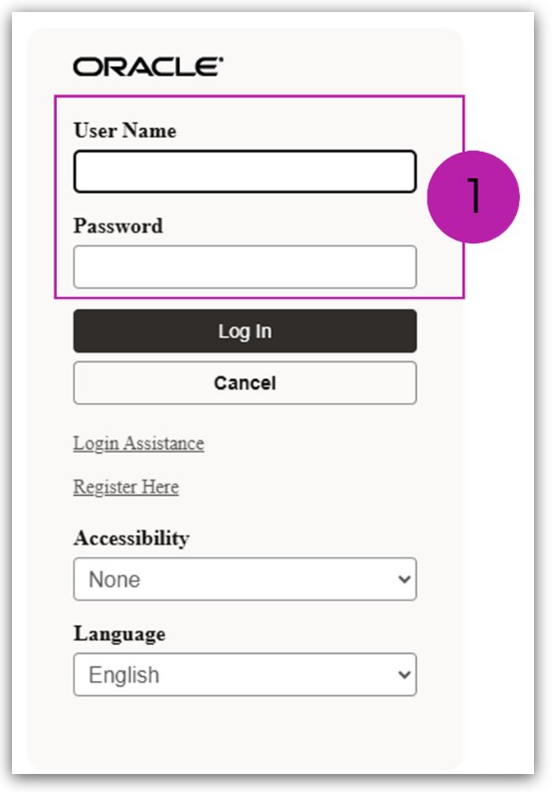
- Log in to iPay with your User Name and Password:
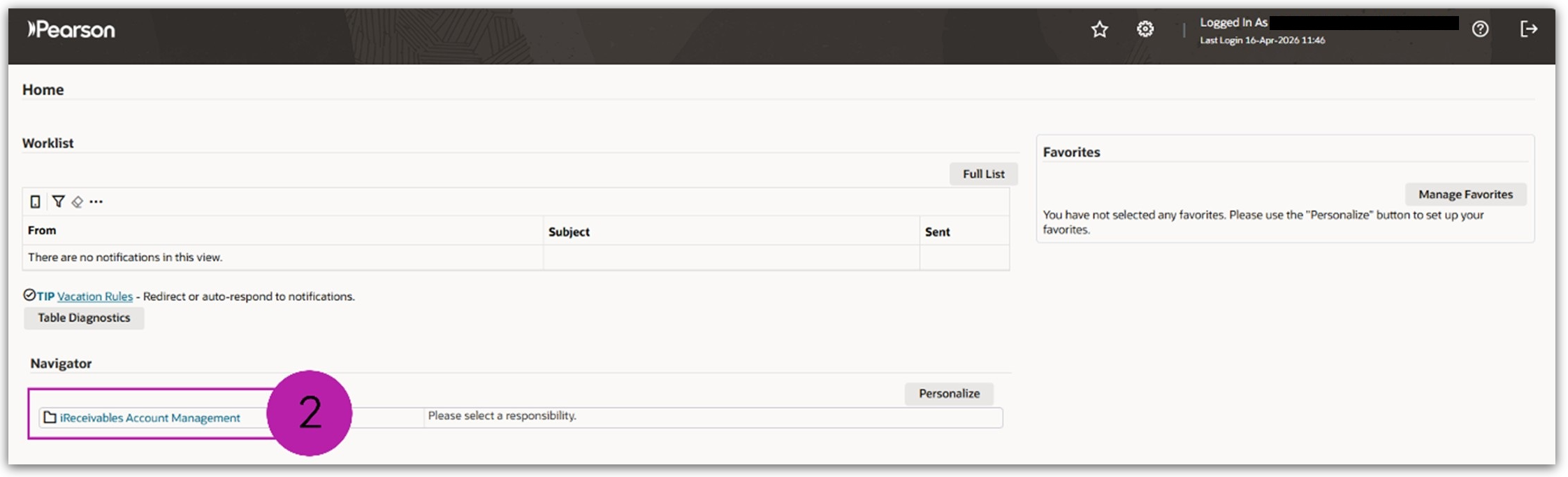
- Select iReceivables Account Management:
- Select Customer Access:
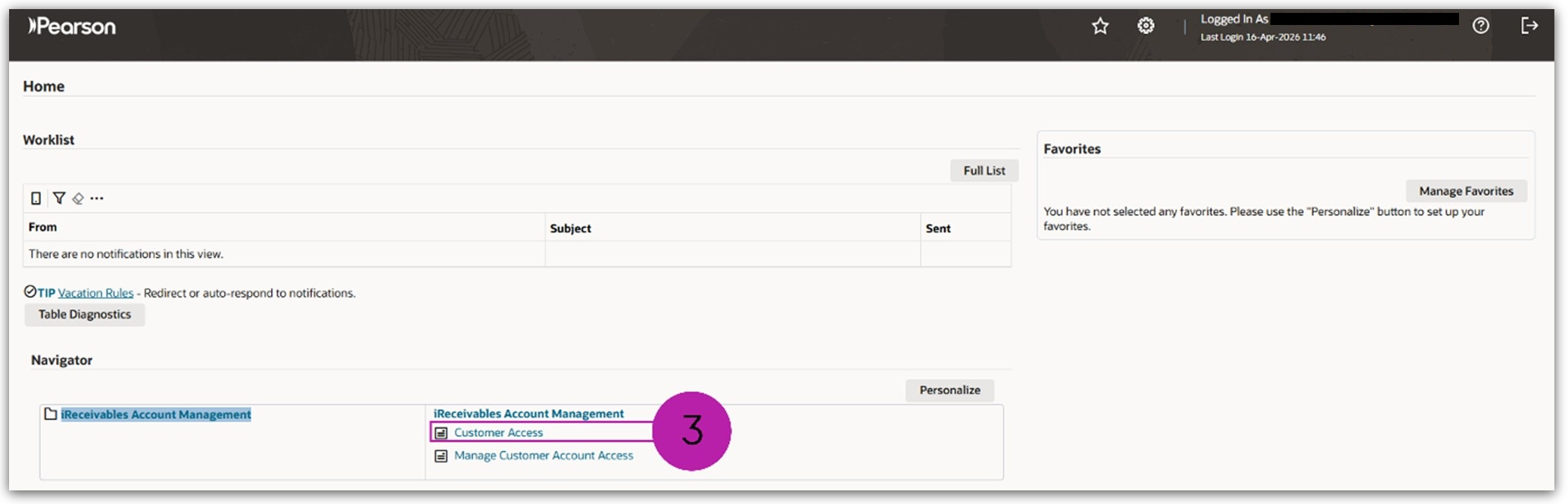
Please note: If you have multiple sites in your account, in the Account Summary column on the right side of the page, click on the Spectacles icon  next to the All Locations line at the top of the list. This will give you an overview of your full account transactions. next to the All Locations line at the top of the list. This will give you an overview of your full account transactions.
- Review the currency field under Account Summary, to ensure you have selected the appropriate currency according to the currency of the invoices on account. If required, edit the Currency and click Go:
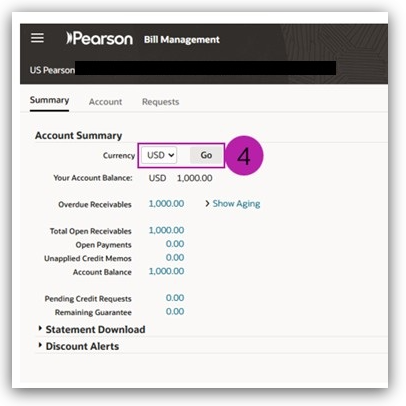
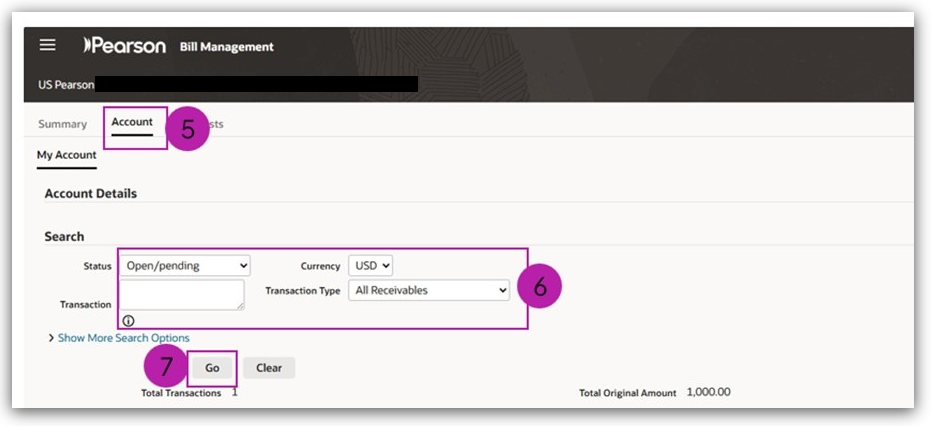
- Select the Account tab to display the current open invoices and credit memos on the account.
- You can filter the Status drop-down options and Transaction Type, if required.
- Click Go to view the invoices or credit notes meeting your search criteria:
|
|
How do I print PDF copies of my invoices and credit notes?
-
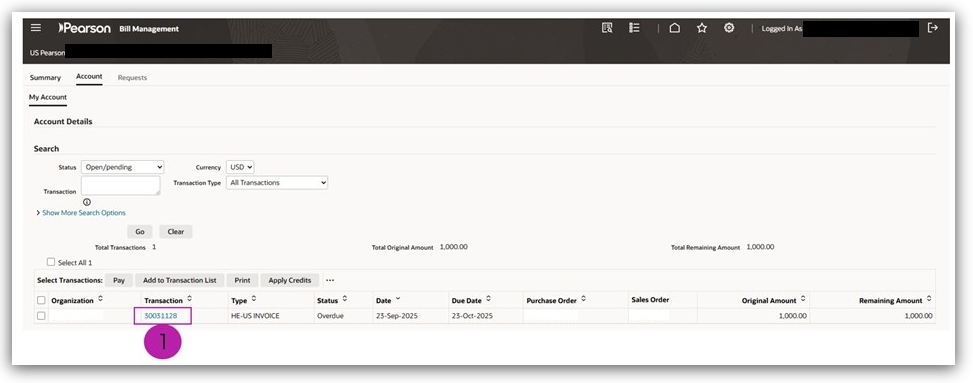
From the Account tab, click on the transaction number within the transaction column:
Please note: do not use the tick box as this is not required.
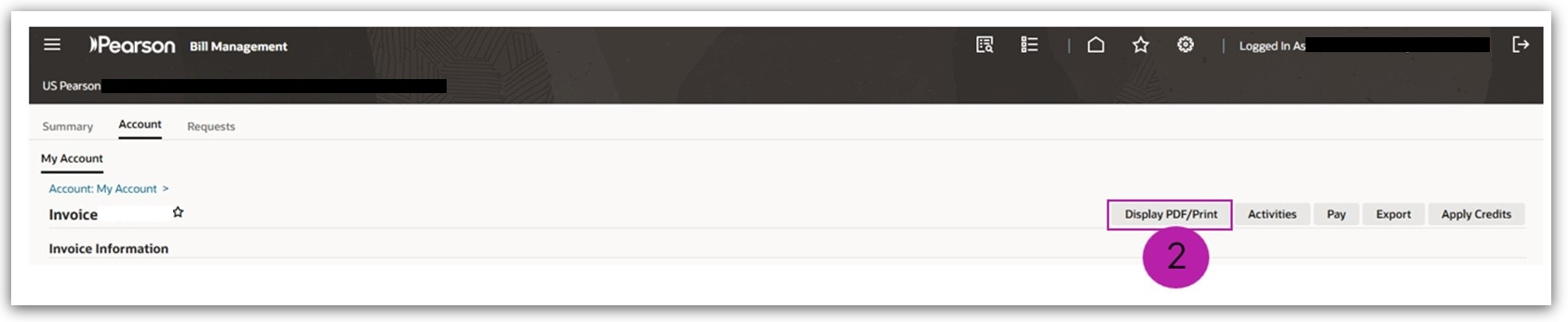
- Click the Display PDF/Print button to show the Pearson PDF version:
- You can now print the document using onscreen icons or by pressing Ctrl+P on your keyboard.
|
|
How do I print a copy of my statement?
- From the Account page, click the arrow next to Statement Download to view dropdown content.
- Choose the Template and desired Format from the drop-down options.
- Click Download:
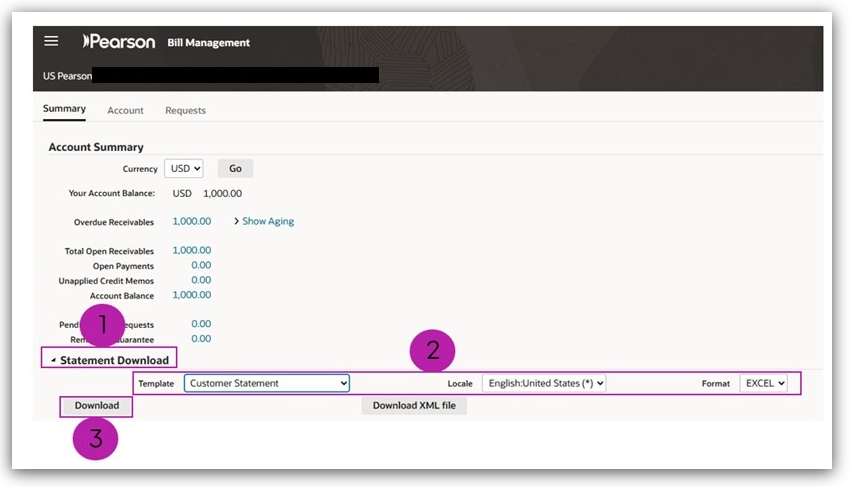
Please note: The iPay template is different to our month-end statements received via email or post. This is perfectly normal. The advantage of the iPay statement is that the data is real-time and can also be exported to either Microsoft Excel, PDF, RTF or HTML.
- When you open the 'Preview' of the statement, you may be presented with a message about the format of the file and the preview not matching. This is normal. Click Yes to continue:

When you are prompted to save the file, change Save as type to Excel Template. This will ensure that you will be able to open the file once saved:

|
|
How do I view/print a summary to show different transaction types?
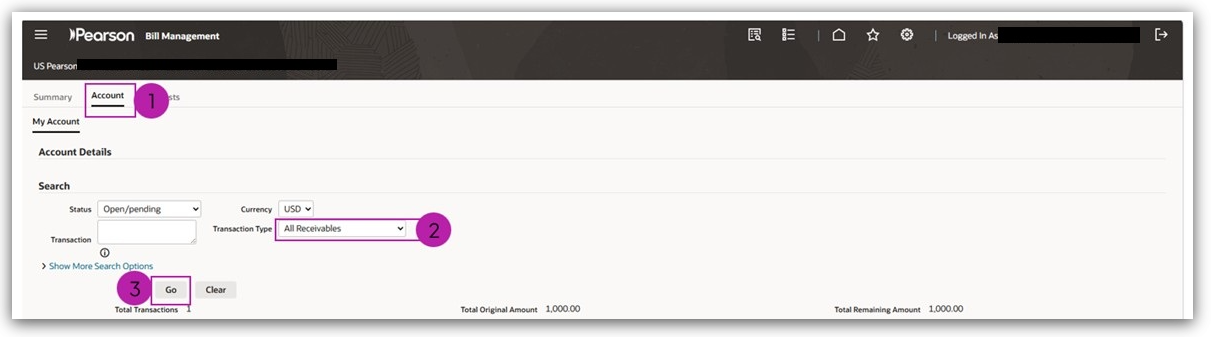
- From the Account tab, select your transactions from the Status drop-down options, ensuring you have chosen the appropriate currency (GBP, USD, or CAD).
- Choose All Receivables from the transaction drop-down options.
- Click Go:
- At the very bottom of the page, below list the invoices, choose All Receivables Transaction Lines from the transaction drop-down options.
- Select the desired Format from dropdown options (available options are Microsoft Excel, PDF, RTF or HTML).
- Click Export. This will download a summary which you can then print:

|
|
How can I view open payments (including those resulting from partially applied payments)?
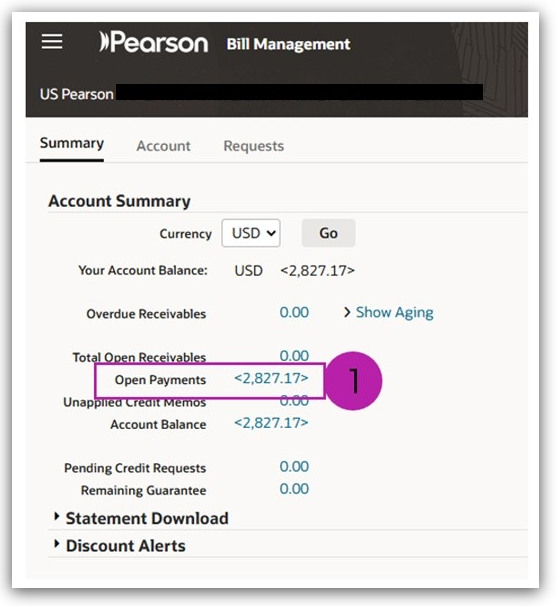
- Log in to iPay and locate the Account Summary page (See steps 1-4 of the account balance process above. Click on the value listed as Open Payments, and this will take you to a summary of all related items:
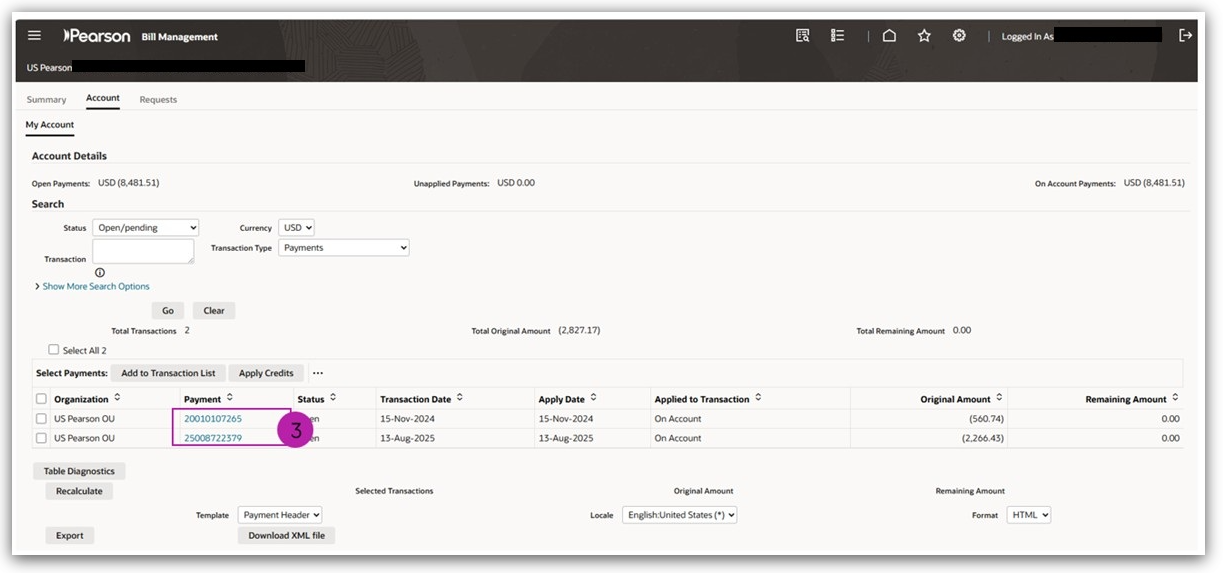
- Each line within the summary shows the payment reference, and the payment date (transaction date). If the payment has been partly applied, you will also see the date those payments were applied and the original value of the payment.
- Click on the payment transaction number. This will take you to a breakdown of the payment information:
An Open status indicates that some, but not necessarily all, of the payments are unapplied.
- Beneath your centre details, you will see a summary of:
- The total payment amount.
- The amount applied.
- Any residual amount which is sitting on your account (Amount on Account).
- Below the summary, you will see an itemised list of transactions. Each transaction shows any invoice or credit memo number cleared (Applied) by the payment and its values. The summary at the bottom of this list will show the total amount remitted and any residual amount sat on your account.
- This summary can be printed or exported using the buttons in the top right corner of the page. Click Printable Page to open the page in a printer-friendly layout and use Ctrl+P on your keyboard to open your printer dialogue box:


Please note: The 'Export' button will produce a downloaded file in .TSV format (Tab Separated Values). These are used to import your raw data into a database and can be opened in a normal text editor.
|
|
How do I view closed payments and scrutinize how they have been applied?
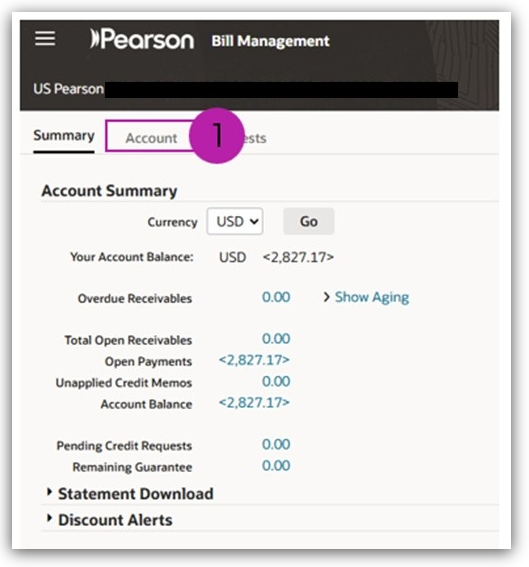
- Log in to iPay and locate the Account Summary page (See steps 1-4 of the account balance process).
- Select the Account tab at the top of the page:
- Select the Closed drop-down option in the Status field.
- Ensure you have the correct Currency selected.
- Additional search filters can be applied by clicking Show More Search.
- Click Go Options:
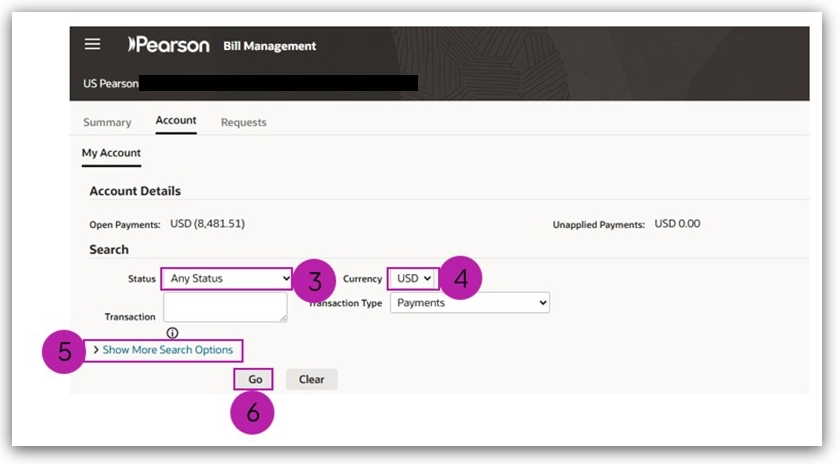
- You will now see a summary of all closed payments that match your search criteria. You can see the payment date, value and which transaction the payment has been applied to (note this will be multiple if the payment has been applied to several items).
- To examine how each payment has been applied, click on the payment number:

|
|
How do I view my paid invoices?
|
You can find all your invoice and payment history online.
- Select the Account tab.
- Change the search status to Closed.
- Select the Transaction Type of invoices.
- For advanced searches, click Show More Search Options, you will be able to also search using Transaction Amounts and Dates.
- Once you have entered the search details, and click Go:
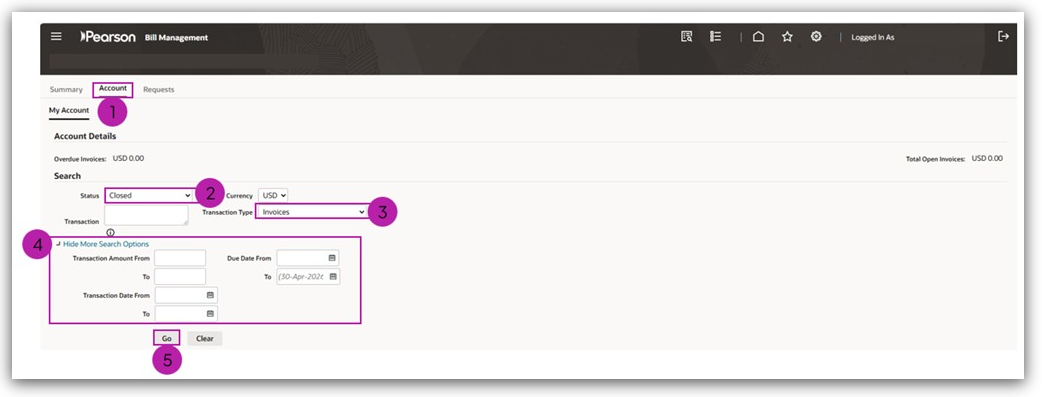
- The closed invoices display, alongside the relevant Purchase Order and Sales Order number and any remaining payment amount. Click the hyperlinked invoice number to view an invoice copy:

|
|
Will I still receive hard copies of invoices by email or post?
|
Yes.
At this time, invoices and statements will still be sent to your billing address as held in our records.
If you believe we have an incorrect billing address or you wish to update your records, please create a case and we will respond to your query.
|
|
This is the second of three FAQ articles for iPay. Please use the links below to navigate other articles in the series:
Next Article:

Previous Article:

Back to iPay: Online Account FAQ Index.
|
|
|---|