What is the VQ Learner Tracker?
The VQ Learner Tracker is a module within Pearson Progress that helps you keep track of BTEC learners’ registrations, progress, and expected completion. It brings everything you need into one place so you can stay organized and keep your students on track for their results.
Why do I need to use it?
The tracker is where you confirm which of your students are expected to receive their results in summer. This information helps us build an accurate, shared picture of your students, which means we can work together to make sure your students receive their results on time in August.
Who uses the VQ Learner Tracker?
Exams officers, quality nominees, and programme teams all use the tracker. Each group brings different insight into your learners’ progress, so working together in the tracker helps your centre complete its declaration quickly and confidently.
What can I do in the tracker?
From December you can:
- view and review all active learner registrations
- check which learners already have a “summer 2026” tag
- add or remove those tags so your cohort is accurate
- submit your cohort declaration (if you have Head of Centre authorisation)
Later in the year you’ll be able to see useful prompts for each registration. For example, where you need to:
- Make assessment entries
- Make full award claims or cash ins
- Check minimum pass rules
- Check terminal rule requirements
- Submit internally assessed grades
Do I already have a VQ Learner Tracker account?
We’ve created accounts for all exams office staff and quality nominees. If you’re new to Pearson and you don’t have access, just contact us and we’ll set you up.
|
Accessing the System
- You can access Progress directly using this link - https://learninghubprogress.pearson.com/ - Log in using your Pearson Portal (Edexcel Online) credentials or your Pearson Progress credentials (if you already have an account). If you are already logged into Pearson systems, you should be able to access Pearson Progress without adding your login details:
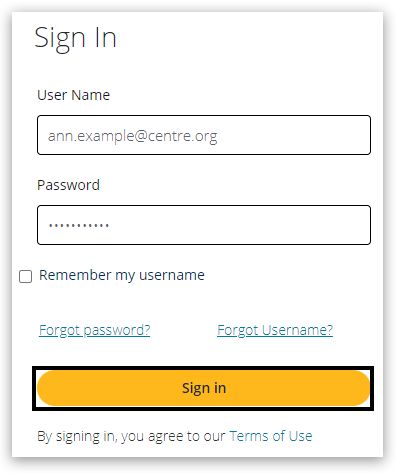 - If you do not have access or have not received an invite, please contact our customer services team.
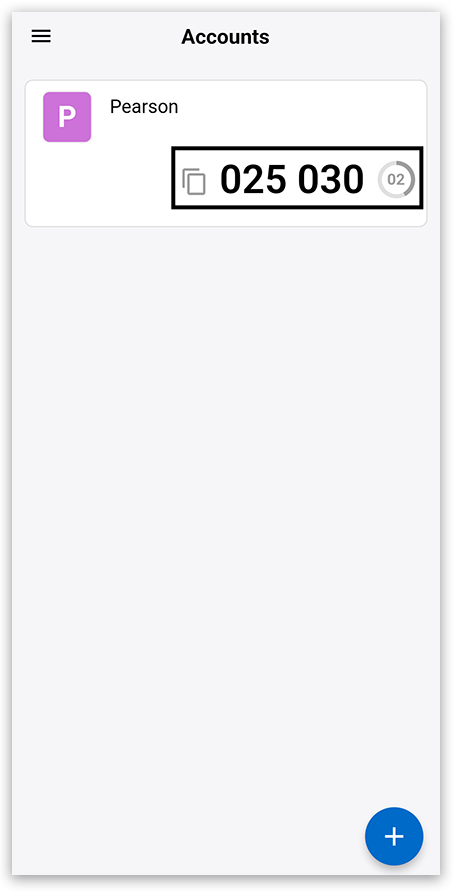
- A verification code will be sent to the Pearson Authenticator app. Open the app on your mobile device and either copy or make a note of the code.
For further information, including downloading the app to your mobile device and using it to complete the sign-in process. Please see Pearson Progress: Pearson Authenticator for details.
Please note: Verification codes last for 60 seconds; they will update in the Pearson Authenticator app every 30 seconds automatically:
 -
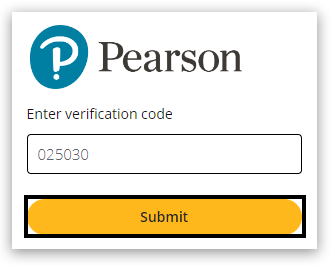
Go to the Pearson Application Portal screen on your computer and enter the verification code, then click 'Submit':
-
Once on the home page select the VQ Learner Tracker from the menu:
|
Viewing Registration Information
Please Note: All active learners, including those with past completion dates, will appear on the VQ Learner Tracker. You can withdraw these learners or amend their completion dates via Edexcel Online, A2C, etc.
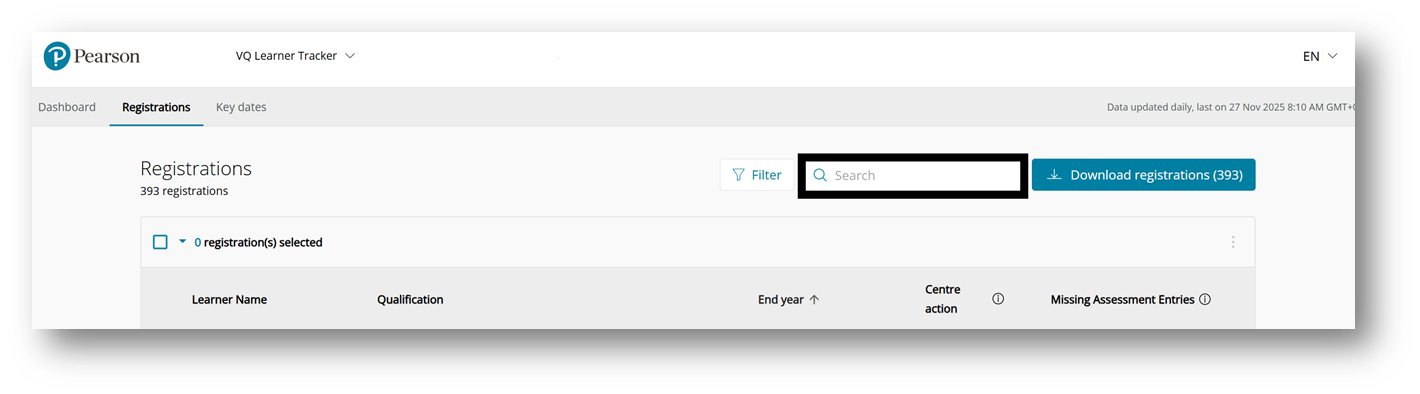
- To view your learner information, select 'Registrations' from the top menu bar. Qualifications displayed are BTEC Level 2 and above, Tech Awards and T Levels.
 - You can sort the information by clicking on the relevant column headings. You can see when the data was last updated by looking at the date on the upper right-hand side of the page. The information shown currently includes:
- Learner Name
- Qualification
- End Year (Completion date)
- To do - displays any actions you need to do to keep a student on track to receive their results in August. We'll be displaying your actions here from February.
- Missing Assessment Entries – any missing assessment entries required for learners to stay on track to receive their overall qualification will be shown here.

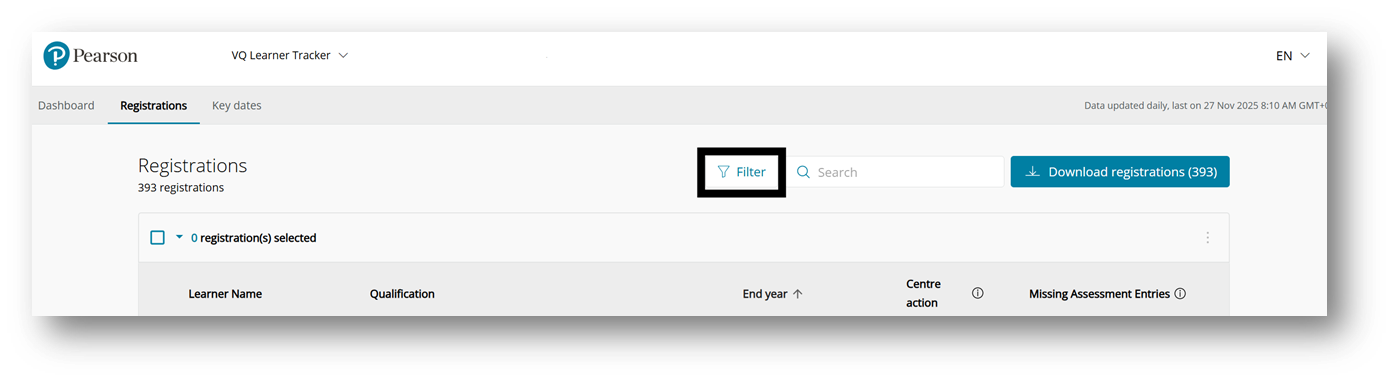
- You can use the 'Search' bar above the table to find learners and qualifications:
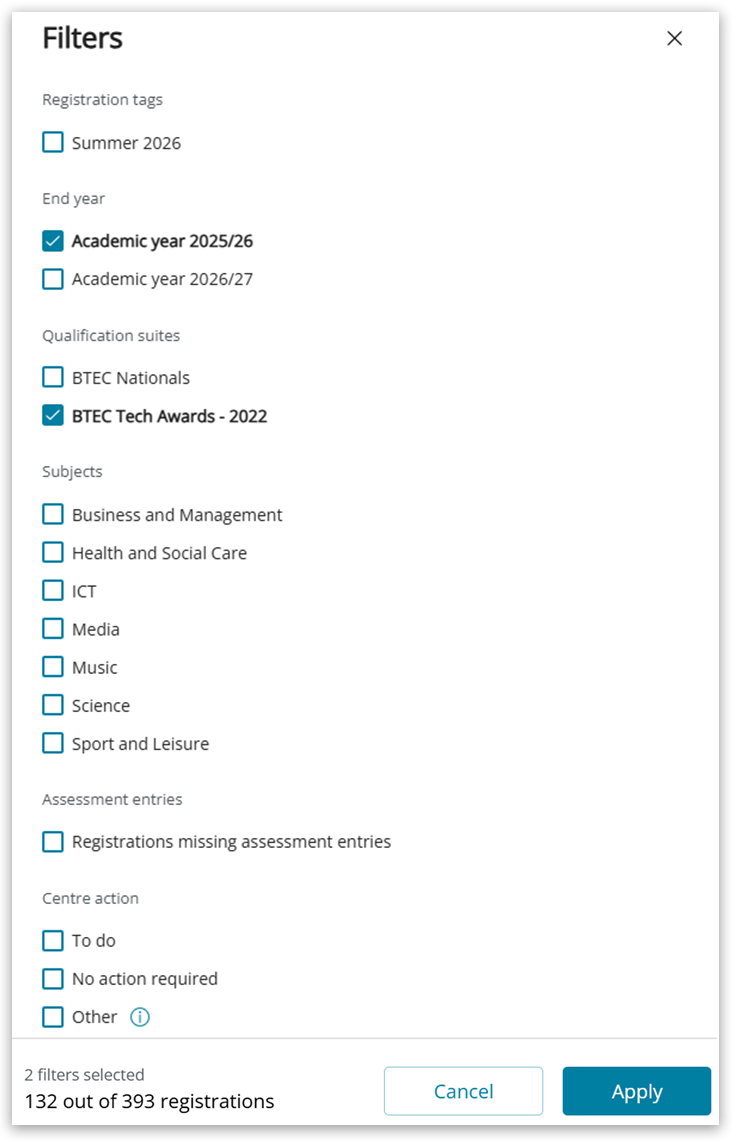
 - You can use the 'Filter' option to find specific groups of learners, e.g. by summer tag, completion year, UCAS application, qualification type, subject, etc.
Please Note: UCAS information is only available for BTEC qualifications and not T Levels.
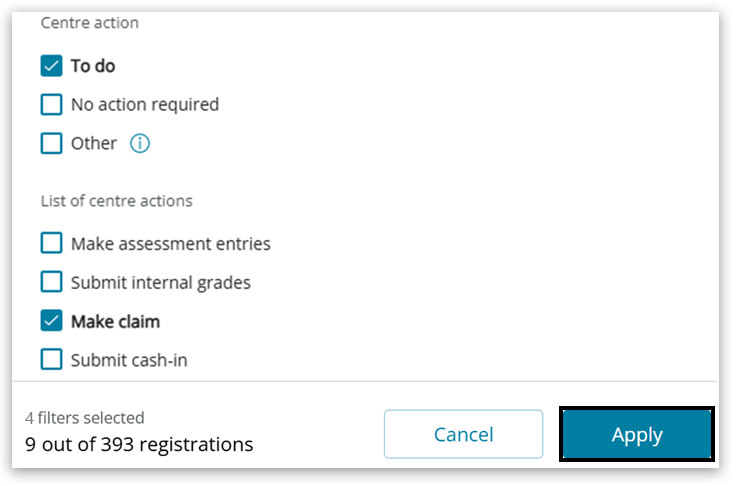
- From February you can also use filters to view only registrations that require actions to be completed to ensure learners remain on track for certification this academic year. Click 'Apply':
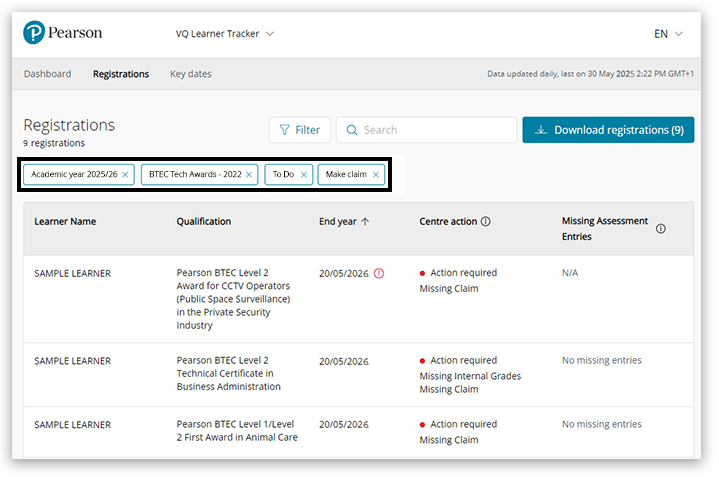
 - You can see the filters applied above the table:
|
Downloading Registration Information
Further information can be accessed by downloading your learner information into a spreadsheet-compatible format (CSV file) by clicking on the 'Download Registration' button on the upper right-hand side of the page:
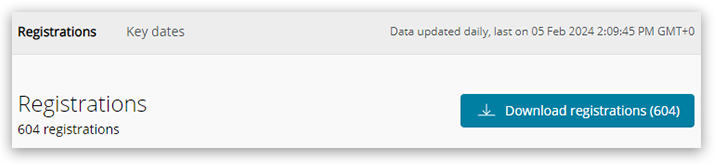
The information shown in this file includes:
- Learner registration numbers
- Date of birth
- Candidate Numbers
- UCAS application status
- Registration Date
- Estimated Completion Date
- Programme name and codes
- Centre Reference number (where provided)
- Centre Actions required
- Information on actions required
- Missing assessment entries

To view the file in a spreadsheet, ensure you open it in MS Excel or a similar spreadsheet application.
|
VQ Learner Tracker Interactive Guide
Click the image for an interactive step-by-step walkthrough of this process:
|
Related articles:
Vocational Qualifications Learner Tracker: Identifying Learners with Missing Assessment Entries
Vocational Qualifications Learner Tracker: Identifying Missing Cash-Ins for Tech Award Learners
Vocational Qualifications Learner Tracker: Updating tags


