Q: What is the minimum version of iOS / Android required to support the current version of the Microsoft Authenticator?
A:
- iPhone / iPad: iOS 16.0 or later
- Android: Version 6.0 or later
|
Q: Why isn't the Microsoft Authenticator app available for PC or Mac?
A: According to Microsoft, the Microsoft Authenticator is not available for desktop computers for two main reasons:
- Security - having the second factor of a security question on a separate device enhances security. If both factors (password and authentication) are on the same device, it would be easier for an attacker to compromise both.
- Availability - mobile devices are almost always with the user, making them convenient for authentication purposes. Desktops, on the other hand, are not as portable. Having your authenticator only on your PC means you can't sign in away from home or your desk.
|
Q: I need to delete a previously stored account from the Microsoft Authenticator app. How do I do this?
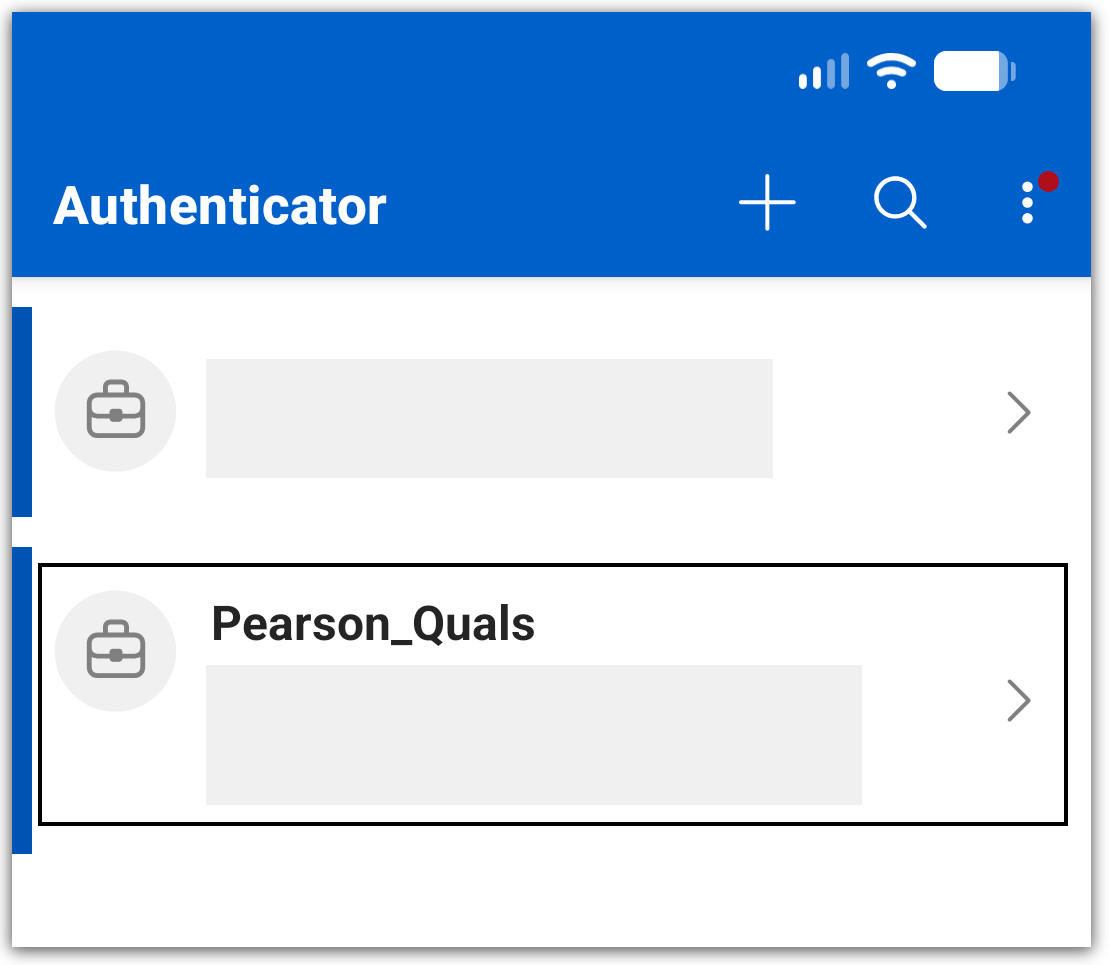
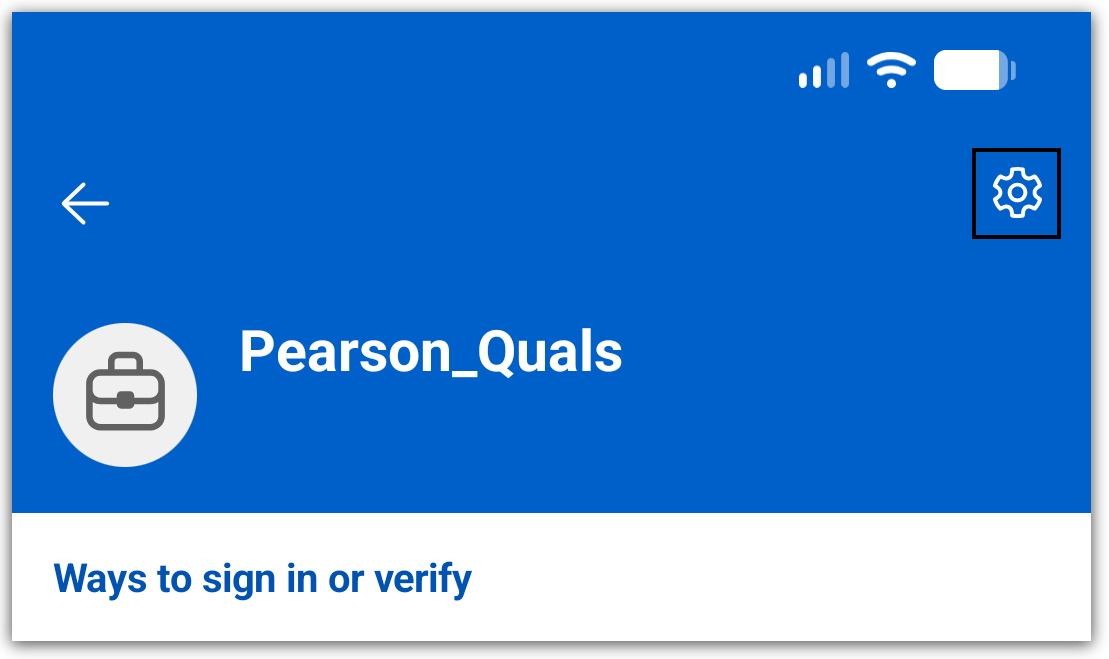
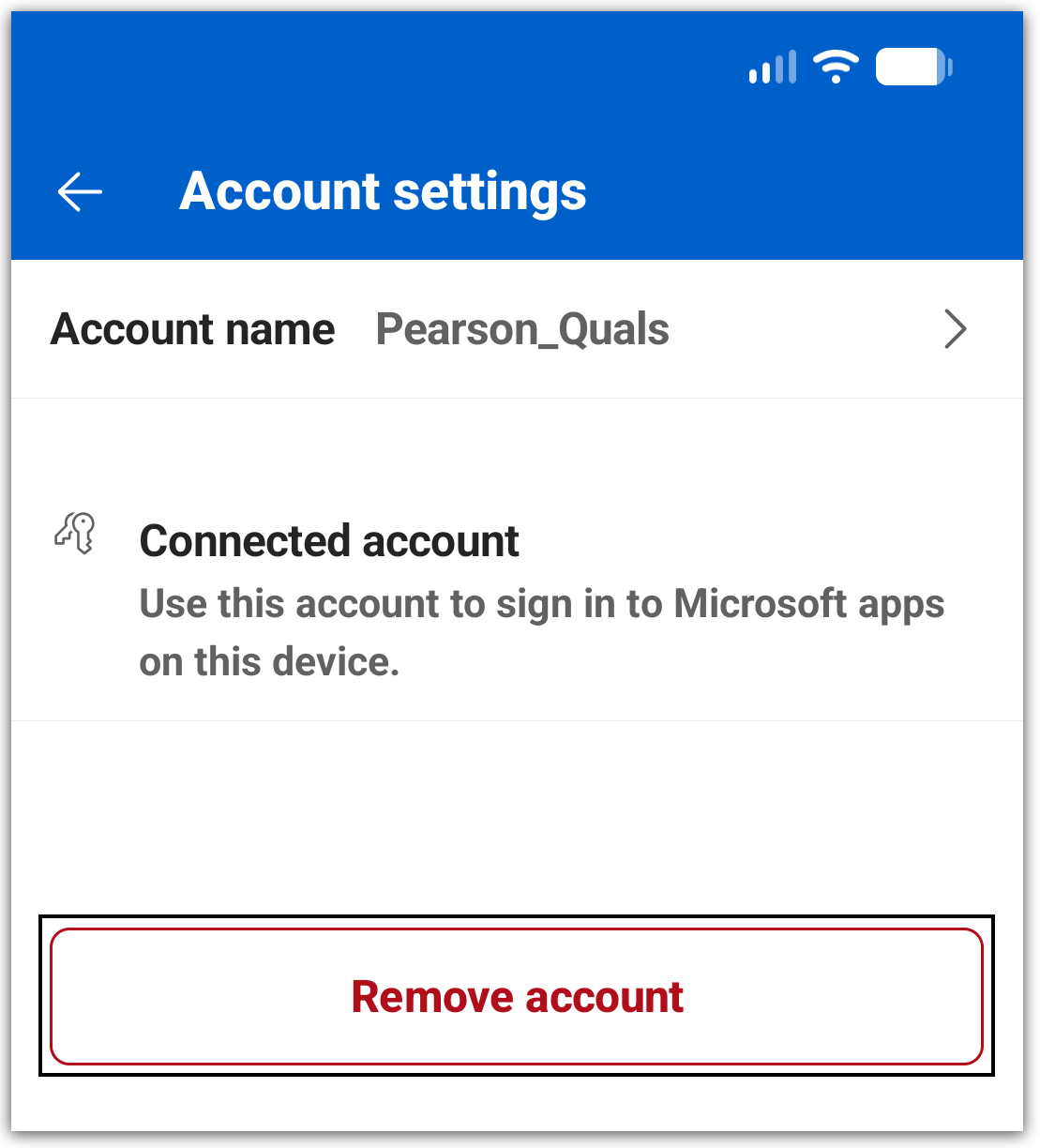
A: To delete your previously stored account on the Microsoft Authenticator app, please follow the steps below:
- Open the Microsoft Authenticator app on your mobile device and select the listing under the 'Pearson_Quals' account name:
- Select the 'Settings' icon, found towards the top-right corner of the screen:
- Click the 'Remove account' option:
|
Q: What e-mail addresses might I need to allow?
A: Please ensure the below email addresses are added to your safe senders list:
|
Q: I have completed the guest account registration but have not yet received an e-mail with the SharePoint folder link, when is this sent?
A: Links to folders or documents in SharePoint will be sent later than the invitation email, to allow you time to set up your guest account in advance. Please be patient whilst we work to share the relevant materials with you. If you have work that needs to be submitted now and you haven't received an email with the relevant folder(s) shared, please check your spam, junk, trash or deleted folders first. You may also need to check your quarantine, in case any of the emails have been flagged before moving to your inbox.
If you still cannot find the e-mail, please contact us via the Pearson Support Portal.
|
Q: How long is the account verification code valid for?
A: The single-use & verification codes within the e-mail will expire after 30 minutes. If this time has elapsed, you will need to request a new code by repeating the steps outlined above.
|
Q: The folder does not include all my entries/I have made late entries.
A: For any late entries, create your own learner folder and use the following e-mail/contact details depending on the qualification:
- T Levels - traditionalprocessing@pearson.com
- Functional Skills - The shared folder will be empty to begin with. Please create folders for each level/unit to upload the relevant evidence. If you have not yet received a folder link, please liaise with your Standards Verifier (SV).
|
Q: I will not meet the submission deadline.
A: Centres must submit all learner work together for each learner by the submission deadline. If you do add anything later, please notify us using the following e-mail/contact details, depending on the qualification:
- T Levels - traditionalprocessing@pearson.com
- Functional Skills - the final deadline for sampling is 31 July, centres should liaise with their Standards Verifier (SV) to rearrange sampling up until this date. If the final sample deadline has been missed, please contact us via the Pearson Support Portal.
|
Q: I still have issues and/or questions.
A: If you still require support, please contact us via the Pearson Support Portal.
|
Related articles:
Pearson Qualifications SharePoint: Registering Your Guest Account & Multi-Factor Authentication (MFA)
Pearson Qualifications SharePoint: Accessing SharePoint Folders |


