| FAQ | 
If you require electronic copies of General Qualifications (GQ) and BTEC Tech awards (2022) question papers (including modified), you can use the Secure Download Service (SDS) to access them.
You can self-serve and download the question papers before the exam start time. Electronic question papers via SDS are released 60 minutes before the published start time for each exam.
Please note:
Please click below to expand each section and view support:
What is SDS (Secure Download Service)?
|
Secure Download Service (SDS) is a profile within Edexcel Online (EOL). You now have direct access to SDS via EOL, allowing you to download confidential General Qualification and BTEC Tech Awards (2022) exam papers, including modified papers.
There may be exemptions when question papers are not available on SDS, for example, if you have not requested a modified paper in time and there are no modified papers of this type in stock. You will also only be able to access material on SDS if you have entries for that paper.
Secure materials will also be available to download for late entries.
If your centre has more than one site, you can access question papers for all subsites linked to your main centre number.
If your centre is on a dispatch block, you can now self-serve and access materials via SDS.
|
|
User requirements to be granted SDS access
|
If you already have access to SDS, you do not need to request access again. To qualify for access to SDS materials, a user must have a centre domain email address. Access cannot be granted to users who use public-domain email addresses such as Gmail, Hotmail, or Yahoo!
To set up SDS access, please contact Customer Services via our Support Portal or by phone. To meet the security requirements, the user must be available to receive a secure ring-back from the Customer Services Specialist at your centre's main telephone number. Once this call is successful, access to the SDS platform will be added to your account.
Additionally, the user can contact us via live chat on Edexcel Online. This will ensure you have completed the initial MFA process. We will then ask two additional security questions before adding SDS to your account.
If you are new to the Exam Officer role and do not already have an EOL account, please complete our EO online form. Once submitted, a Customer Services Specialist will contact you via an onboarding call to get you set up and grant you the required SDS access.
With the introduction of MFA to EOL, all centres can only have one user per account; hence, with additional security measures Pearson has in place, it will supersede JCQ ICE regulation 4.5, which states, "Email accounts used to access awarding body systems, including for secure material access, must belong to named individuals or be a group email account accessed solely by individuals authorised by the head of centre to handle secure materials. Where group email accounts are in place, regular checks must be conducted to ensure all authorised individuals in the group still require access".
All relevant staff at your centre should have the SDS profile added to their EOL accounts before the start of exams.
You should ensure that at least two members of centre staff have this access, in line with the JCQ policy requiring a minimum of 2 key holders for the secure storage of exam materials.
Only users with the following primary (not secondary) Job Role in Edexcel Online are permitted to have SDS added to their profile:
- British Council Centre Administrator
- Centre Co-ordinator/Administrator
- Examinations Assistant
- Examinations Manager
- Examinations Officer
- Head of Centre
- Deputy Head of Centre
- Vice Principle
- MAT Admin
- MAT CEO
|
|
How to view if SDS permissions are on an EOL account
|
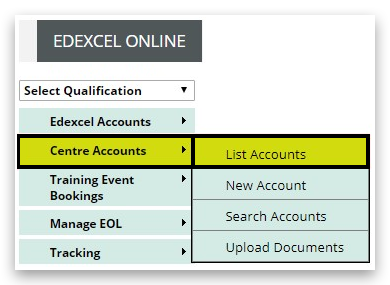
1. Log in to Edexcel Online. Select 'Centre Accounts' on the left side menu, then select 'List Accounts':
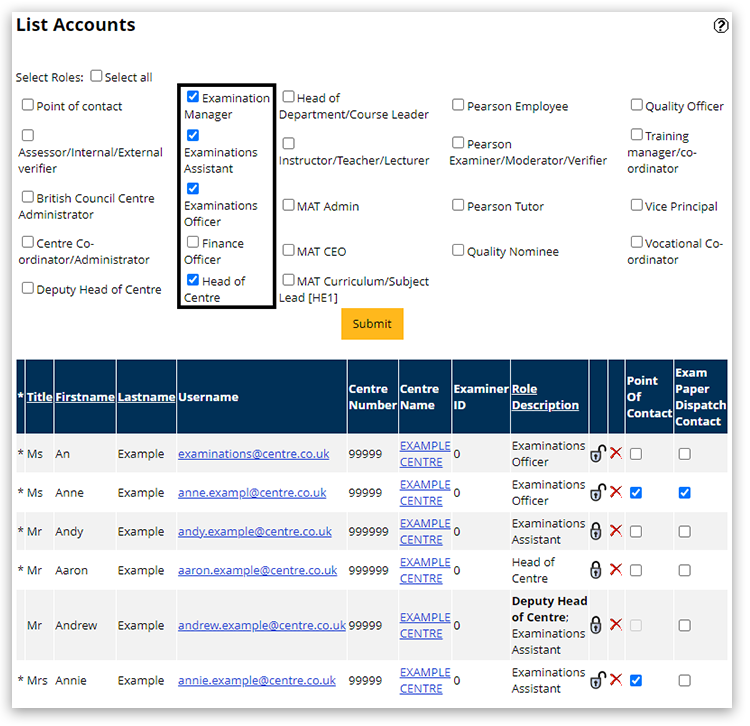
2. The initial accounts displayed will be limited to the following role descriptions:
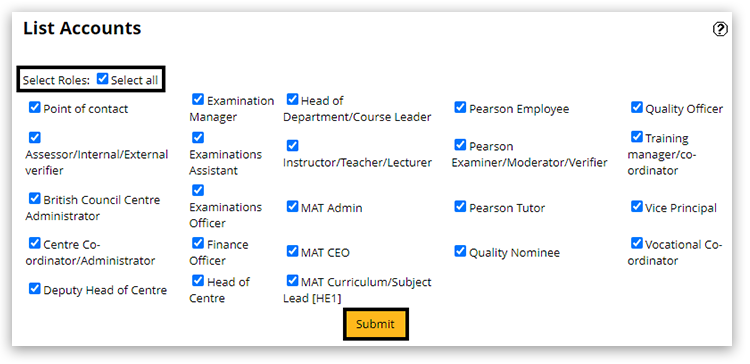
3. To display all current accounts, tick the box next to 'Select Roles', then click 'Submit':
4. Scroll the page to locate the account you wish to view and click on the email address/Username:

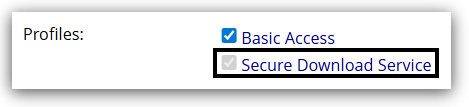
5. On the 'Centre User' page, scroll down to the profiles section. If the user has access to SDS, you will see a grey tick next to 'Secure Download Service':
|
|
How to access Secure Download Service materials
|
Once your SDS access has been set up, follow these steps to access the secure materials:
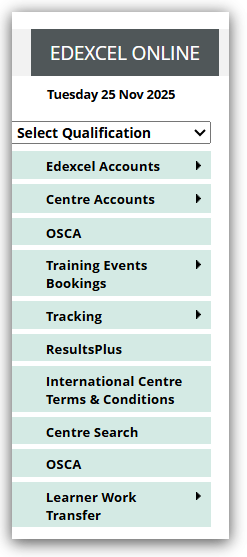
1. After logging in to Edexcel Online, click the dropdown arrow on 'Select Qualification' in the top left corner of the page:
2. Choose the qualification, you require the materials for (in this example we have used GCE):
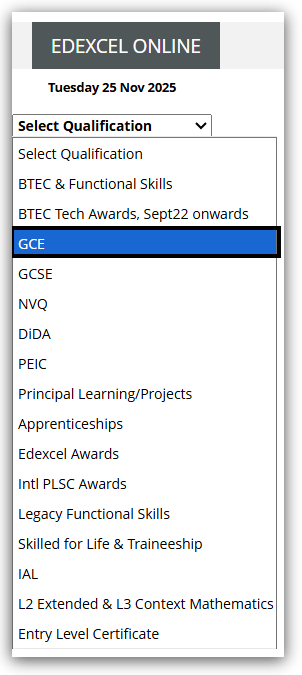
If you have multiple qualifications, please ensure you select each qualification individually to access relevant materials.
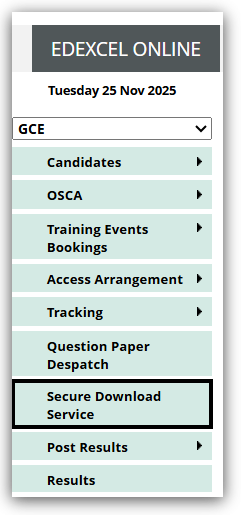
5. Click on 'Secure Download Service':
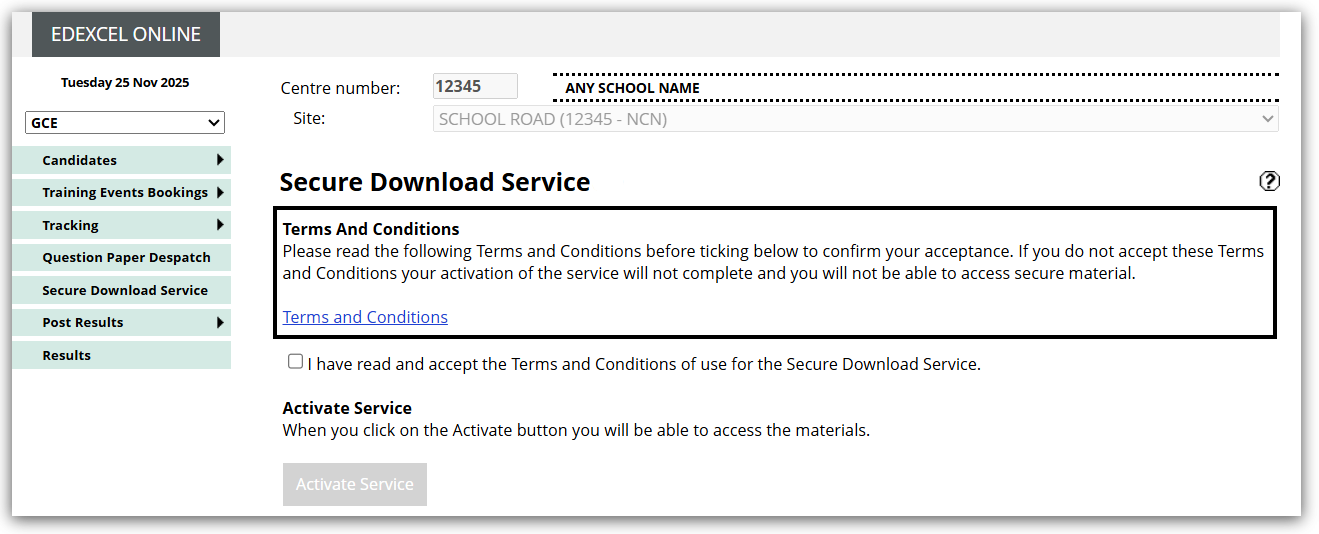
4. If this is the first time you have accessed SDS, you will be asked to confirm that you have read and accept the Terms and Conditions (these are accessed by clicking 'Terms and Conditions') of use for the Secure Download Service:
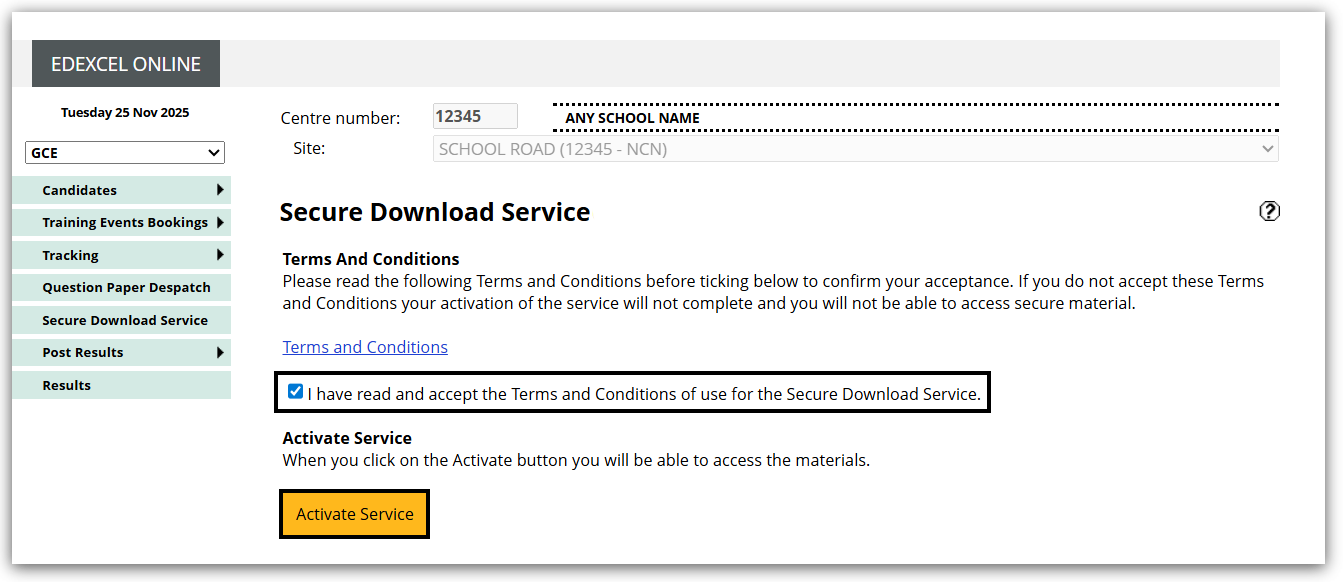
5. Tick the checkbox, then click on 'Activate Service'. (This will then register the centre user for SDS access):
6. You can then select the exam session for which you require materials, Once selected, click 'Go':
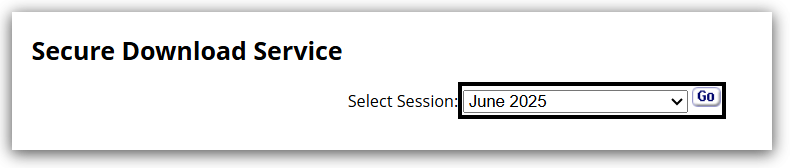
For late entries, please ensure you click 'Go' again to display the late entry materials if you were already on this screen before the late entries were processed.
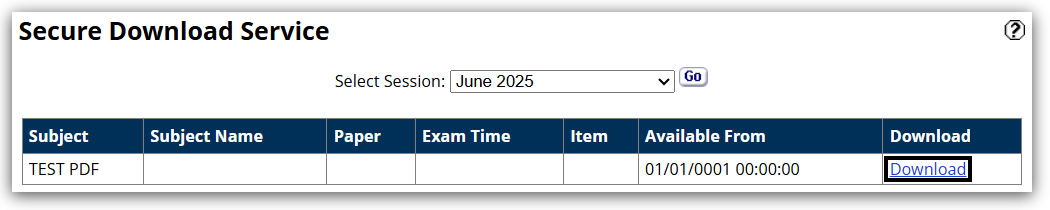
7. The screen will then display exam material details listed in columns:
- Subject code
- Subject Name
- Paper
- Exam (date and) Time*
- Item
- Available From**
- Download link**
*If there is no specific exam date and time, this column will be blank.
**The 'Available From' column shows the dates and times these materials will be available from and to.
*** The subject will appear in the table up to 30 minutes before the “Available From” date and time. The ‘Download’ link will remain disabled until that time. For example, if materials become available at 8:00 AM, the subject will show in the table from 7:30 AM, but the Download button will only be active at 8:00 AM .
- The links shown will be materials available for each exam series:
Depending on the assessment type, materials are available via:
- zipped folder (combines multiple files into one compressed file)
- PDF files
- .mp3 files
Centre with Subsites
For centres with multiple sub-sites/linked centres, exam staff may require access to the Edexcel Online details for those sub-sites. Providing the other centre is linked, and you have access:
1. Log in to Edexcel Online and click on the 'Select site' drop-down box, and choose the relevant subsite number:

2. Choose the qualification you require the materials for (in this example, we have used GCE):
3. Click on 'Secure Download Service':
4. Select the exam session for which you require materials. Once selected, click 'Go':
5. Download the required materials for the subsite:
|
|
Secure Download Service - Interactive guide
|
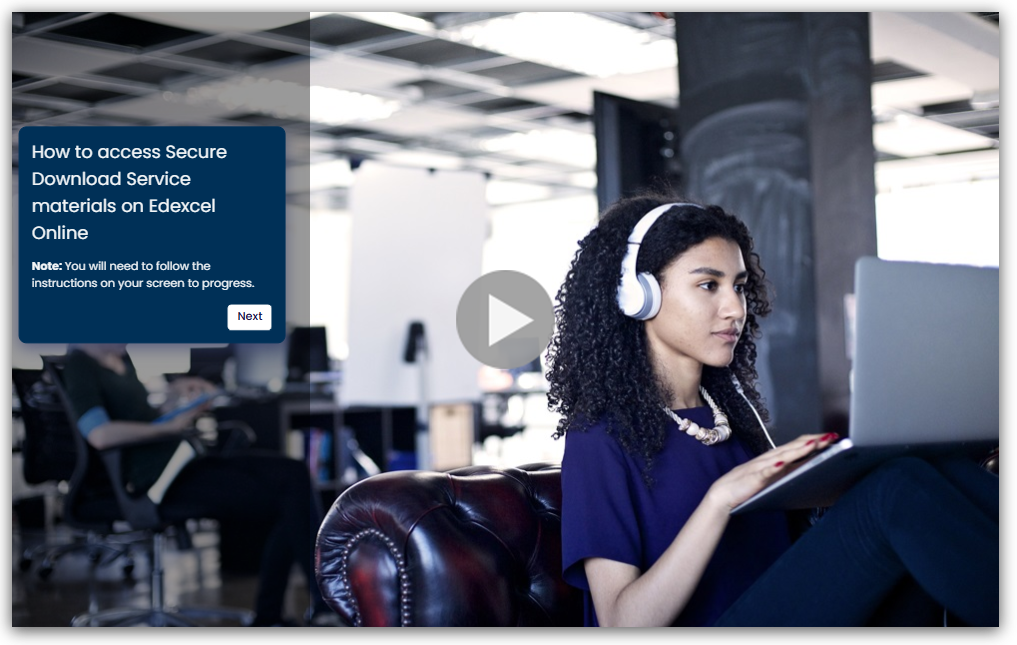
The interactive demonstration below shows how a centre users access Secure Download Service materials on Edexcel Online.
|
|
When will the materials be available?
|
For standard and modified question papers (ordered through Access Arrangements Online), the release time of electronic question papers via SDS is 60 minutes before the published start time for each exam.
Please note: Centres will be able to see a preview of papers on the system 30 minutes before the release time. However, centres will only be able to access the papers 60 minutes before the published start time for each exam.
Please see below the times when the question papers will be available:
UK Qualifications (including GCSE, International GCSE, GCE (AS & A-Level) Edexcel Award)
- AM - 8:00 am (GMT)
- PM - 12:30 (GMT)
International A level (IAL), International GCSE R papers
- AM - 5:00 am (GMT)
- PM - 8:00 am (GMT)
BTEC level 2 First, level 3 Nationals and T levels are handled through the Secure Tests section of our website. Please see: External Assessments / Secure Tests / Preparatory Materials for Vocational Qualifications for additional guidance.
Centres outside of the UK must deliver exams in accordance with the International exam start times. Please see our website here for further information.
Both standard and modified papers will be in the same zip file that is downloaded. Therefore, please check the version that you are printing and supplying for the candidate matches their needs.
Modified versions are made to order; therefore, you may not see all variants in the zip folder. If you require a variant not included in the zip file, we are unlikely to be able to supply it. However, please contact customer services to discuss available options.
Audio files will be available 24 hours before the exam (or the Friday before, if the test is on a Monday), and transcripts will be available 1 hour before.
|
|
Do I need to keep the materials secure?
|
The integrity and security of the electronic question paper must be maintained during the downloading, printing and collating process. JCQ detailed guidance on handling electronic copies of question papers.
Key points from the ‘Instructions for the Conduct of the Examination’ document are summarised below:
-
Electronic question paper materials must be handled only by members of staff authorised by the head of centre. There should be at least two authorised staff members and no more than six.
-
Files must only be accessed by the named individual(s) to whom they have been sent. Emails or links to secure materials must never be forwarded or shared.
-
The file must be stored locally solely for printing and must be deleted immediately thereafter. The file must then be deleted from the deleted items folder.
-
Once printed, question papers must be sealed in a non-transparent envelope, clearly marked with the exam details on the outside of the envelope. The envelope must be stored securely, ready for transfer to the examination room at the appropriate time, in accordance with the requirements for the printed question papers we supply.
-
If you download audio files onto a USB or burn them onto a CD, you must store them in a secure safe until the appropriate time.
If you become aware of any issues whereby a file has not been stored securely, or a CD/USB has been misplaced, you must inform QPD@pearson.com immediately.
|
|
After following the advice above, Secure Download Service is not available to access my centres secure materials
|
|
|
|---|


