Locating grade boundaries using Edexcel Online
1. To sign in, please go to https://edexcelonline.pearson.com; you will be asked to enter your usual Edexcel Online credentials, and once you click sign in, a verification code will be sent to the Pearson Authenticator app.
For further information, including downloading the app to your mobile device and using it to complete the sign-in process. Please see Pearson Portal Authenticator for details.
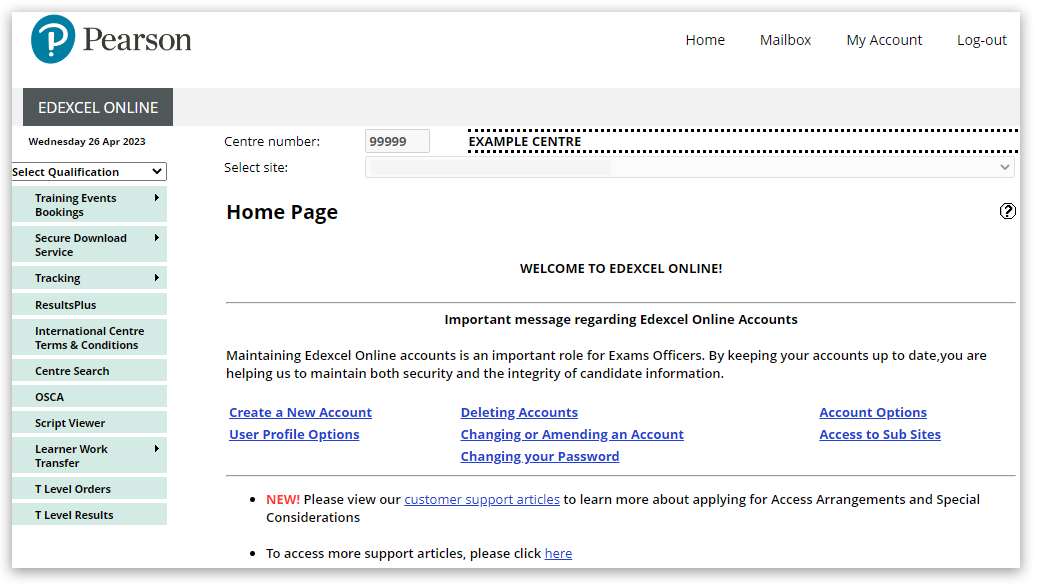
2. You will then be directed to the EOL home page:
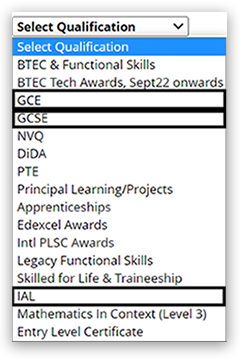
3. Click on 'Select Qualification', then select either GCSE, GCE (A Level) or IAL (International A Level):
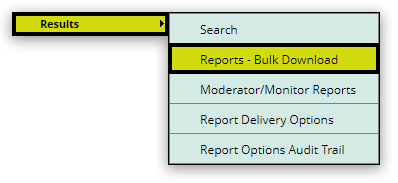
4. Hover your mouse over 'Results' and then click on 'Reports bulk download' from the menu on the left side of the page:
5. Select your session, then select 'Grade Boundaries.' You can choose more than one report:
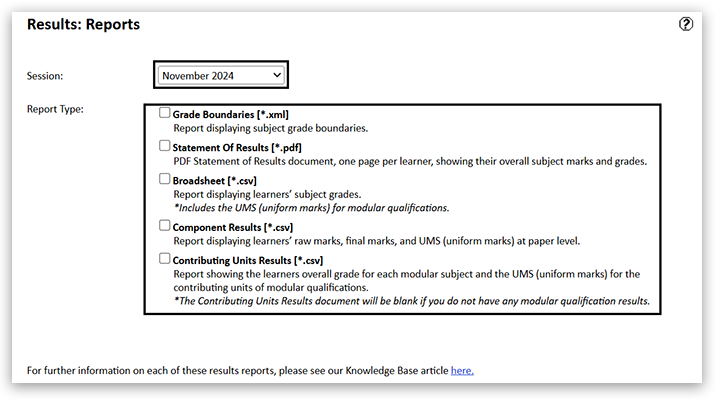
Once the report option has been selected, click the 'Submit' button:

6. The report will appear in your Edexcel Online mailbox within 2 hours:

The report is presented in XML format; however, this file can be opened in spreadsheet software such as Microsoft Excel.
The report contains separate tabs for notional component grade boundaries and subject grade boundaries for the subjects your centre has delivered this summer.
The full set of grade boundaries for all subjects will be published on our qualifications website and can be accessed by Teachers on the Thursday of each official results week(s).
Please also see Results Reports: Breakdown Of Candidate Results for an explanation of what the other available reports contain.