Salesforce

To access Classic Knowledge, you must run the Lightning Knowledge Migration Tool. Learn More

Benefits of upgrading to Lightning Knowledge:

  • Better article editing experience
  • Improved search functionality
  • AI-driven Knowledge recommendations

After migration, Classic Knowledge remains.

Pop-up Blocker: How To Disable

« Go Back

Information

 
TitlePop-up Blocker: How To Disable
URL NamePop-up-Blocker-How-To-Disable
Issue

rtaImage.jpg

Please click below to expand each section and view support:

FAQ
Google Chrome

If you cannot see pop-up windows, you may have a pop-up blocker application enabled. Please follow the steps below to turn this feature off.

1. Locate the error message 'Pop-up blocked' in the upper right-hand corner of your browser window:

popup1.png

2. Click on the error message to select the option 'Always allow pop-ups and redirects from...', and then click 'Done':

popup2.png

For more information please visit Google Chrome Support Page.

Mozilla Firefox

If you cannot see pop-up windows, you may have a pop-up blocker application enabled. Please follow the steps below to turn this feature off.

1. Locate the error message 'Firefox prevented this site from opening a pop-up window.' at the top edge of your browser window:

popup2_5.png

2. Click on the 'Options' button and click 'Allow pop-ups for...' to permanently allow pop-ups from the website, or the bottom option 'Show…' to allow the pop-up window to open on this occasion only:

popup3.png

For more information please visit Mozilla Firefox Support Page.

Microsoft Edge

If you cannot see pop-up windows, you may have a pop-up blocker application enabled. Please follow the steps below to turn this feature off.

1. Locate the error message 'Microsoft Edge blocked a pop-up from…' at the bottom of your browser window:

popup4.png

2. You can click 'Allow once' if you would prefer your browser to continue to block pop-ups from the website, or 'Always allow' to ensure pop-ups appear without an error message.

For more information please visit Microsoft Edge Support Page.

Apple Safari

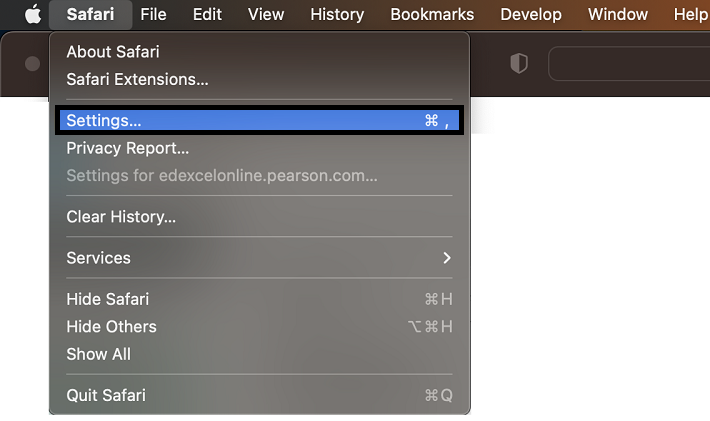
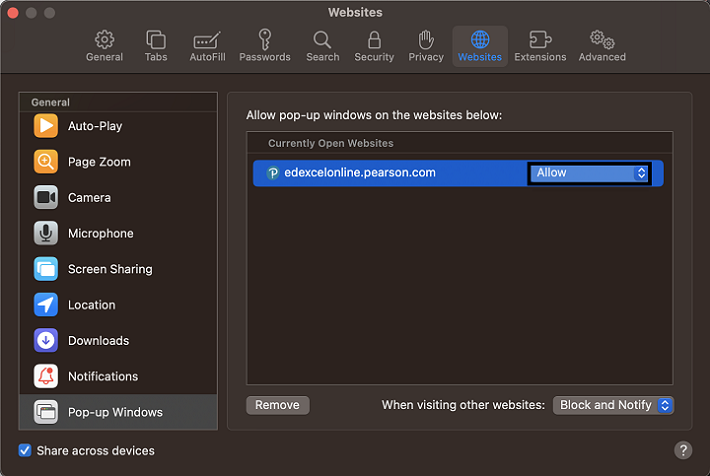
If you cannot see pop-up windows, you may have a pop-up blocker application enabled. Unlike other browsers, with your pop-up blocker turned on, there is no obvious alert that a pop-up has been blocked.

1. Navigate to 'Settings' on your Safari browser:
2.png

2. Select 'Websites' and 'Pop-up Widows' then 'Allow' pop-ups for the chosen website:
3.png

For more information please visit Safari Support Page.


Back to Systems, Tools & Services main page.

Detailed Instructions

N/A


Powered by

