| FAQ |
Quick Start Guide
|
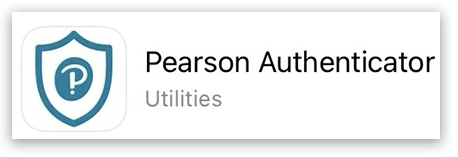
1. Go to the Apple App Store or Google Play Store on your mobile device, search for and install the Pearson Authenticator app.
Apple app store:
Google Play Store:

Please Note: You do not have to register your personal information such as name or telephone number in the app, the only thing that will be stored will be your username for the Pearson system your are registering to use it with.
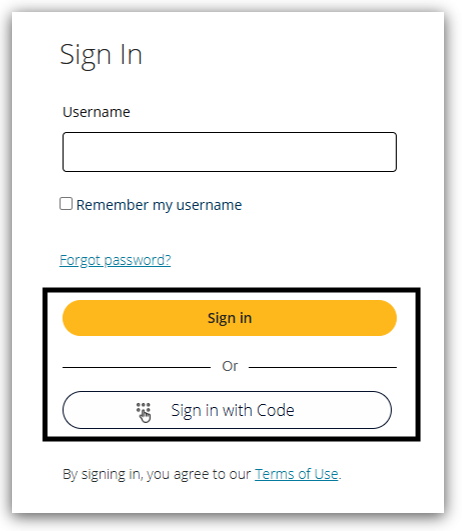
2. Go to Pearson Progress on your computer and enter your 'Username' and 'Password', or sign-in with code, click 'Sign in':
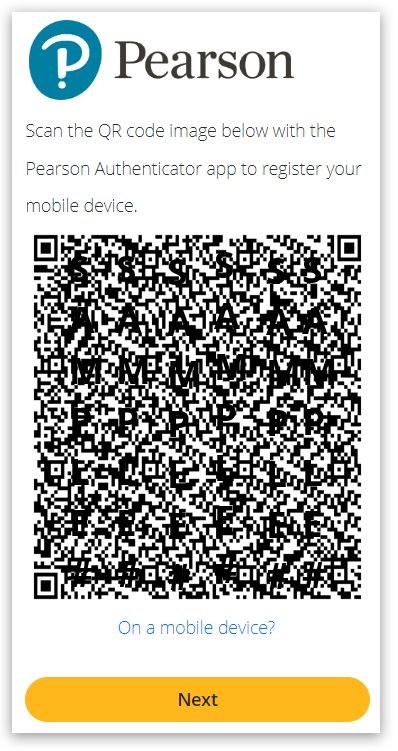
3. You will be presented with a QR code. Please do not scan the code with your devices camera yet.
- Use the Pearson Authenticator app to scan the QR Code, you can do this by pressing
 at the bottom right of the screen at the bottom right of the screen - Select 'Scan QR Code'.
- You can now use your device camera to scan the code.
- You will see a code appear with your username underneath.
Important: You must scan the QR code before clicking 'Next'. If you move on without scanning the code, you will need to have your account reset so you can start again. If you’re a teacher, then your exams officer will be able to do this for you (see point 13 on: Pearson Portal Authenticator). If you are an exams officer or another secure role then please contact us.
4. You have now registered your Pearson username on the app, you will not need scan the QR code again unless you change device or user details.
5. You can now click 'Next' on screen and enter the verification code.
Verifications codes are valid for 60 seconds, they will update in the Pearson Authenticator app every 30 seconds
6. You have now logged into Pearson Progress.
Every new login will require a verification code.
|
|
Downloading the Pearson Authenticator App
|
If you have not already downloaded the Pearson app:
1. Before accessing Pearson Progress, on your mobile device, go to either the App Store for iOS devices or the Play Store for Android devices.
2. Search for 'Pearson Authenticator' and press 'Install' to install this to your device:
Please note: The Pearson app may not be the first search result displayed; please make sure the app installed is as shown in the images below. You can not use other apps like Microsoft Authenticator.
Apple app store:
Google Play Store:
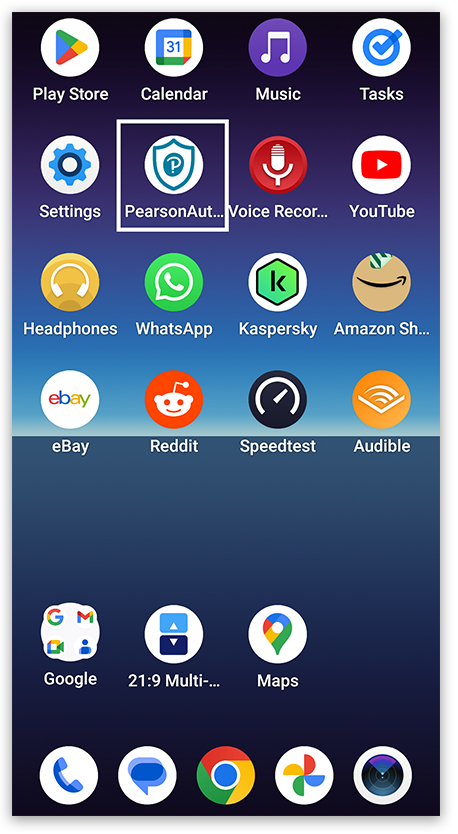
3. The 'Pearson Authenticator App' icon will appear alongside other applications on your device. Open the app:
|
|
Accessing and Adding Your Pearson Account Using the Pearson Authenticator App for the First Time
|
1. Go to Pearson Progress and enter your 'User Name'. Click 'Sign in' to proceed to enter your password or click 'Sign in with code' to use the option whereby a one-use code is sent to your email address instead.
2. You will then be presented with a QR code. Please do not scan the code with your devices camera at this step:
3. Open the 'Pearson Authenticator app' on your mobile device:
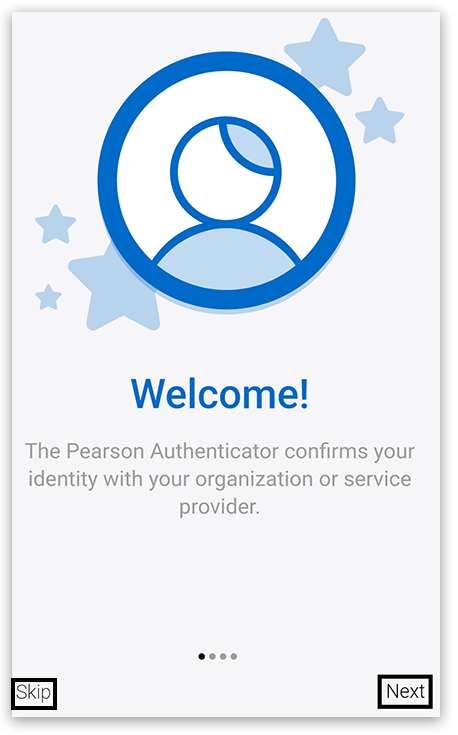
4. You will see the 'Welcome' screen. You can either click 'Next'/'Done' on the following screens: Accounts, Biometric, Apple Watch, or simply click 'Skip' to finish the registration:
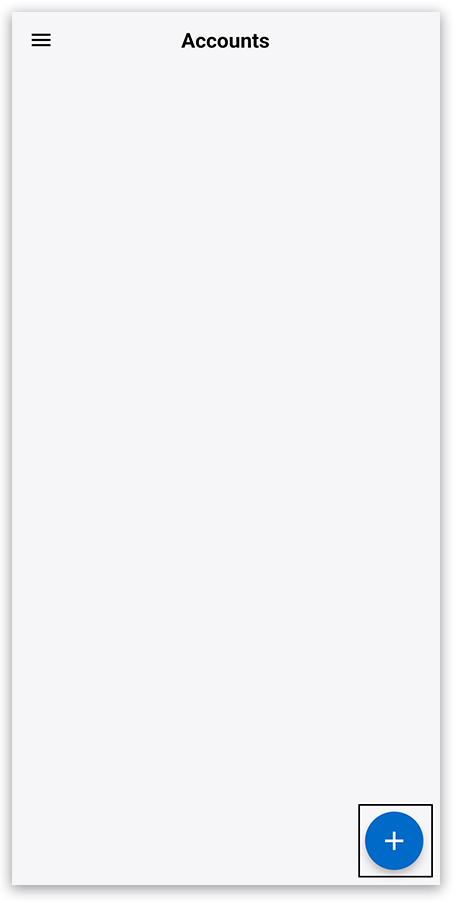
5. Press the '+' icon:
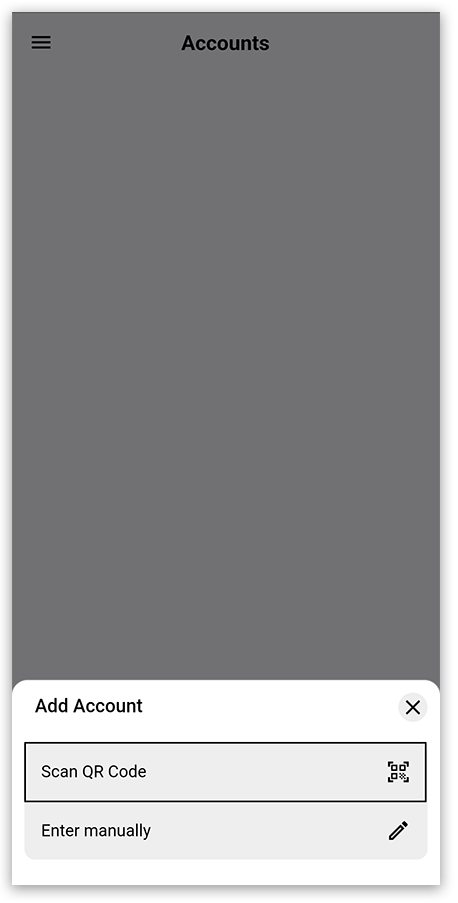
6. Press 'Scan QR Code':
7. The camera on your device will now automatically open. On your device place the QR code in the blue square. The code will scan automatically.
Please Note: You are only required to scan the QR code on the first login, after this you will only need to provide valid verification codes.
8. After scanning the QR code, Click 'Next'.
Important: You must scan the QR code before clicking next. If you move on without scanning the code, you will need to have your account reset so you can start again. If you’re a teacher, then your exams officer will be able to do this for you (see point 13 on Pearson Portal Authenticator). If you are an exams officer or another secure role then please contact us.
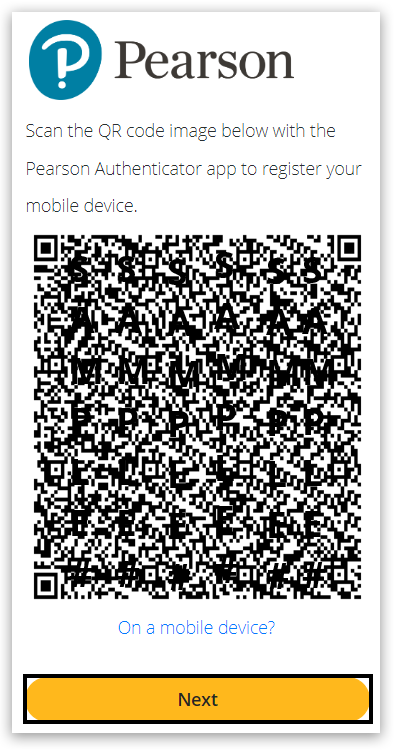
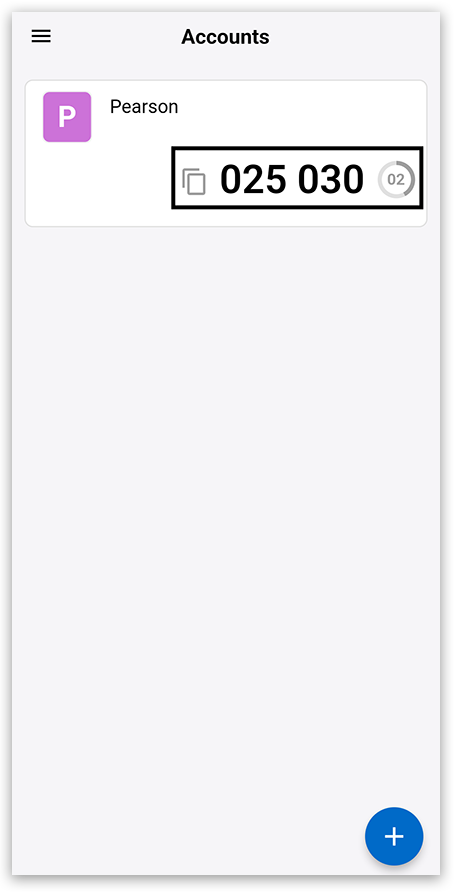
9. Your Pearson account will be registered to the Pearson Authenticator app. You'll see the verification code.
Please note: Verification codes lasts for 60 seconds; they will update in the Pearson Authenticator app every 30 seconds automatically:
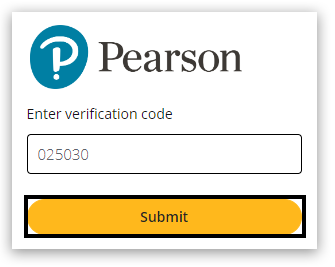
10. Go to the Pearson Progress screen on your computer and enter the verification code, then click 'Submit':
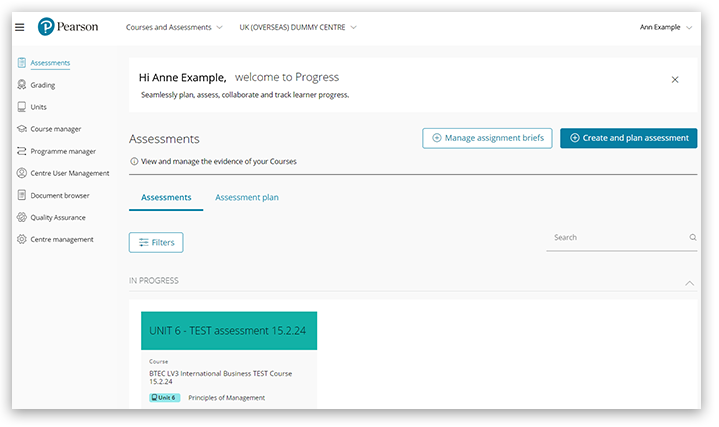
11. You will then see the Pearson Progress welcome page:
|
|
Subsequent Logins
|
1. Go to Pearson Progress and enter your 'User Name'. Click ‘Sign in’ to proceed to enter your password or click ‘Sign in with code’ to use the option whereby a one-use code is sent to your email address instead:
Next, at the multi-factor authentication stage, you will be asked to select a verification method. This support article is dealing with the Pearson Authenticator App method. For support with the SMS text method, please see this article Pearson Progress: Getting Started.
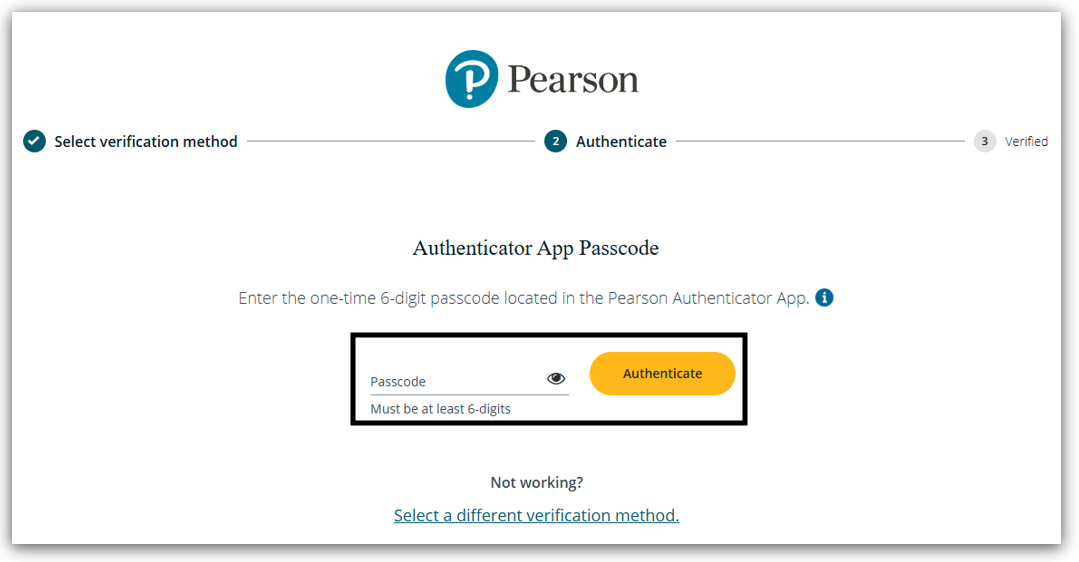
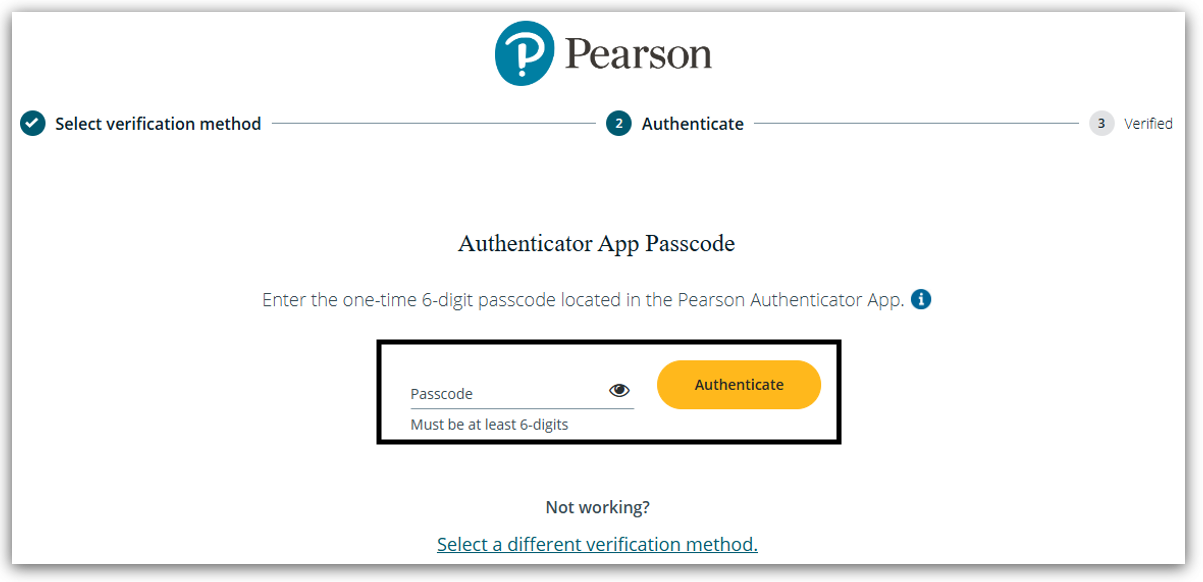
2. You will be asked to Enter the one-time passcode:
3. Open the 'Pearson Authenticator app' on your mobile device:
4. You will see a verification code under the Pearson account; copy or make a note of this code.
Please note: Verification codes lasts for 60 seconds; they will update in the Pearson Authenticator app every 30 seconds automatically:
5. Enter the 6-digit verification code received by email:
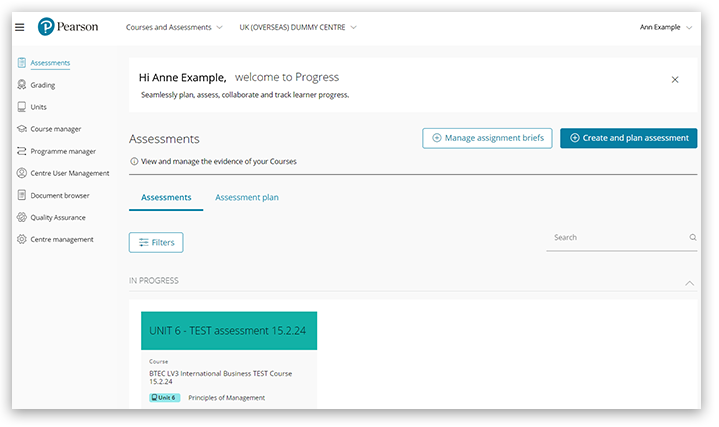
6. You will see the Pearson Progress welcome page:
|
|
FAQs/Troubleshooting
Login & Authentication Issues
Q: I have a sign in error?
A: Please see Edexcel Online: Access And Logging In Troubleshooting for full troubleshooting advice for any error messages. (although the article title states ‘Edexcel Online’, this will cover error messages for all websites covered by our single-sign on).
|
Q: I have clicked next and haven't scanned the QR code – What do I do?
A: Close the tab and try logging in to a new one - You should get the QR code again. Should this fail, and if you’re a teacher, then your exams officer will be able to do this for you (see point 13 on Pearson Portal Authenticator). If you are an exams officer or another secure role then please contact us.
|
Q: I can't see the QR code to scan.
A: If you have used another Authenticator app accidently, like the Microsoft Authenticator, you will need to remove the account from it. Go to settings on the wrong app and you will see an option to remove accounts. If you don't use the app for anything else, it would be best practice to delete it from your device.
Once you have downloaded the Pearson Authenticator app from your app store, log back into Pearson Progress and scan the QR code when prompted. If you have you used another device previously with the Pearson Authenticator app, you will need to contact us for the access to be reset “(unless you’re a teacher, in which case your exams officer can do this for you as described in question 2).
|
Q: I am getting an account locked message, what do I do?
A: You will receive this message if you have entered the incorrect Pearson Progress credentials more than 4 times, or you have entered the wrong verification code 3 times. This is only a temporary block and will allow you to try again after 15 mins. After 15 mins, if you are still getting the message, please reset your password and wait another 15 mins before trying to log in. If you are still getting the message, please contact us.
|
Q: Wrong verification code entered/Not accepting code - keeps refreshing.
A: If you enter an incorrect or expired verification code, the screen will refresh back to the empty box, waiting for a valid code. You should check the Pearson Authenticator app and ensure that the code is correct and try again (when entering the code, please ensure that there are no spaces between the code). Also, ensure the device date and time match, and that you have the right authenticator installed.
|
Q: I already use the Pearson Authenticator app to log into Edexcel Online, will I use the same code to log in to Pearson Progress?
A: If your log in credentials for Edexcel Online are the same as the credentials used for Pearson Progress you will be able to use the same code. If your log in credentials are different for each platform, separate codes will be generated within the authenticator app.
|
Q: If I change my username so that they are both the same for Progress and Edexcel Online, will this mean I only have to use one passcode?
A: No, editing your username will not mean that only one code can be used for both Edexcel Online and Pearson Progress. The authenticator app will generate a separate code to log into each platform.
|
|
App Installation & Device Issues
Q: I am using the wrong app; what should I do?
A: Go to settings on the wrong app and remove the account. If you don't use the app for anything else, it would be best practice to delete it from your device. Once you have downloaded the correct app from your app store, log back into Pearson Progress and scan the QR code when prompted.
|
Q: I am an apple user and am trying to download the app from the store. I can see the Pearson app, but it's not allowing me to install.
A: Apple users need to have iOS 12.0 or higher installed. Any device older than a 6 can not install iOS 12, so an alternative device will be needed. Help on finding the version, can be found here.
|
Q: What are the minimum smartphone requirements to be able to run the app?
A: The minimum requirements to run the app are:
- iOS/iPadOS 12.0 or later
- macOS 11.0 or later and Mac with Apple M1chip
- Android 6.0 or later
|
Q: What do I do if centre staff do not have a smart phone?
A: All individual Pearson Progress users will need their own device from which they can operate an authenticator app, if they want to use the app authentication method. From October 2026 there will also be an SMS text option available, and you can find out further information about this option in Pearson Progress: Getting Started.
Individuals without a phone will need to consult with their leadership to agree how they can support with this mandatory requirement.
|
|
Technical & Connectivity
Q: There is no signal in the centres location?
A: Once installed (this can be done from anywhere (over any wifi)), the authenticator app does not need a signal. The Pearson Authenticator App creates time-based one-time passwords (TOTPs) that you can use to verify your account without needing access to the internet or a mobile network.
|
Q: I shouldn't be expected to use my personal device?
A: The Pearson Authenticator App does not harvest and use any personal data from a device. This includes the phone's telephone number. If however, you are still uncomfortable using your personal device then you should consult with your leadership team to agree how they can support you with this mandatory requirement.
|
|
Security & Data
Q: Will all new Pearson Progress accounts use the app based authentication?
A: All new Pearson Progress accounts will need to use either app or SMS based authentication.
|
Q: Can you provide some more information please on what security this is providing?
A: As a result of the TOTP being delivered to a separate device to the desktop being used to access Pearson Progress, and because the separate device requires either a passcode, touch ID, or face biometrics to access it, this provides significantly enhanced security.
|
Q: You mention deliberate attacks on colleges, do you have examples and information on this please?
A: Examples of attacks on schools and colleges are well documented on the internet. Here's an example of a recent article covering this: https://www.itsecurityguru.org/2023/09/06/schools-back-cyberattack-navigating-cyberattacks-in-the-education-sector/
We are aware of at least one school who - following a cyberattack - had to delay the start of term by six days in September 2023. We are keen to ensure we do all we can to help minimise this kind of disruption for schools, colleges and your students.
|
|
Multi-Device & Account Management
Q: Is it possible to have TOTP authenticator installed and synchronized across multiple devices for the same account/user?
A: At the moment, we will only allow one device per user to be used to authenticate the account.
|
Q: Is it possible to use TOTP authenticator on the same device for multiple accounts/users?
A: Yes, you can add multiple accounts/users.
|
Q: Does the app collect personal device data?
A: We do not receive any of your device information. The app does not require a name or a mobile number to use it.
|
Q: In our centre, we share the same admin account. What should we do?
A: We unfortunately don't support shared account, because this goes against our security standards. Please set up a separate account. In case you are in approval process, please share with us the main contact so that we can assign the application form to this contact.
|
|
|
Back to Pearson Progress: Information And Support |
|
|---|