Centre Staff Login Process
1. Navigate to Pearson Progress
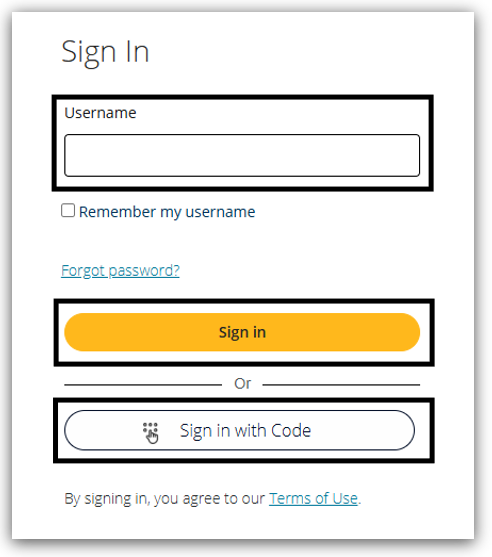
2. Enter your 'User Name'. Click ‘Sign in’ to proceed to enter your password or click ‘Sign in with code’ to use the option whereby a one-use code is sent to your email address instead:
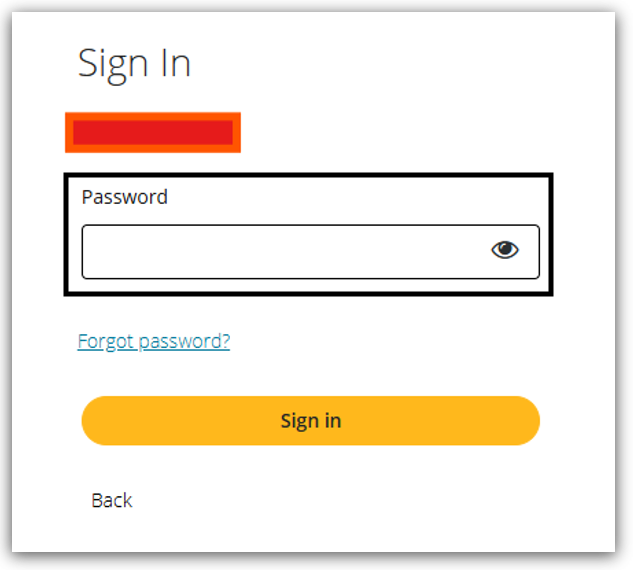
3. If you clicked ‘Sign In’, then you’ll be asked to enter your password as below:
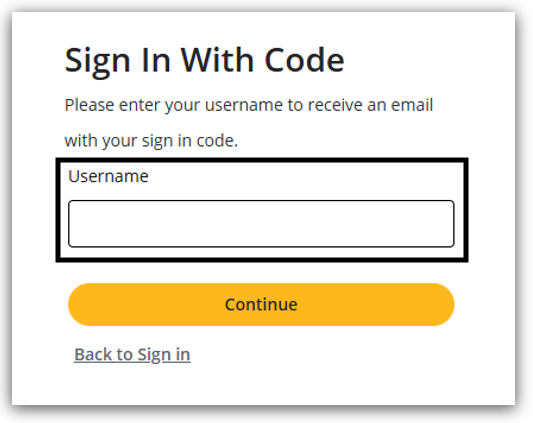
4. If you clicked ‘Sign in with code’, then you’ll be asked to confirm your username again which will trigger an email to be sent to the associated email address (the username should usually populate automatically for your convenience):
5. The email will look like this:
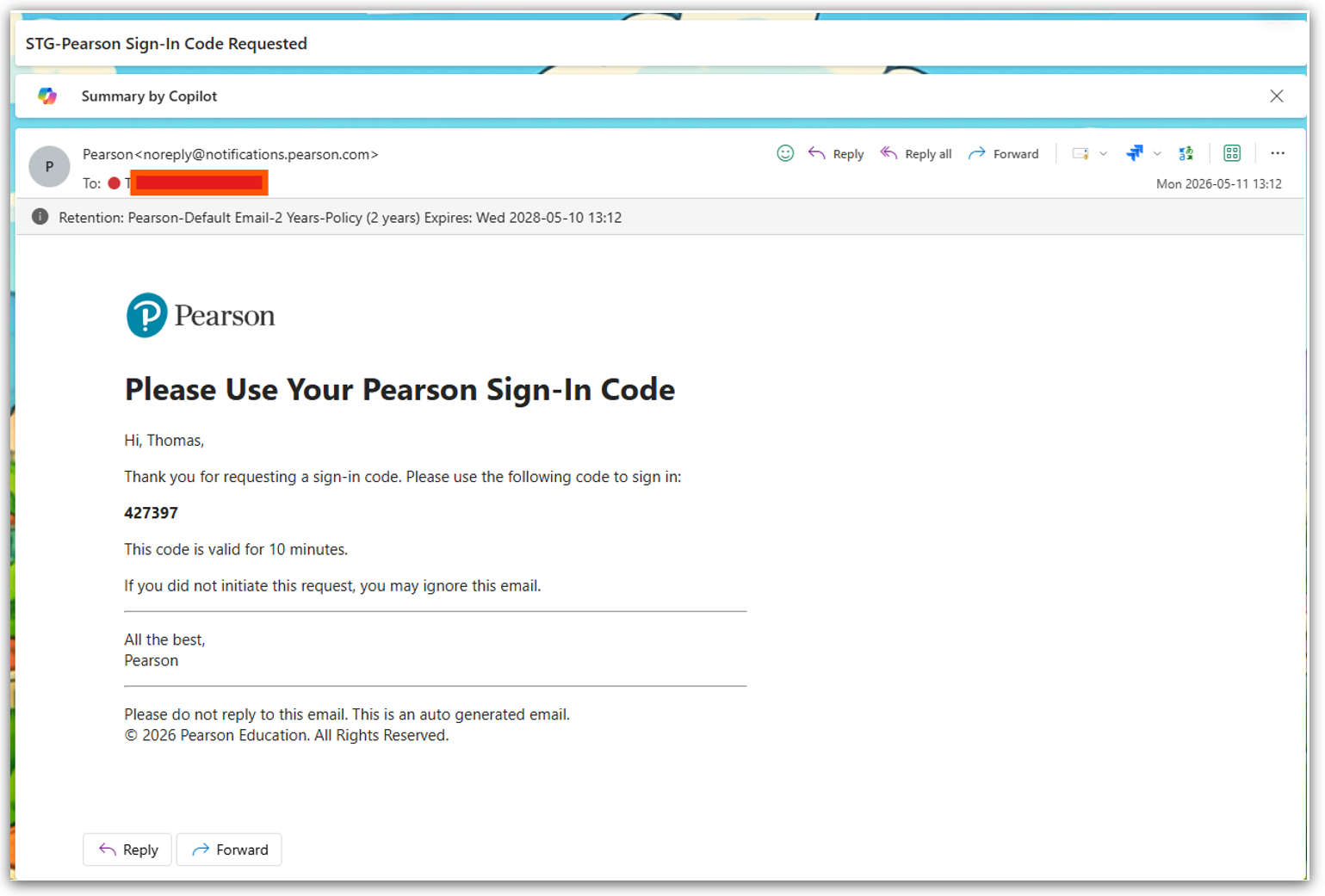
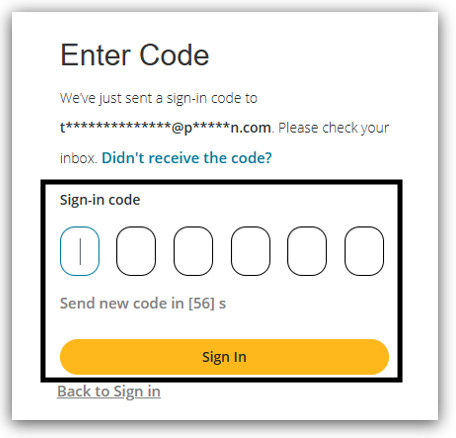
6. Enter the code as received:
7. You’ll now progress to our multi-factor authentication stage where you can choose to authenticate your identity using either an SMS text sent to your mobile number a one-time passcode which you can obtain through our Pearson Authenticator app.
For detailed support with using our app-based solution then please see article: Pearson Progress: Pearson Authenticator.
For a step-by-step guide to using our SMS option then please continue below.
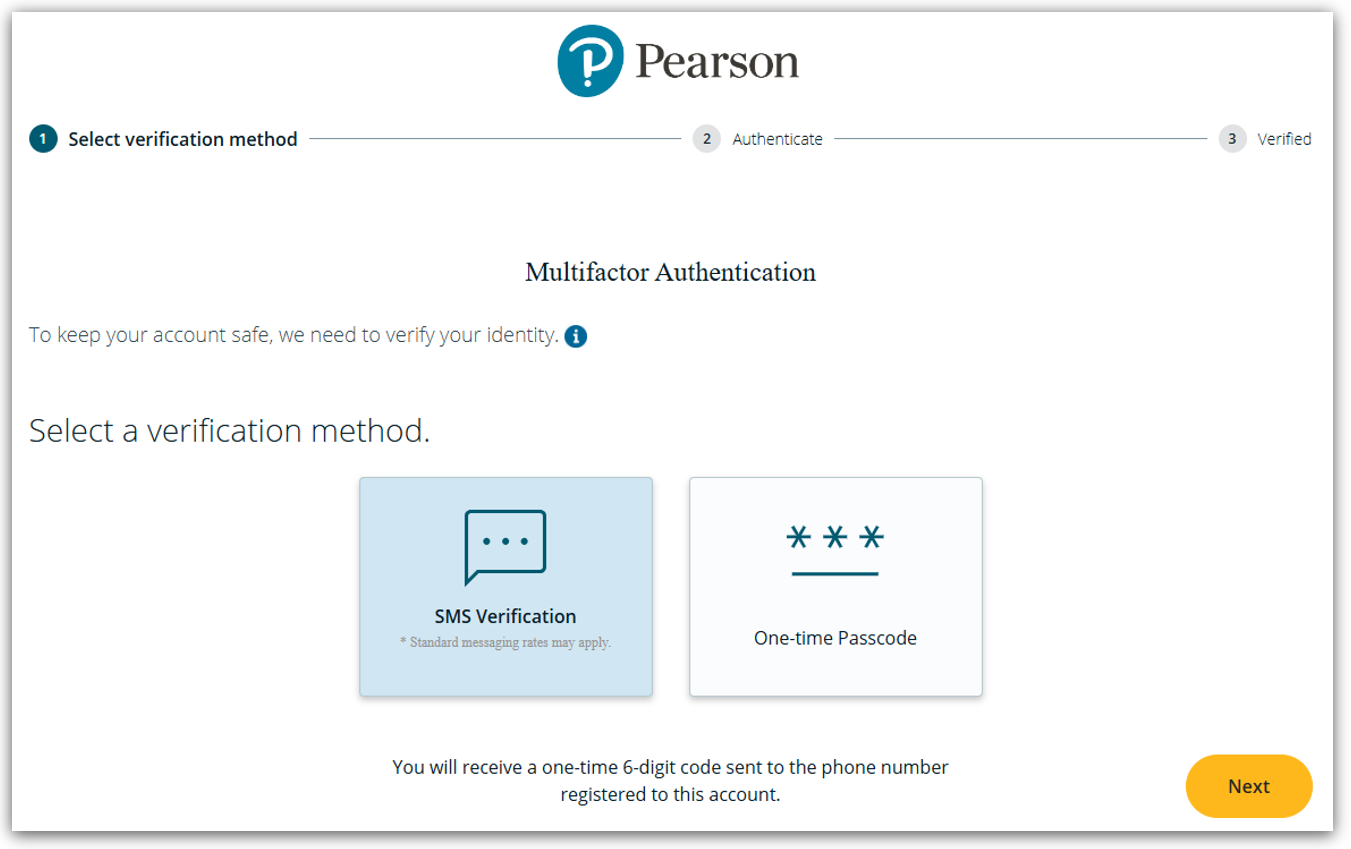
8. If you have previously set up the app-based MFA method, and you are now trying to set up SMS for the first time, then just for this instance we’ll still ask you to provide the app-based MFA code before continuing. This is so that we can be fully confident that it is you who’s requesting the changes to your account’s login method and we can ensure that true multi-factor authentication is being followed.
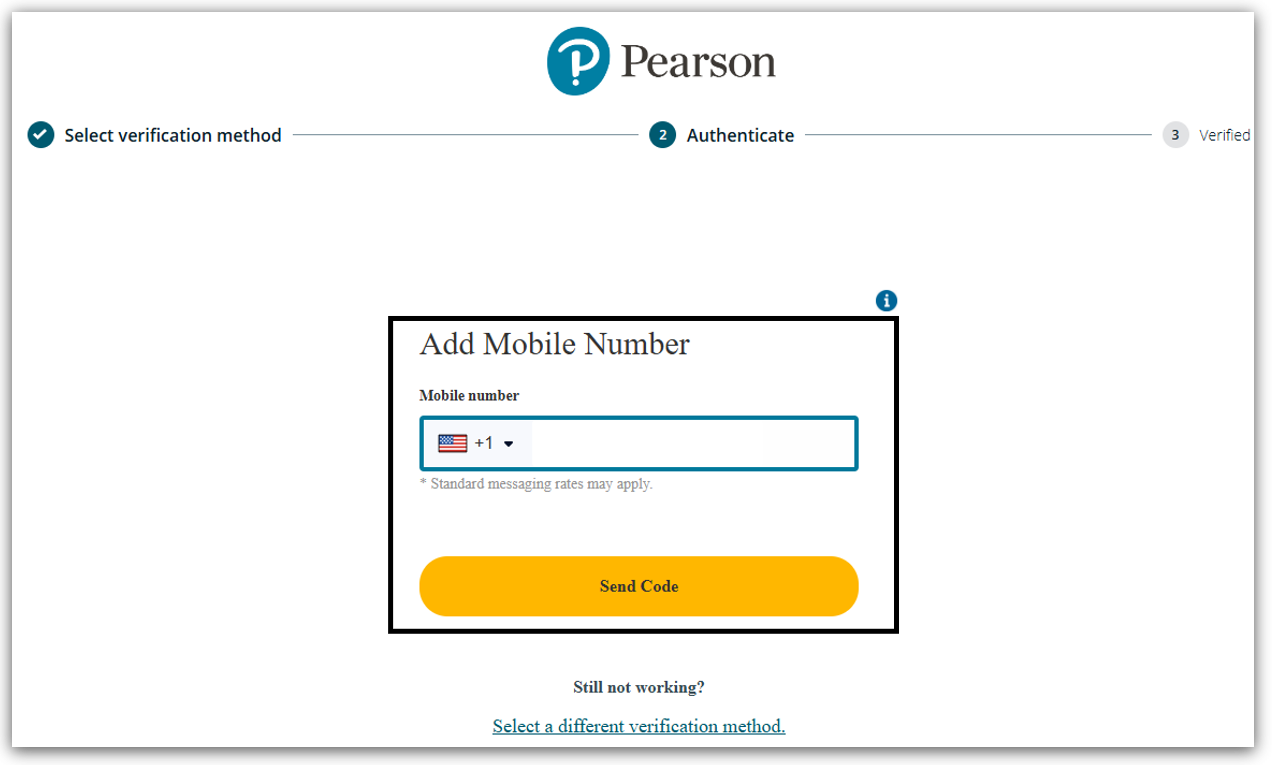
9. If this is your first time using the SMS method, then you will be asked to provide your mobile number. Please ensure you update the country code and provide the number in the appropriate format including the ‘0’ at the start. Depending on your device’s settings, the number may appear in the US format (012) 345-6789, but this will still allow the number to be registered successfully:
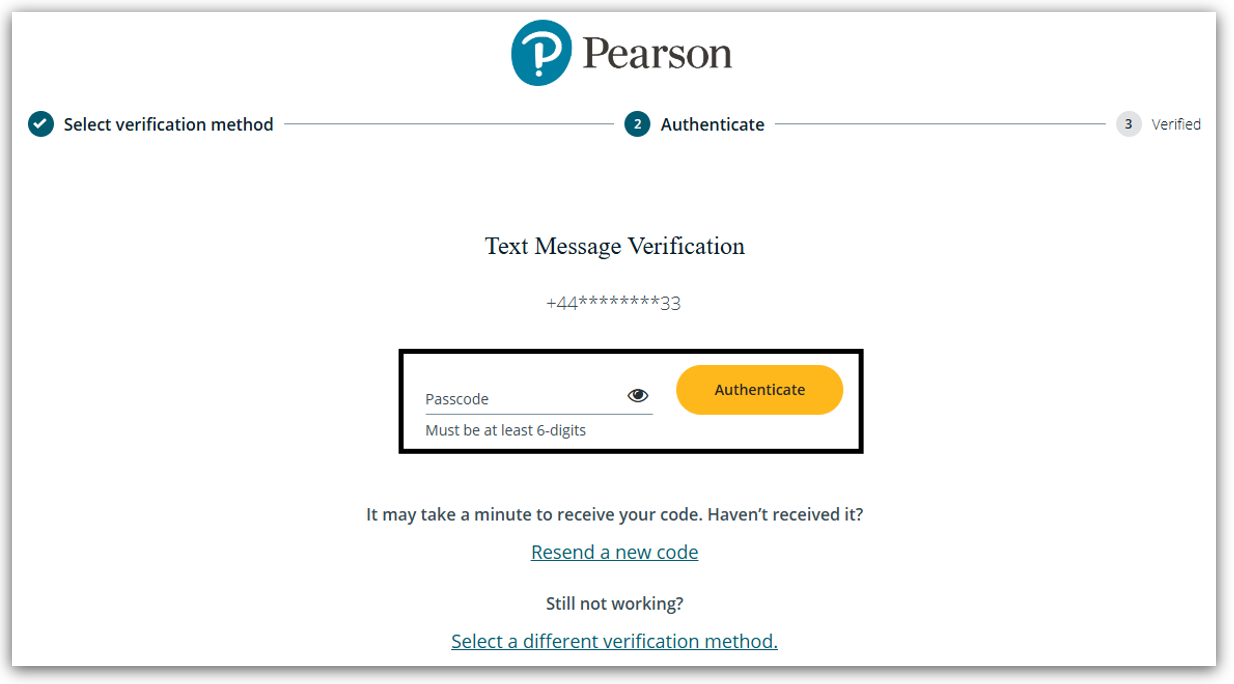
10. A 6-digit code will be sent to the mobile number, and you must enter this on screen:
11. You have now completed the login process!
12. FAQs and Troubleshooting:
- What if I don’t receive an email while trying to sign in with code?
- Please check your junk/spam folder and ensure that emails from noreply@notifications.pearson.com are allowed by your centre’s antivirus software.
- Please check your email address and ensure that you have provided the exact one for your account.
- Alternatively, you can contact us for further support or use the other ‘sign in’ option to use your password instead.
- What if I have previously signed up to receive a code via SMS text but now my mobile number has changed?
- Please contact us so we can complete our security checks and update your mobile number.
- Alternatively, you can still use our app-based MFA option as well.