
You can follow these steps to reset your Pearson Assessor Dashboard (PAD) or Administrator Dashboard password if you do not remember the credentials or are locked out of your account. If you have not yet been set up with an account, please create a case and we can advise further.
Step 1: Access the Forgotten Password Page
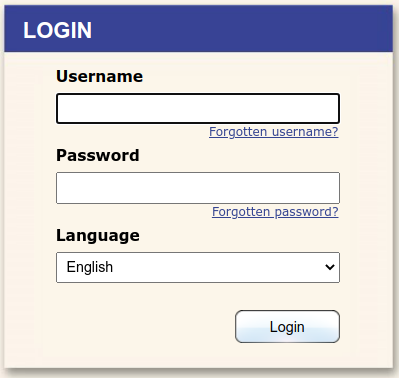
Go to btecng.pearson.com and click 'Forgotten password?'.
|
Step 2: Complete the Password Reset Form
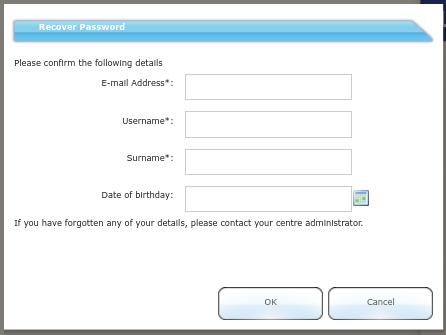
You will need to enter the email address, last name and surname on your account. Leave the 'Date of birthday' field blank.
If you don't know any of these details, please create a case and we can send you a password reset.
|
Step 3: Check Your Email
Once you have completed the form, you will receive an email from advance@ediplc.com (your IT may need to whitelist this address if the email goes to your spam folder).
|
Step 4: Log In and Change Your Password
Log in to btecng.pearson.com using the temporary password in the email from advance@ediplc.com.
Once you log in, you will be prompted to change the temporary password to a permanent one.
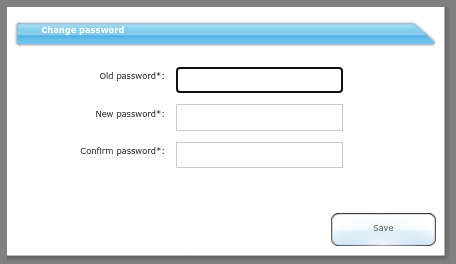
Then use the new, permanent password to log in to the Administrator Dashboard or the Pearson Assessor Dashboard (PAD - https://btecng.pearson.com/pqs.web.ccpd).
|
Account Lockout Information
If you have been locked out of the account from too many login attempts, you can't log in for 10 minutes.
When you try to log in to btecng.pearson.com, it will say how many minutes remain before you can try again.
Important:
If trying to log in directly to PAD, Administrator Dashboard etc. you will not see the number of minutes left until it is possible to try again, you can only see this on btecng.pearson.com.
|
Still Having Trouble?
If you are still unable to log in after resetting the password, please create a case and we can assist further.
|
Related Articles:
Pearson Support Portal: Creating An Account
Pearson Support Portal (Staff at Centres & Associates): Creating A Case Record
Pearson Onscreen Platform (POP) Support Index


