|
1. Download the Exam Centre Service .msi installer here.
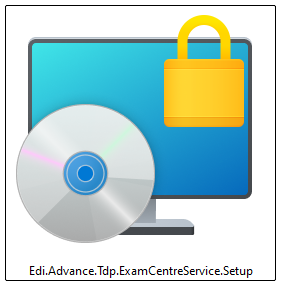
2. Click on the Edi.Advance.Tdp.ExamCentreService.Setup file to begin running the Setup Wizard:
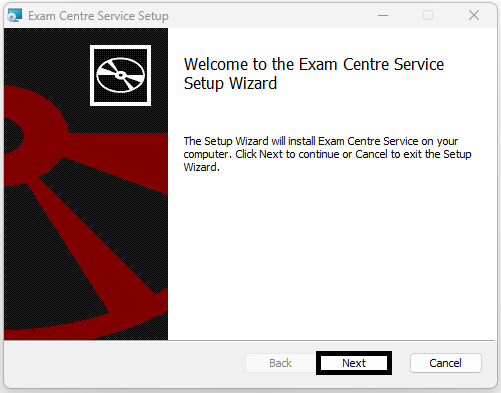
3. Click Next to be taken to the next step:
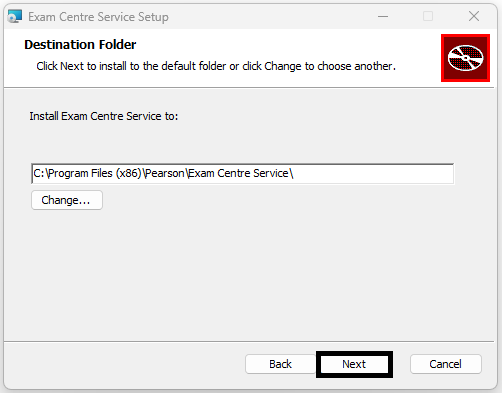
4. This screen allows you to specify where the Exam Centre Service is installed. Once confirmed, click Next to continue:
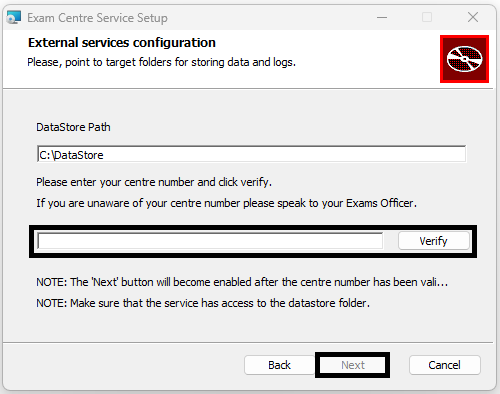
5. This screen allows you to specify where the Datastore folder will be located. This is where the Apps and Packages folders will be located (further details can be found in the Datastore section below). You will also need to verify your 5-digit centre number. Once the file path has been confirmed and centre number verified, click Next to continue:
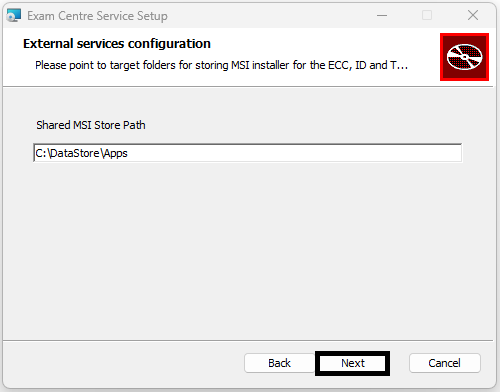
6. This screen will ask you to point to the target folder for the .msi installer files. Once confirmed, click Next to continue:
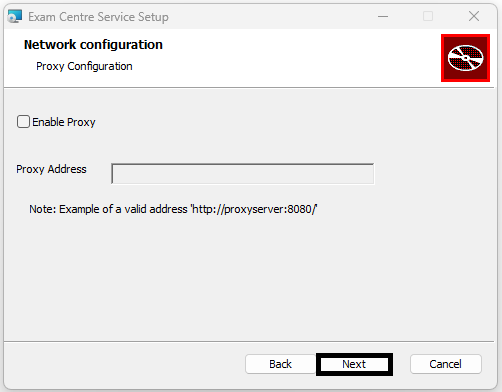
7. This screen will allow you to enable a proxy address, if your centre uses one. If you do not use a proxy, you can leave the Enable Proxy checkbox empty. Once confirmed, click Next to continue:
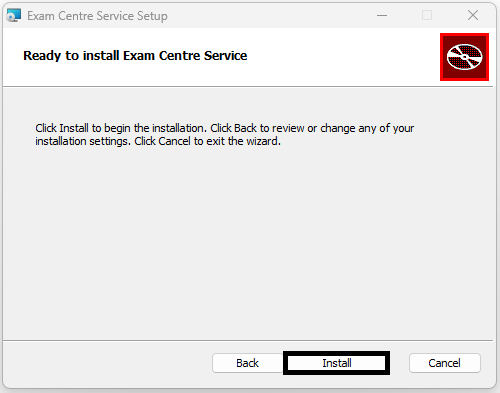
8. If you are happy with the setup, clicking Install on the next screen will begin the installation of the Exam Centre Service software:
9. Once installation is complete, click Finish to close the Setup Wizard. A README file will open by default, which provides links to the other software:
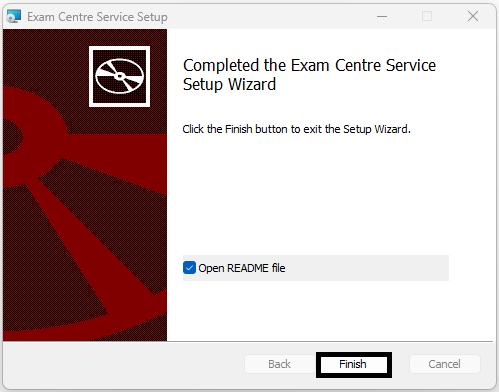
Please note you do not have to use the README file to install the other software components. Instead you can install from the Datastore/Apps folder, which is covered in the steps below.
| 

