|
Once your SDS access has been set up, follow these steps to access the secure materials.
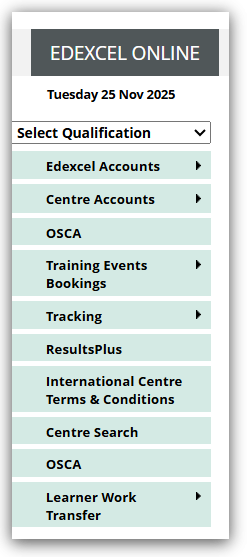
1. After logging in to Edexcel Online, click the dropdown arrow on 'Select Qualification' in the top left corner of the page:
2. Choose the qualification, you require the materials for (in this example we have used GCE, please ensure you select the PEIC option):
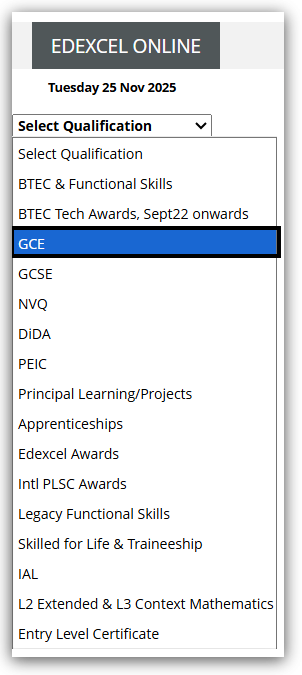
Please Note: If you have multiple qualifications, please ensure you select each qualification individually to access relevant materials.
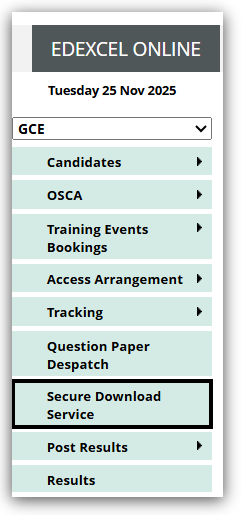
5. Click on 'Secure Download Service':
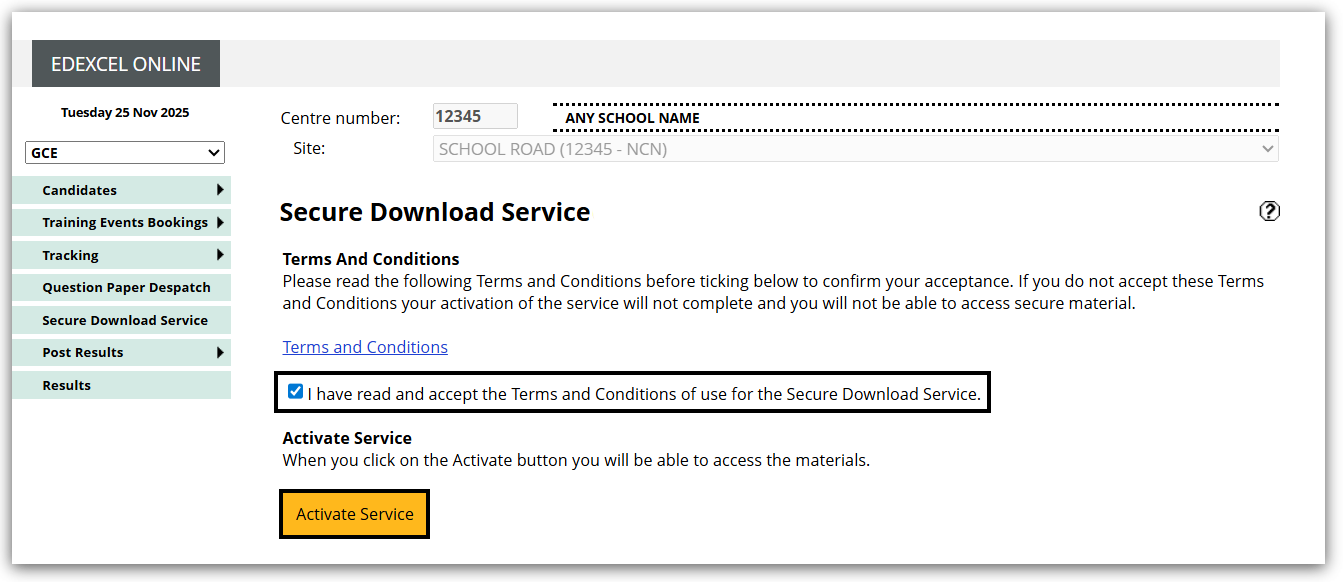
4. If this is the first time you have accessed SDS, you will be asked to confirm that you have read and accept the Terms and Conditions (these are accessed by clicking 'Terms and Conditions') of use for the Secure Download Service:
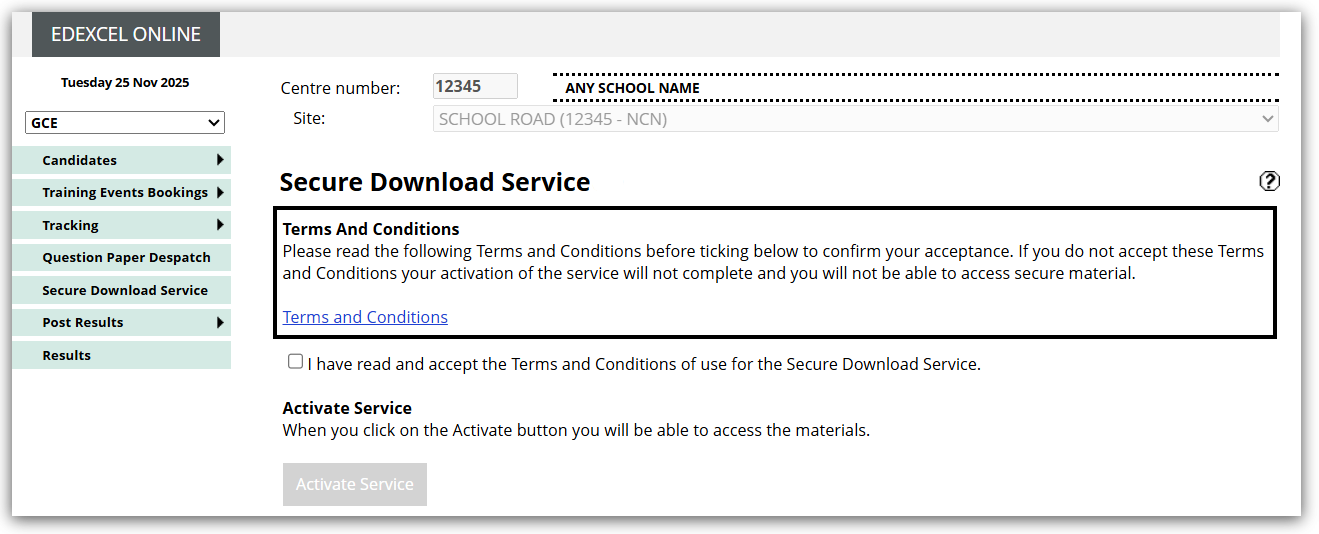
5. Tick the checkbox, then click on 'Activate Service'. (This will then register the centre user for SDS access):
6. You can then select the exam session for which you require materials, once selected, click 'Go':
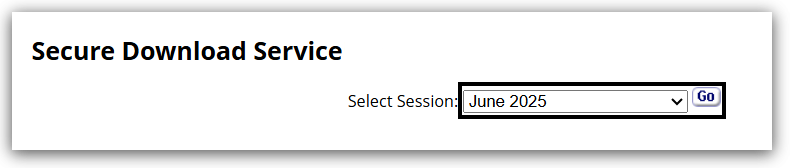
Please Note: For late entries, please ensure you click 'Go' again to display the late entry materials if you were already on this screen before the late entries were processed.
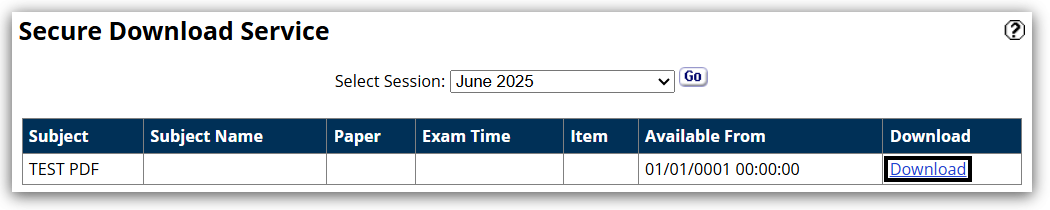
7. The screen will then display exam material details listed in columns:
- Subject code
- Subject Name
- Paper
- Exam (date and) Time*
- Item
- Available From**
- Download link***
*If there is no specific exam date and time, this column will be blank.
**The 'Available From' column shows the dates and times these materials will be available from and to.
*** The subject will appear in the table up to 30 minutes before the “Available From” date and time. The ‘Download’ link will remain disabled until that time. For example, if materials become available at 8:00 AM, the subject will show in the table from 7:30 AM, but the Download button will only be active at 8:00 AM .
- The links shown will be materials available for each exam series:
Depending on the assessment type, materials are available via:
- zipped folder (combines multiple files into one compressed file)
- .pdf files
- .mp3 files
Centre with Subsites
For centres with multiple sub-sites/linked centres, exam staff may require access to the Edexcel Online details for those sub-sites. Providing the other centre is linked, and you have access:
1. Log in to Edexcel Online and click on the 'Select site' drop-down box, and choose the relevant subsite number:

2. Choose the qualification you require the materials for (in this example, we have used GCE, please ensure you choose PEIC):
3. Click on 'Secure Download Service':
4. Select the exam session for which you require materials. Once selected, click 'Go':
5. Download the required materials for the subsite:
| 

