| FAQ | 
Please click below to expand each section and view support:
What is the Pearson Development Hub?
|
Our dedicated space for Exams Officer training. We have created this as part of our commitment to you to offer enhanced support and training.
Features
Access our library of interactive modules alongside live training, curated support articles, and the most useful documents from our website. We have brought everything you need to one place to save time when you need to upskill or refresh yourself on a topic.
-
Pause interactive modules and return to them later
-
Make notes in the notepad that you can refer to and download later
-
Receive email alerts when new content is released
-
Follow curated learning paths for a particular qualification or process
|
|
Who can access the Pearson Development Hub?
|
The Pearson Development Hub is only available to centre users with a registered Edexcel Online account. We have created an account for Edexcel Online users listed with an exams staff role, e.g., Examination Manager, Examinations Officer, Examinations Assistant.
If you do not have an Edexcel Online account, please see Edexcel Online: Create A New Account for further details about creating Edexcel Online accounts.
If you already have an Edexcel Online account and you encounter any issues logging into the Pearson Development Hub, please refer to the General troubleshooting section below.
|
|
How to access the Pearson Development Hub
|
To log into the Pearson Development Hub, please see the following instructions:
1. Click this link to log in; this takes you to the page below.
2. Enter your Edexcel Online (EOL) username in the 'Email ID' field. Next, click on 'Sign in':
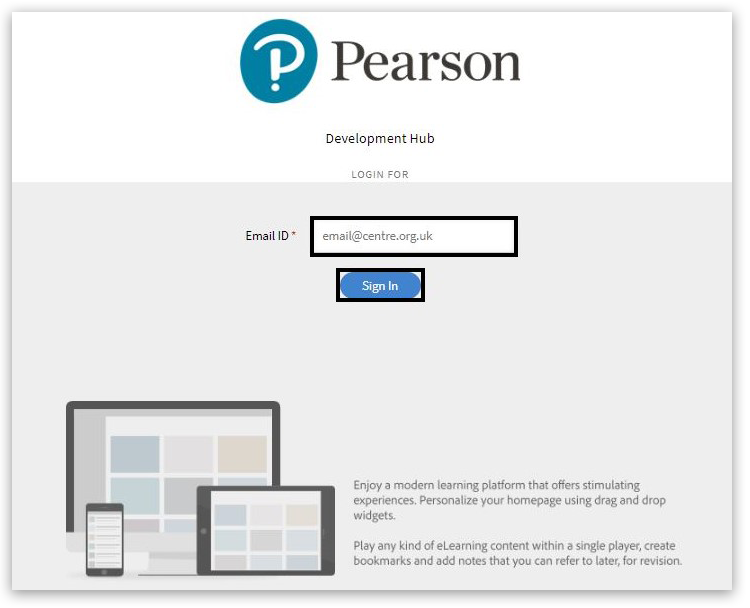
Please note: In rare circumstances, after entering your Edexcel Online email address on the sign-in page, you may receive one of the following messages:

or

If this happens, please email the Customer Services training team at eoevents@pearson.com. Please include your name, centre number, email address and a screenshot of the message so that the team can investigate this for you.
3. You will be asked to enter your usual credentials, and once you click sign in, a verification code will be sent to the Pearson Authenticator app.
For further information, including downloading the app to your mobile device and using it to complete the sign-in process. Please see Pearson Portal Authenticator for details.
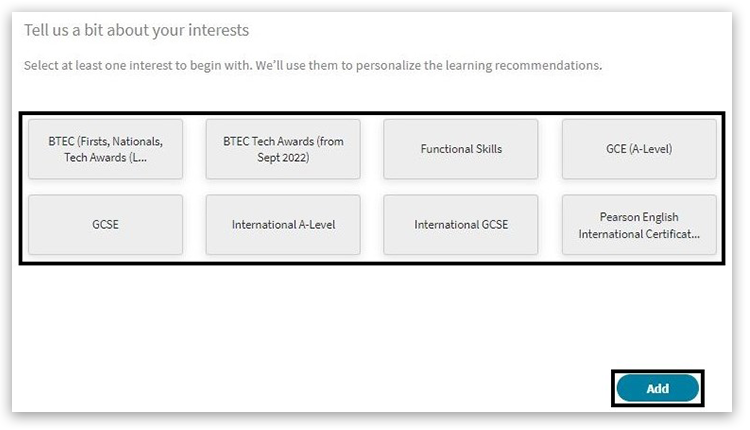
4. Click on the tiles to select your interests and then click 'Add'. After you add an interest, future recommendations will become more targeted and focused according to your preferences:
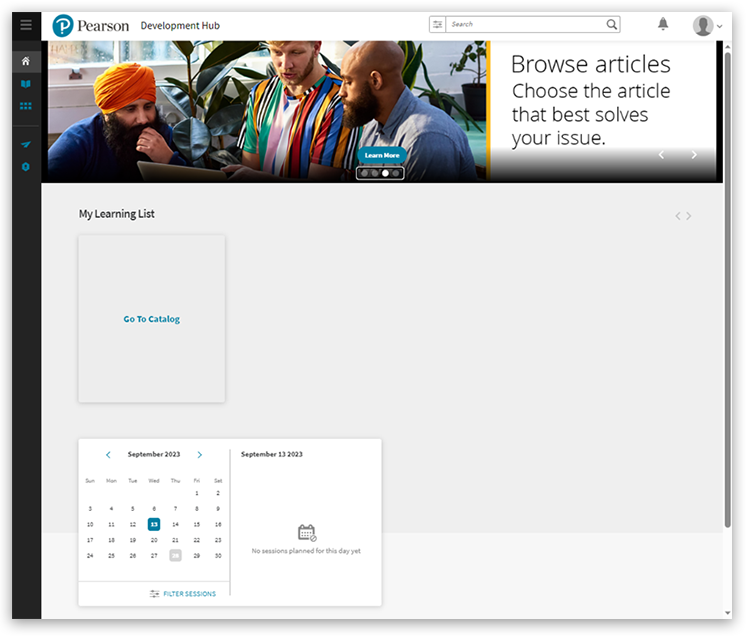
5. You will then be directed to the Pearson Development Hub home page:
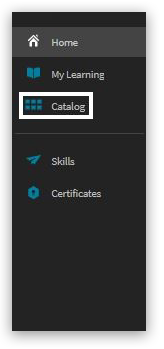
6. The catalog of courses and job aids can be found by hovering over the menu strip on the left-hand side of the screen and clicking on the third option in the list labelled 'Catalog':
|
|
FAQs (Frequently Asked Questions)
Q: What username and password do I use?
|
A: Please ensure you enter your existing Edexcel Online username and password. You must use a valid email address as your username.
|
|
Q: I cannot remember my password.
|
Q: How do I get the one-time password (OTP)?
|
A: The OTP is delivered through the Pearson Authenticator app. For information on downloading and using the app, please see Pearson Portal Authenticator.
|
|
Q: I have not received the OTP.
|
A: The OTP is generated within the Pearson Authenticator app on your mobile device, not sent via email or SMS. Make sure you have the app installed and properly configured. For assistance, see Pearson Portal Authenticator.
|
|
Q: How long is the OTP valid for?
|
A: The OTP generated by the Pearson Authenticator app is time-based and typically valid for 30 seconds. A new code is automatically generated after this period expires.
|
|
|
General troubleshooting
|
Please see some general troubleshooting tips below:
- Clear your browsing data.
- Try a different browser (i.e., Microsoft Edge).
- Refresh the page (including when you get an 'access denied' message).
- If you are using a VPN (Virtual Private Network), please try to access the service with the VPN turned off. If you can then access the service without the VPN switched on, speak to your centre IT/network team to configure your VPN to allow traffic to the Pearson Development Hub.
- Restart your machine.
- Try to access the service later. At certain times of the year (for example, the 15 May mark submission deadline), there can be momentary Edexcel Online access issues which pass after a few minutes.
- In rare circumstances after you have entered your Edexcel Online email address in the sign in page you may receive one of the following messages 'Error: An internal error has occurred' or 'Error: No user details found for the email id, please check with your admin if you have an active account in Adobe Learning Manager'. If this happens, please contact the Customer Services training team directly by emailing eoevents@pearson.com. Please include your name, centre number, email address and a screenshot of the message so that the team can investigate this for you.
- For additional troubleshooting and reminders, please see Edexcel Online: Access And Logging In Troubleshooting.
If you require any further support on accessing or navigating the Pearson Development Hub, please contact the Customer Services training team by emailing eoevents@pearson.com.
Related Article:
Back to Exams Officers & Administrators article homepage.
|
|
|
|
|---|


