
If you have used another device previously with the Pearson Authenticator app, authorised Edexcel Online (EOL) users in centre can reset MFA accounts for non-authorised EOL users. Please see below:
Resetting MFA account for new or different devices.
If you are in one of the following roles on Edexcel Online, you are now able to process MFA resets for any other role not mentioned in this list. For example, Teachers or Heads of Department.
Please note: As a Teacher or Head of Department, you should refer to one of the below colleagues in your centre who can reset your account if required:
- British Council Centre Administrator
- Centre Co-ordinator / Administrator
- Examinations Assistant
- Examinations Manager
- Examinations Officer
- Head of Centre
- Deputy Head of Centre
- Vice Principal
- MAT Admin
- MAT CEO
Please note: If you do have one of the above roles in Edexcel Online, you will not be able to reset your account or have it reset by anybody else in within your centre. Please for your access to be reset.
1. Log into Edexcel Online.
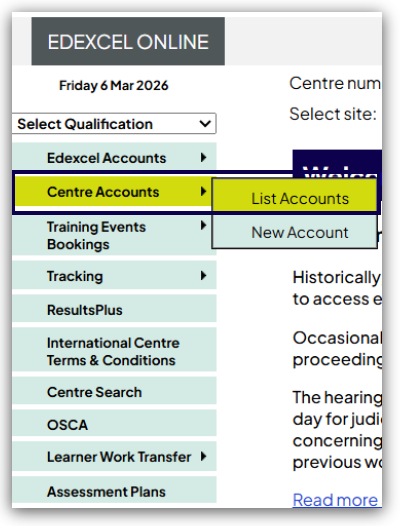
2. From the home page, hover your mouse over 'Centre Accounts', then click 'List Accounts':
3. The initial list of accounts shown will be for the following roles:
- Examinations Manager
- Examinations Assistant
- Examinations Officer
- Head of Centre

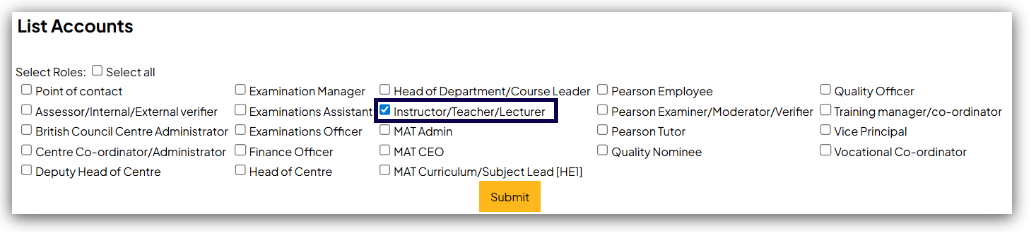
4. To change this, select the relevant role the account has been created as and click 'Submit':
5. Once the account has been located, you will see a column titled 'Reset MFA Authenticator'. Click 'Reset' next to the relevant user:
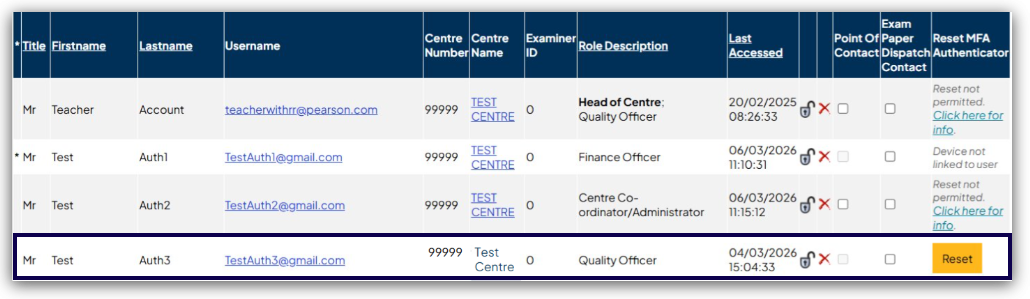
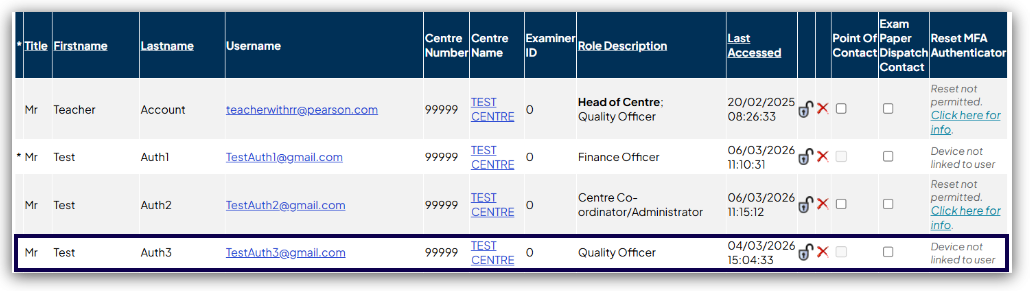
Please note: If the Reset MFA Authenticator column displays 'Reset not permitted' for a user, this means their role requires Pearson to perform the reset on their behalf. Please advise them to contact us for further guidance.
If the column displays 'Device not linked to user', this means the user has not yet set up the Pearson Portal Authenticator app and therefore no reset is required.
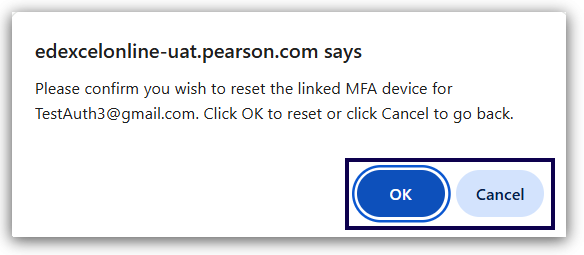
6. A pop-up will display asking for confirmation that you wish to reset the linked MFA device for this account. Click 'OK' to confirm:
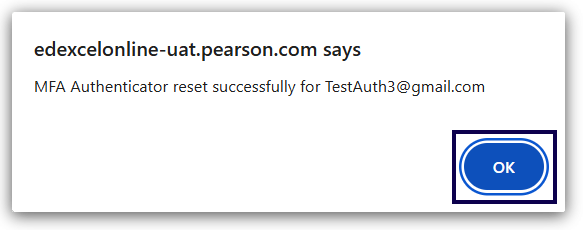
7. Another pop-up message will display confirming the reset for the account has been successful. Click 'OK':
8. The Reset MFA Authenticator column will now display 'Device not linked to user' for that account, confirming the reset is complete. The user can now set up the Pearson Portal Authenticator app again on their new device:
Related Articles:


