|
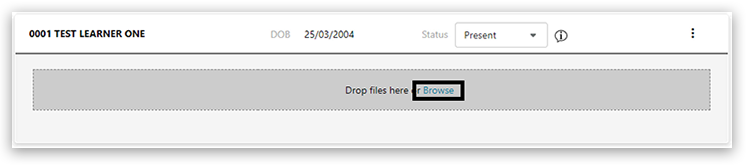
To upload learner evidence, click 'Browse' under the learner:
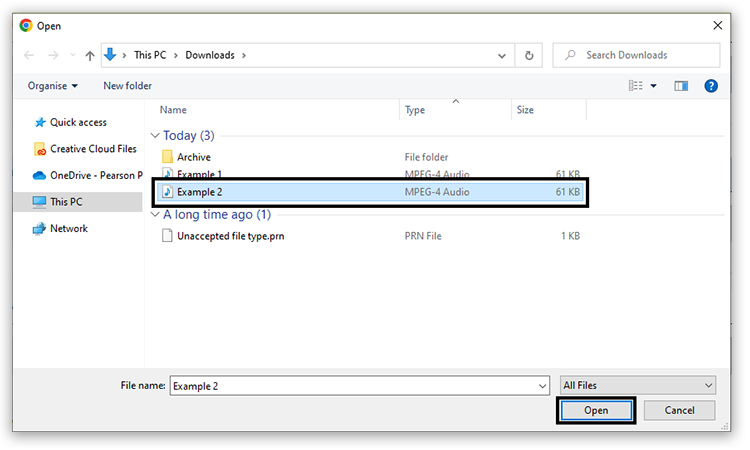
This will open a file explorer. Click on a file to upload or hold down the 'Ctrl' key to select multiple files then click 'Open':
Alternatively drag the files from your computer onto the grey area of the page, where it states 'Drop files here':

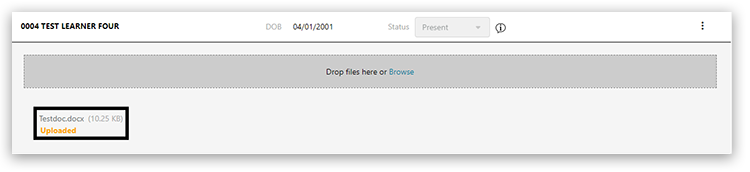
Files uploaded will then display an 'Uploaded' state:
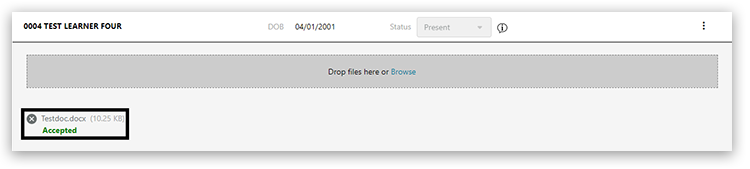
Once the checks are successful it is updated to 'Accepted' or 'Rejected'. If you have uploaded the incorrect document, you can remove it by clicking the 'X' next to the file name:
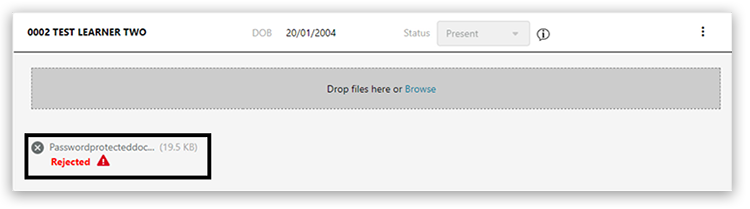
Please do not zip files. You can hold CTRL down whilst selecting multiple files in the file explorer if you wish to upload multiple files for a single student in one go. LWT is a secure platform, so there is no need to encrypt files.
The portal accepts most of the popular file types including mp3, mp4, jpeg. A full list of accepted file types.
Any learners who were absent for the assessment should have their status changed to 'Absent' using the 'Status' dropdown. This will take the place of completing the attendance register.
If the learner's work is not available, for example where special considerations is being applied, the status should be changed to 'No Evidence'. Special considerations should be completed via an application following the usual process.

Attendance registers can be uploaded in the 'Administration Material' section. You should only upload documents in this section that are required for the course at the cohort level.
Once you have at least one file uploaded per learner and indicated their Status (Absent/No evidence), you can use the 'Submit Request' option at the top of the screen and also from the 'In Progress' dashboard:
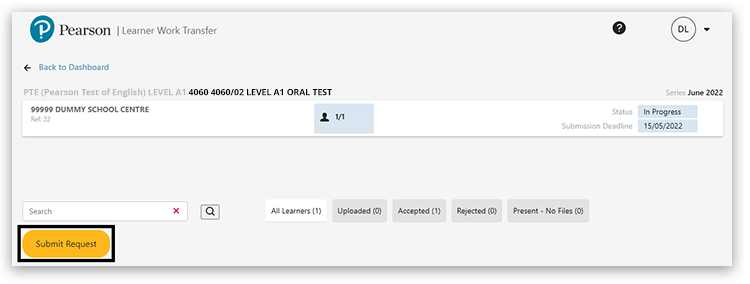
Once a request has been submitted, you will receive a confirmation message, click 'Ok' to proceed:
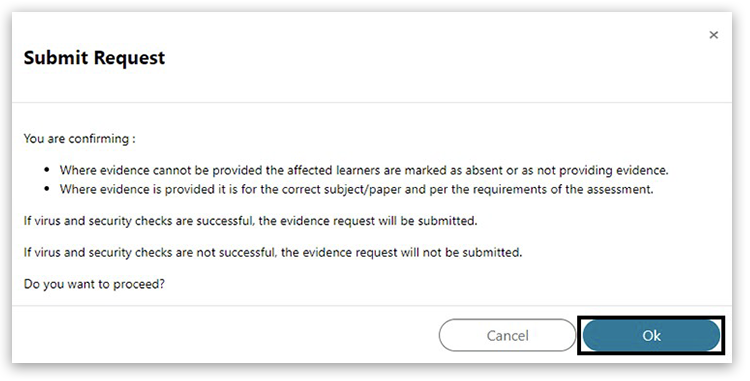
This will send the request to your assessor and you will no longer be able to add, edit or remove evidence.
The completed tab shows requests which have been submitted for assessment:
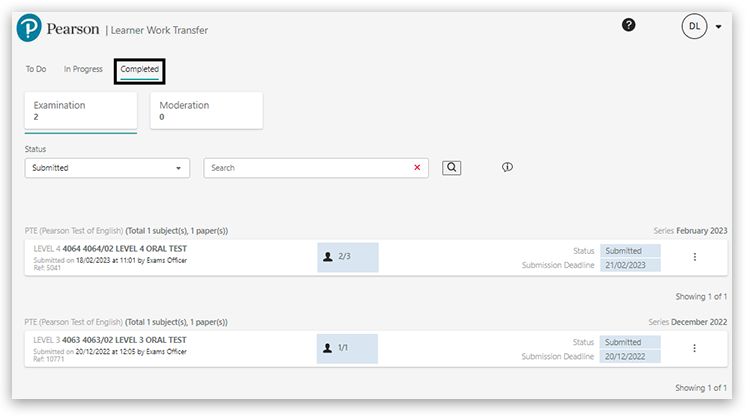
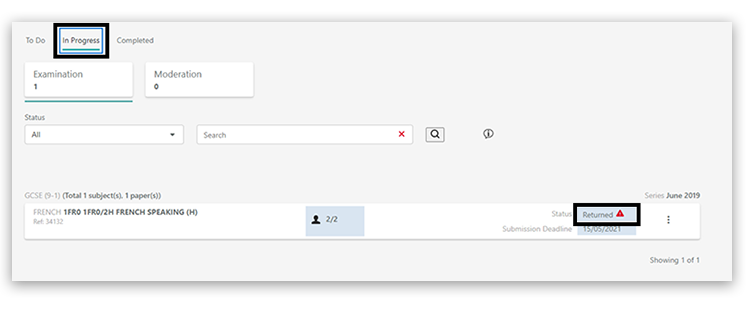
If the assessor finds that the wrong material has been uploaded, they can return the request to the centre. You should receive an email from the assessor or Pearson. This will show in the 'In Progress' tab with a status 'Returned'. You can then add or remove files before resubmitting the request:
If you realise that incorrect documents have been uploaded and submitted, please contact us immediately to request the submission to be returned for amendment.
| 

