Salesforce

To access Classic Knowledge, you must run the Lightning Knowledge Migration Tool. Learn More

Benefits of upgrading to Lightning Knowledge:

  • Better article editing experience
  • Improved search functionality
  • AI-driven Knowledge recommendations

After migration, Classic Knowledge remains.

Entry Level Functional Skills: Standards Verifier (SV) Allocation Details

« Go Back

Information

 
TitleEntry Level Functional Skills: Standards Verifier (SV) Allocation Details
URL NameEntry-Level-Functional-Skills-SV-Allocation-Details
Issue

Where can I find contact details of my allocated Standards Verifier (SVs)?

FAQ

Banner text reads: Entry Level Functional Skills SV Allocation Details

Please click below to expand each section and view support:

How to Access Standards Verifier Contact Details

You can view Standards Verifier (SV) contact details for Entry Level Functional Skills through Edexcel Online. Please see the steps below:

1. Sign in to Edexcel Online
To sign in, please go to Edexcel Online. You will be asked to enter your usual Edexcel Online credentials. Once you click sign in, a verification code will be sent to the Pearson Authenticator app.

For further information, including how to download the app to your mobile device and use it to complete the sign in process, please see Pearson Portal Authenticator.

2. Navigate to the EOL home page
You will then be directed to the EOL home page:
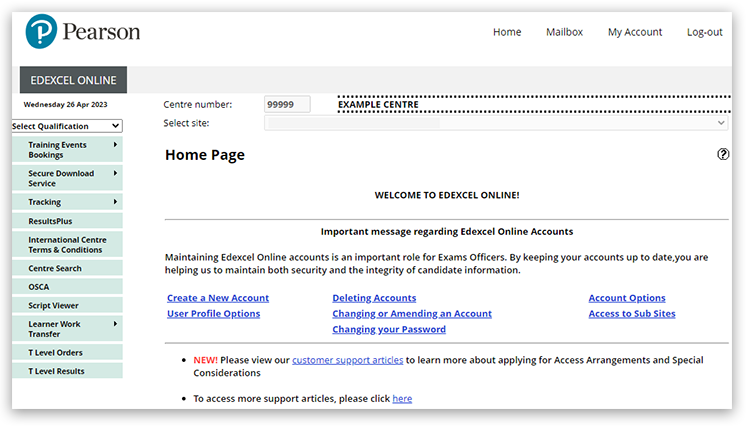
Edexcel Online home page

3. Select your qualification type
Select 'BTEC & Functional Skills' in the 'Select Qualification' drop down box:
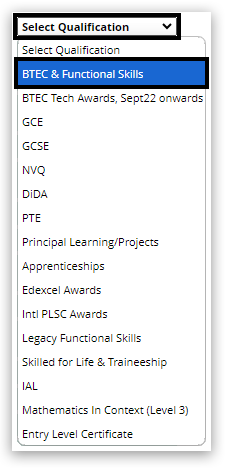
BTEC and Functional Skills selected in the qualification drop down box

4. Access External Verification
In the 'Quality Assurance' section, hover over 'External Verification':
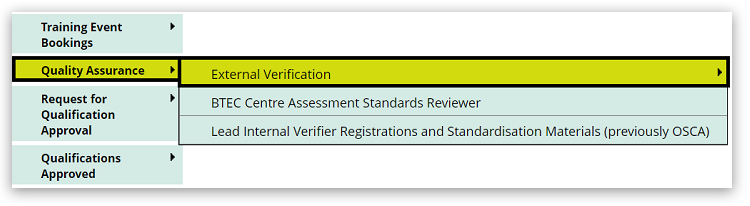
External Verification option in the Quality Assurance section

5. Choose your qualification
Select the qualification or framework you are offering:
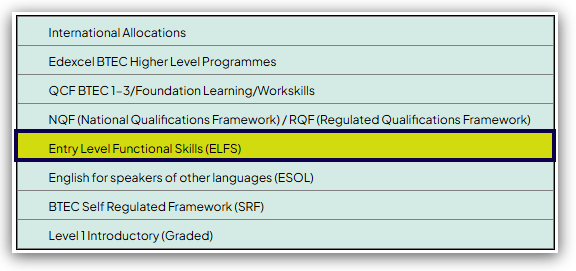
Qualification and framework selection options

6. View your Standards Verifier details
You can change the registration year using the drop down box and click 'Go'.

You will see the name of your allocated SV under the 'SV Name' column in the table. Click their name to display their contact details:
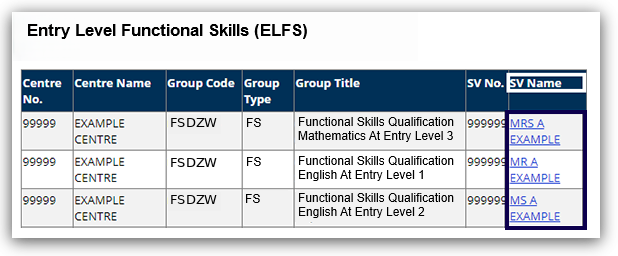
Standards Verifier name displayed in Edexcel Online

Need Help or Have an Issue?

If an SV is not allocated yet:
Please ensure you have live registrations for this year. It can take a few days for an SV to be allocated once learners are registered, if an SV is not allocated after one week, please contact us.

If you require assistance contacting your SV:
Please contact us, and a Customer Services Specialist will liaise with our assessment team and arrange contact.

SV allocation timeline:
Once an SV has been allocated, they will contact your centre to make further arrangements. Allocations begin in late October 2026 for this academic year, but you must have active registrations before an SV can be allocated.

For all other issues:
Please create a case, and a Customer Services Specialist will liaise with our assessment team to support you.

SV Allocations if also delivering Level 1 and 2 Functional Skills English

Entry Level Functional Skills and Level 1 & 2 Functional Skills are allocated separately, this means that your allocated Standards Verifier for Level 1 & 2 may differ from ELFS. If you are ever in doubt, always be sure to confirm which programme level the verifier is requesting material for before sending any files.

Standards Verifiers for Level 1 and 2 Functional Skills will be allocated from January 2027 onwards for the current academic year. If your Standards Verifier has not contacted you by February 2027, or you wish to check their contact details, please contact us Contact Us. If you already have an allocated SV for ELFS and wish to have the same person for both levels please provide their name in the case description. Where possible, we will try to accommodate your request.

Related Articles:

Entry Level Functional Skills: External Standards Verification
Entry Level Functional Skills: Centre Guide to Quality Assurance

Back to the Functional Skills: Support Index.

Detailed Instructions


Powered by