
Please note:
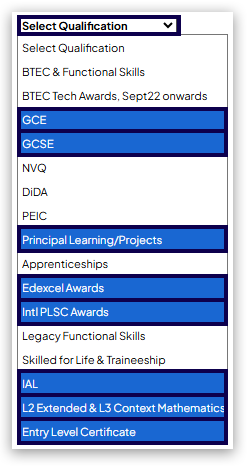
The following processes are only available for these qualifications:
- GCSE
- GCE
- Principal Learning/Projects
- Edexcel Awards
- Int'l PLSC Awards
- IAL
- L2 Extended & L3 Context Mathematics
- Entry Level Certificate
Please click below to expand each section and view support:
How to download entry confirmation/statement of entries reports
Step-by-step guide: Bulk download
You can check your entries by downloading an entry confirmation report through Edexcel Online. Please see the steps below on how to access the report.
Please note:
Statement of entries may take up to 24 hours to be available to download following submitting your entries successfully.
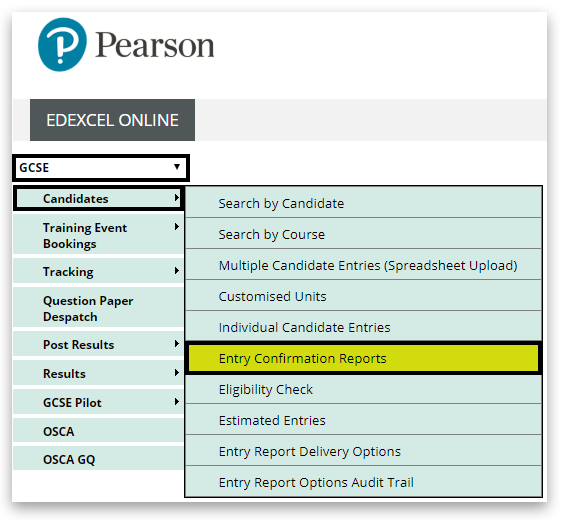
1. Select your qualification from the left hand side drop down box, then hover over 'Candidates' and click on 'Entry confirmation reports':
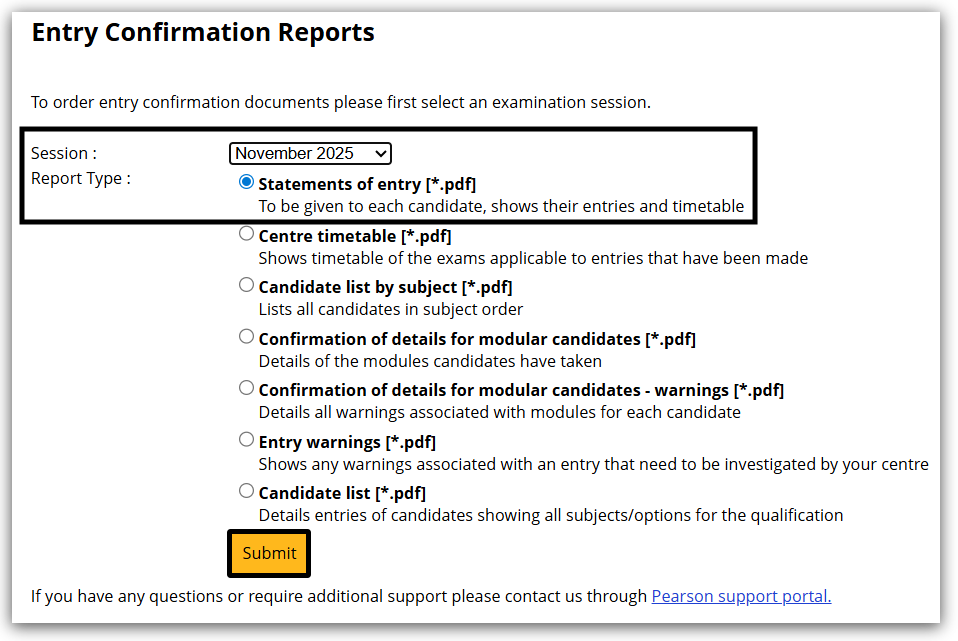
2. You can then select the session and type of report. Select 'Statements of entry'. Then click 'Submit':
Once submitted, you will see the following confirmation:


Please note:
During busy times reports can take up to 2 hours to appear in your Edexcel Online mailbox.
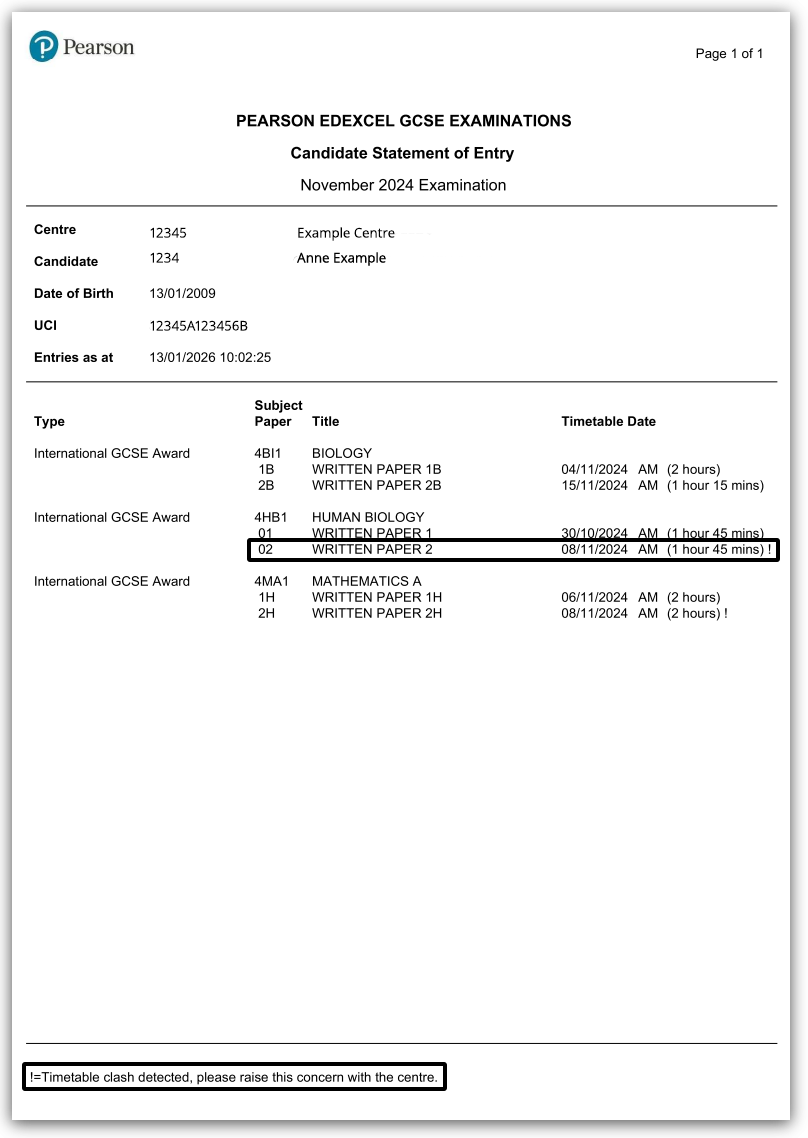
Once downloaded the reports show the following information per learner:
- Centre details
- Candidate details
- Qualification, subject/paper and timetable date.
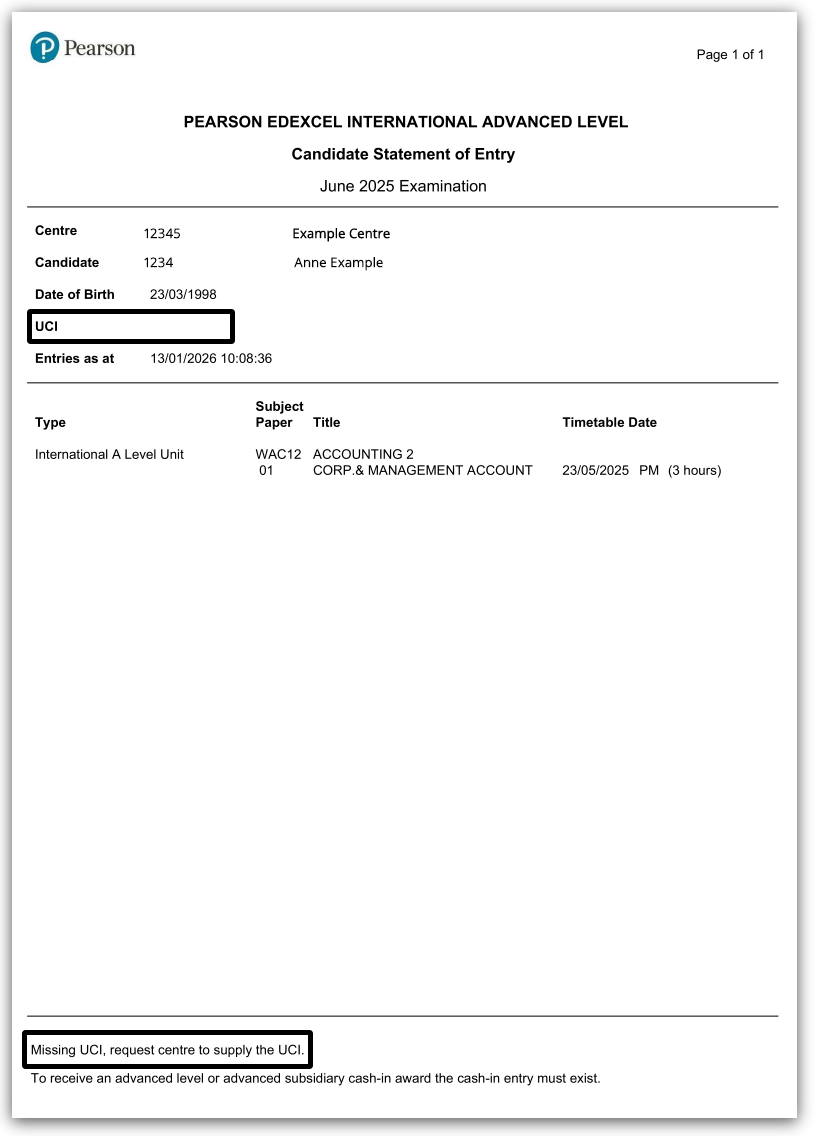
The reports will also include any entry warnings:
Missing UCI message:
Entry warning message:
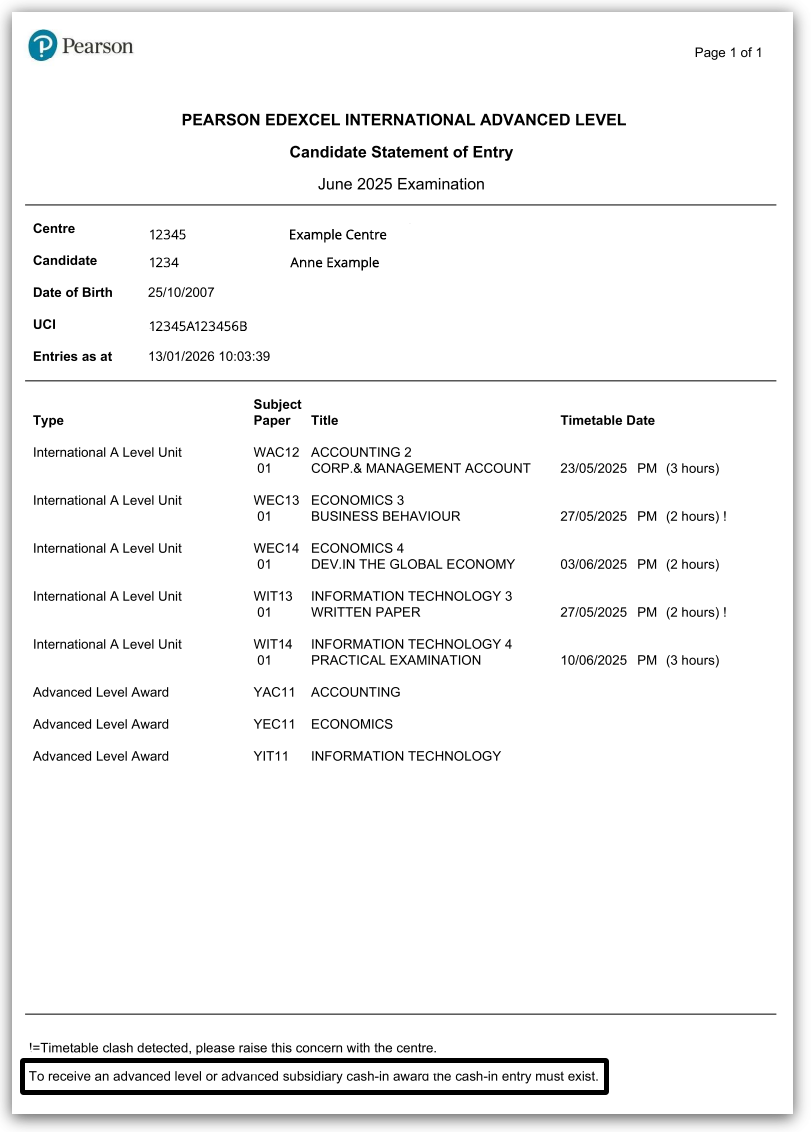
Timetable clash message:
|
Step-by-step guide: Individual download
Please follow the steps below:
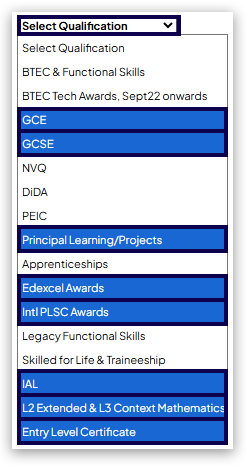
1. Log in to Edexcel Online and select your qualification from the drop-down box on the left-hand side.
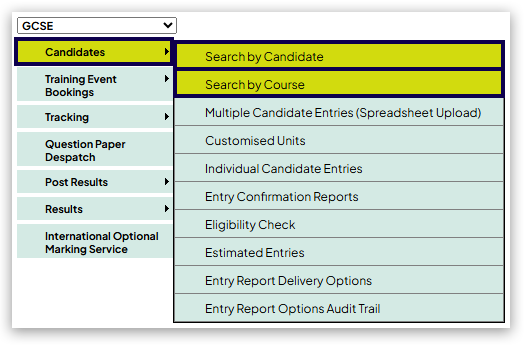
2. Select 'Candidates' and then choose either:
- 'Search by Candidate' - to locate a specific learner using the available filters, or
- 'Search by Course' - to view all subject entries for a specific session
3. If using Search by Candidate:
- Use the filters to locate your required learner
- Click 'Details' in the final column next to the candidate name
If using Search by Course:
- Select the 'Session' (e.g., June 2025, November 2025, January 2026)
- You will see all subject entries for that session
- Click the 'Candidates' link next to the required subject
- This will display all candidates with entries for that subject
- Click 'Details' in the final column next to the candidate name

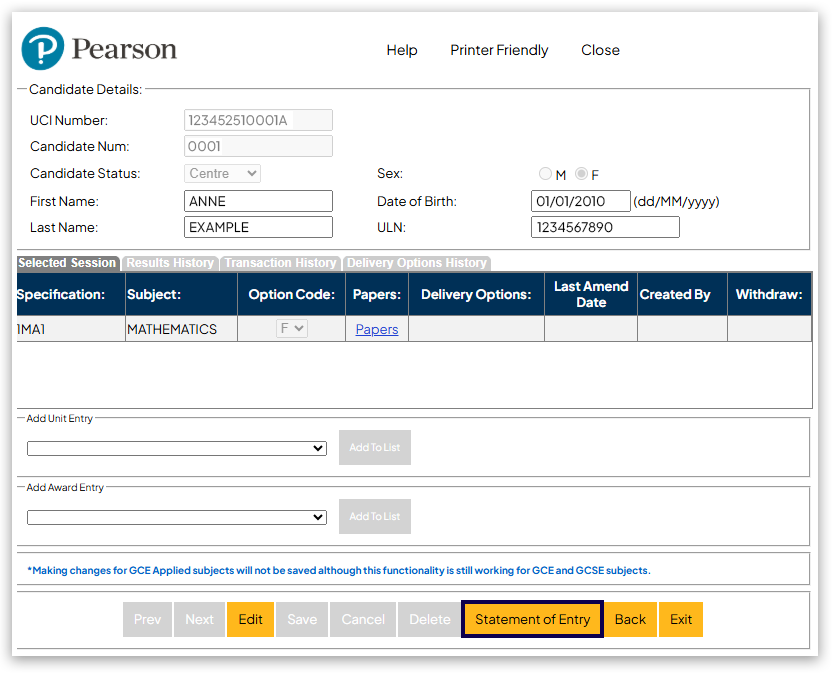
4. Click the yellow 'Statement of Entry' button at the bottom of the page to open the online document.
5. A message will appear at the top of the page to confirm your request and advise that your report will be delivered to your Edexcel Online mailbox.

Important:
If you see the message 'Reports are not available until entry quality assurance has been completed.', please try again after 24 hours.

If any issues are identified with the entries made, our eProcessing team will contact you directly.
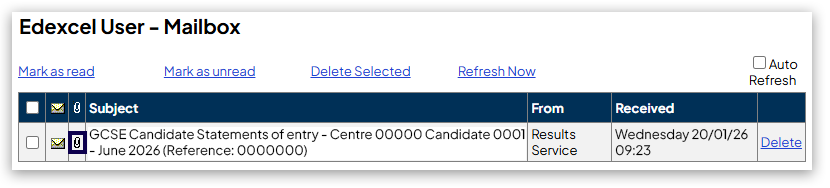
6. When your Statement of Entry will become available in your mailbox, click to open the inbox and view the message.

7. Click on the paperclip icon to open the attached Statement of Entry.
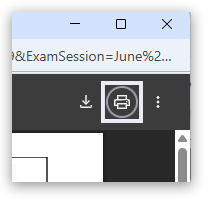
8. Save the Statement of Entry as a PDF by selecting the printer option at top of the page.
9. Change the destination to 'Save as PDF' and click 'Save'.
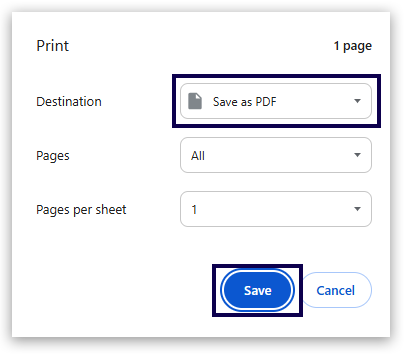
10. You will be presented with a dialogue box to select a location on you computer and to name your file. Click 'Save' to complete the process.
|
|
How to Opt-in for hard copy entry confirmation/statement of entries reports
|
1. Log in to Edexcel Online and select your qualification from the drop-down box on the left-hand side:
2. Select 'Candidates' and then select 'Entry Report Delivery Options':
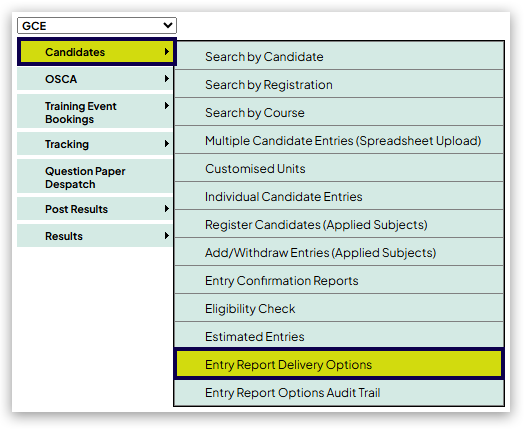
3. You will see a table showing different report types with 'Online' and 'Paper' options. To opt-in to receive hard copy statements of entry, tick the 'Paper' checkbox next to 'Statements of entry':
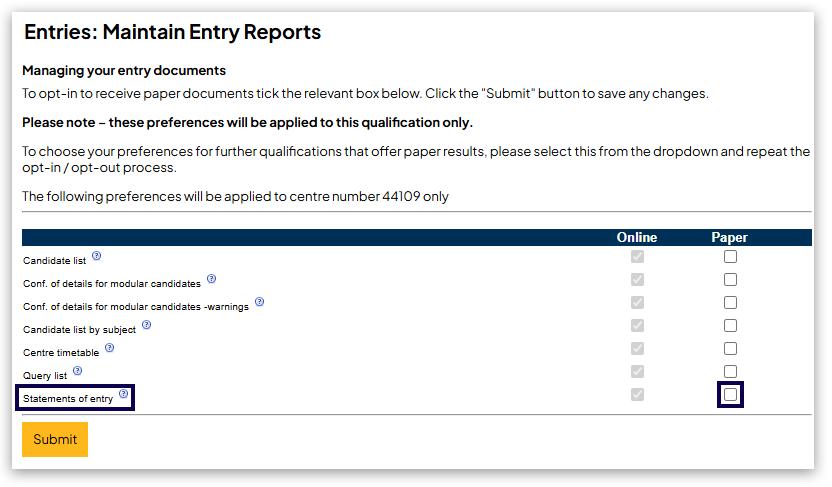
4. Click 'Submit' to save your preferences.
Please note:
These preferences will be applied to the selected qualification only. If your centre offers multiple qualifications, you will need to repeat this process for each qualification you wish to receive hard copy reports for.
|
|
Please note: If you have chosen to Opt-In to receive hard copy Statement of Entries, these will be generated for your first batch of entries made in each series. If you do make subsequent entries and require hard copies, you will need to download and print this following the above process.
Related Articles:
Entries: Entry/Option Code Amendments
Edexcel Online: Updating Learner Details (General Qualifications) Step-by-step
Entries: Delete/Withdraw Academic Learners
Back to Entries & Registration index page.


