
If the learner is registered on EOL with a vocational registration number, you can edit one of the following pieces of information before certification.
- First Name
- Last Name
- Sex
- DOB
- Planned Completion date
- Unique Learner Number (ULN)
- Study mode
- Centre Reference
To make an amendment:
1. Log in to Edexcel Online. For additional support, please see: Logging In And Accessing Pearson Services Using The Pearson Application Portal
2. Select your vocational qualification from the drop-down box in the upper left corner of the page:

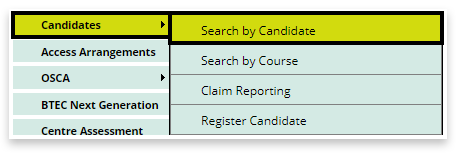
3. Select 'Candidates' and 'Search by candidate' from the menu on the left side of the page:
4. Using the available search criteria boxes, provide enough detail to locate your specific learner and click next:
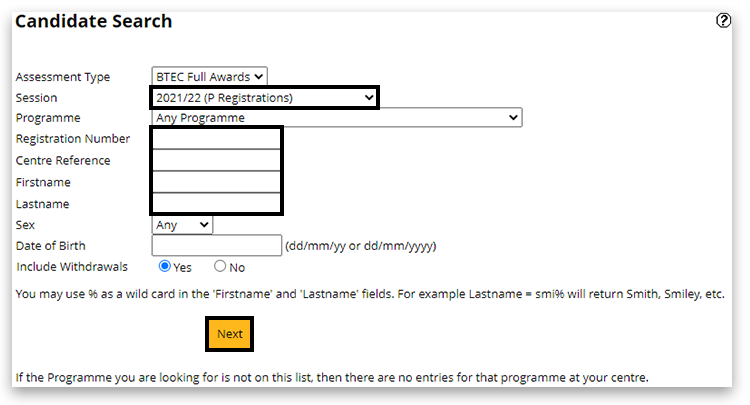
Please note: Be aware that Edexcel Online uses 'pop-up' windows on your browser to display information. If your browser blocks pop-ups, please see Pop-up Blocker - How To Disable.
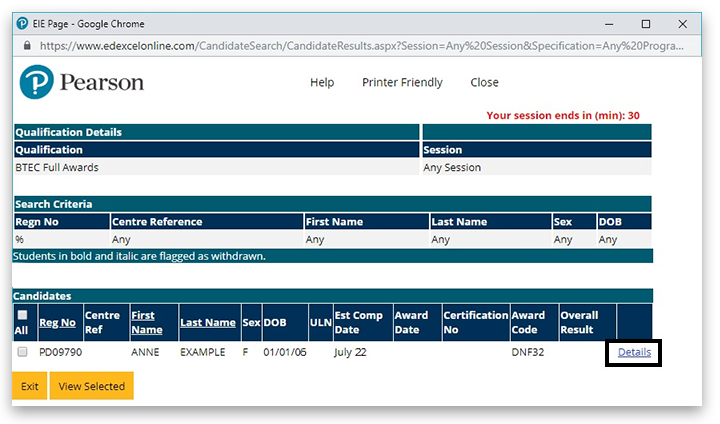
5. A pop-up window will appear, matching the search information provided. Click on the 'Details' link to view the specific learner record:
6. Click on 'Edit' at the bottom of the window:

7. Amend the detail that is required.
8. Click on 'Save' at the bottom of the window:

To make a second change, please create a case and request the amendment; a Customer Services Specialist will update the case within two working days.
Related Articles:
Edexcel Online: Searching For BTEC Learner Registrations
Pearson Support Portal: Creating An Account
Pearson Support Portal (Staff at Centres & Associates): Creating A Case Record


