How to submit coursework marks online?
To submit coursework marks through Edexcel Online, please see the below.
Before you start
To ensure smooth processing and prevent data loss when entering component marks into Edexcel Online, please follow these guidelines:
If you are entering marks for a large cohort (20 or more students), do not attempt to submit all marks in one go. Doing so may cause a timeout error, resulting in the session ending and none of your component marks being saved.
Instead, enter marks in smaller blocks of 20 students at a time.
After each block, click Save before proceeding to the next set of marks.
Repeat this process until all marks have been successfully entered.
Following these steps will help avoid system errors and ensure all student marks are recorded accurately.
1. To sign in, please go to https://edexcelonline.pearson.com; you will be asked to enter your usual Edexcel Online credentials, and once you click sign in, a verification code will be sent to the Pearson Authenticator app.
For further information, including downloading the app to your mobile device and using it to complete the sign-in process. Please see Pearson Portal Authenticator for details.
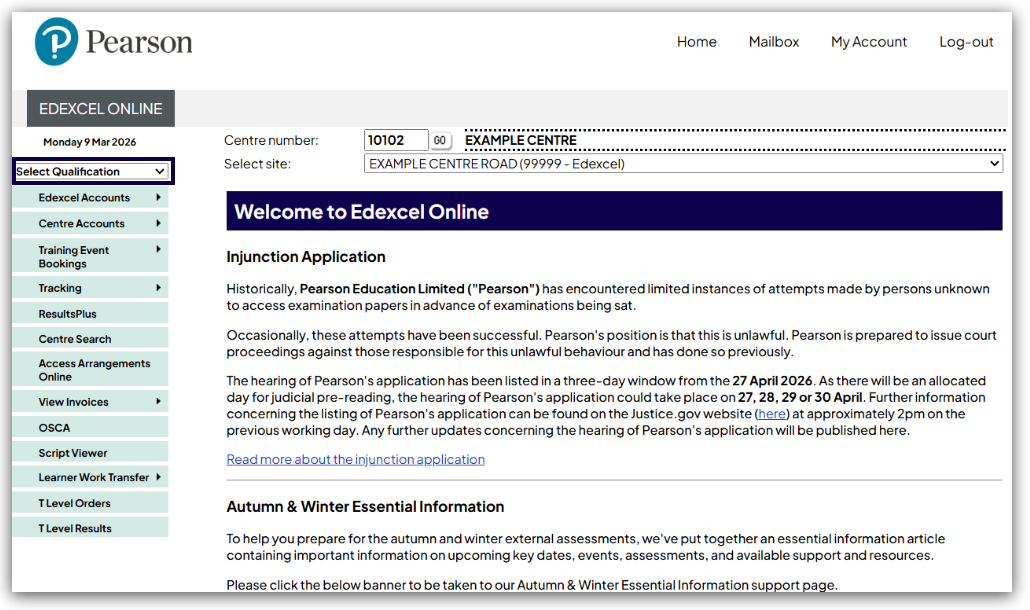
2. You will then be directed to the EOL home page. Click on 'Select Qualification':
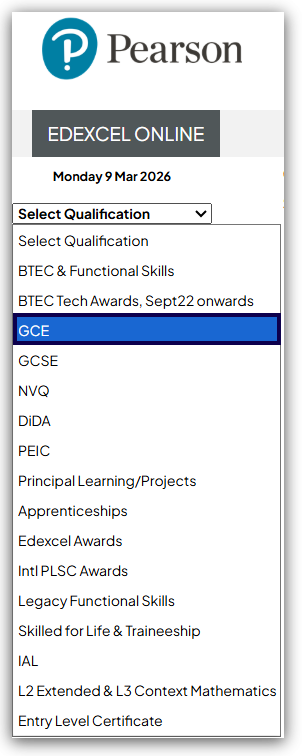
3. Select the relevant qualification from the left hand dropdown menu:
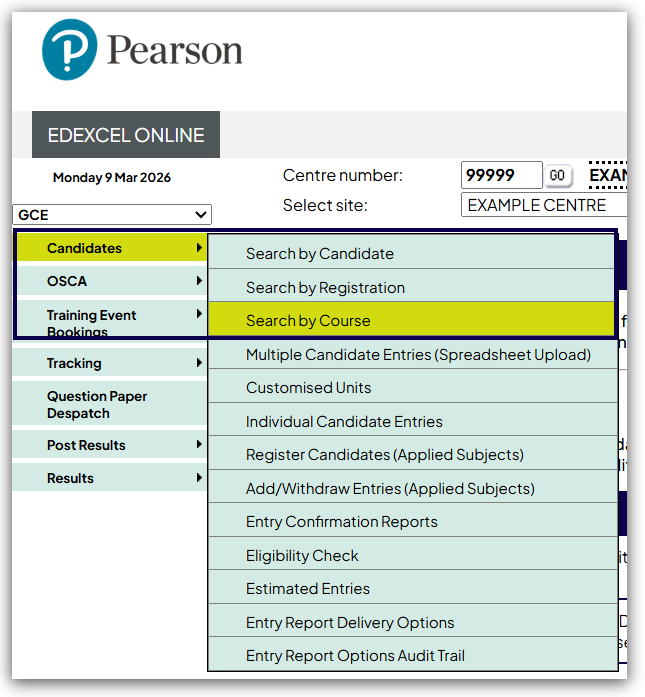
4. Hover your mouse over 'Candidates', then click 'Search by Course':
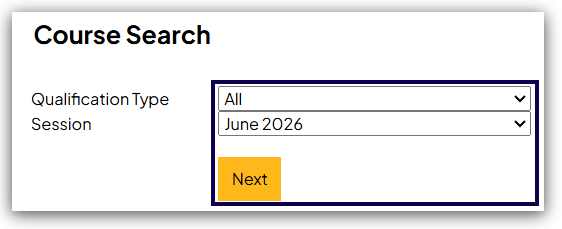
5. Select the required 'Session' from those available in the drop-down box, then 'Next':
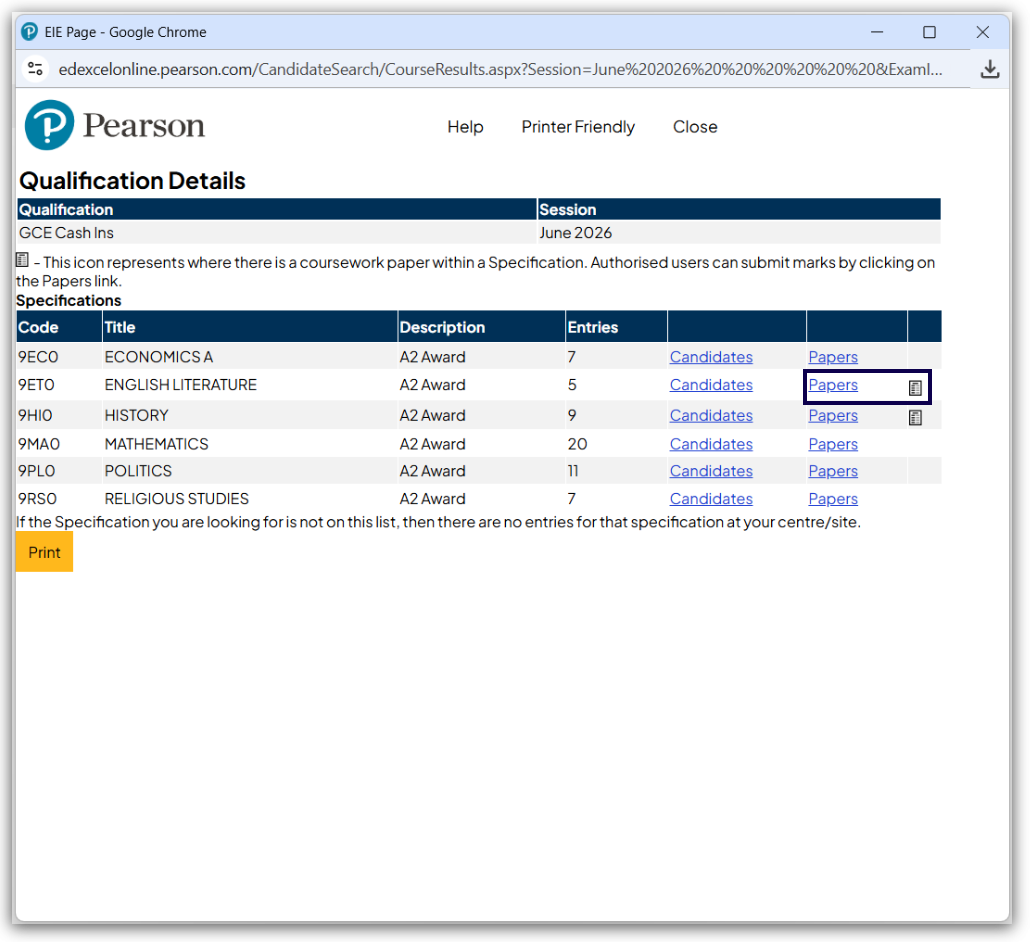
6. Click on 'Papers' next to the relevant unit:
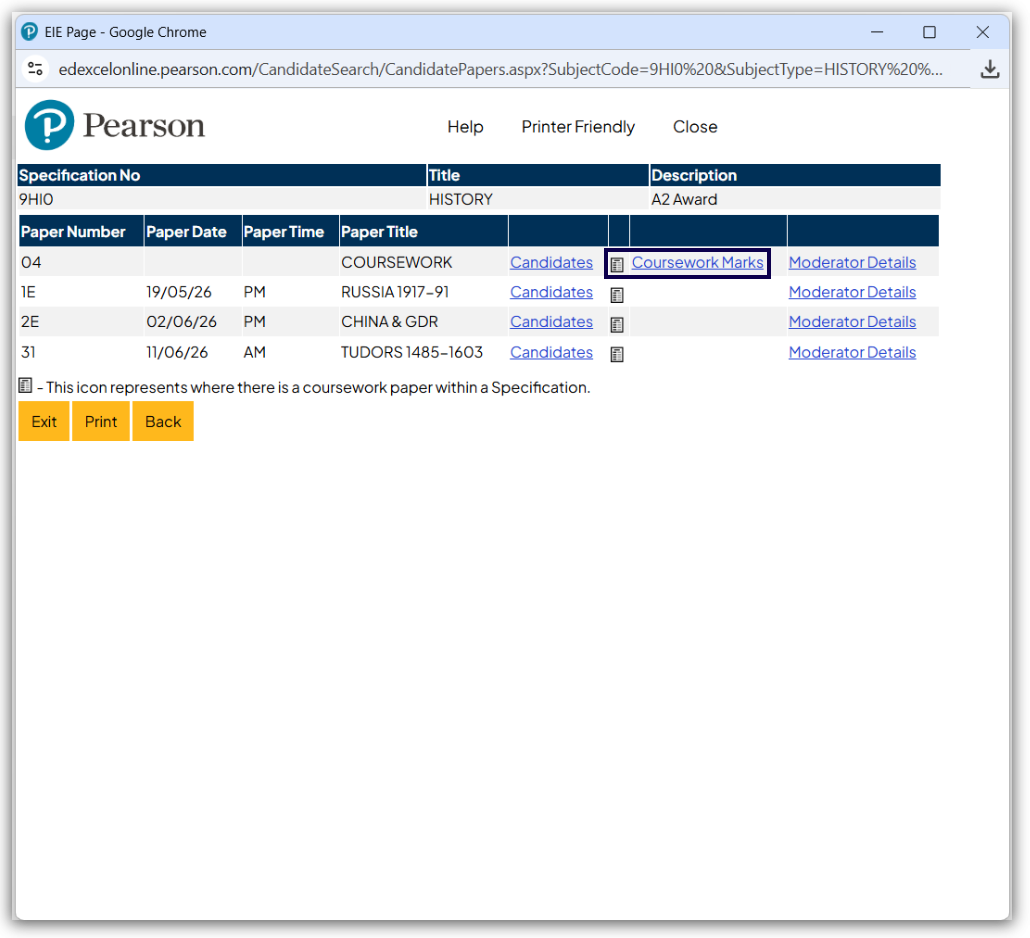
7. Find the paper number, to submit marks, click on 'Coursework Marks':
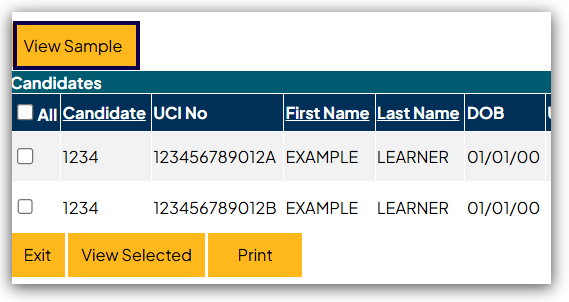
8. You will see a list of all of the candidates who have entries for this component in this session. The marking range is shown in the 'Paper Details' section at the top of the page including the Centre Mark Submission Deadlines. Each learner has a box which is used to provide the individual, numerical raw mark.
Please note: Centre marks for all students must be submitted before the student list is released for moderation. Any learner marked with a 'Green tick' has been selected as part of the moderator sample. A new 'View Sample' button shows the selected learners for the moderator sample.
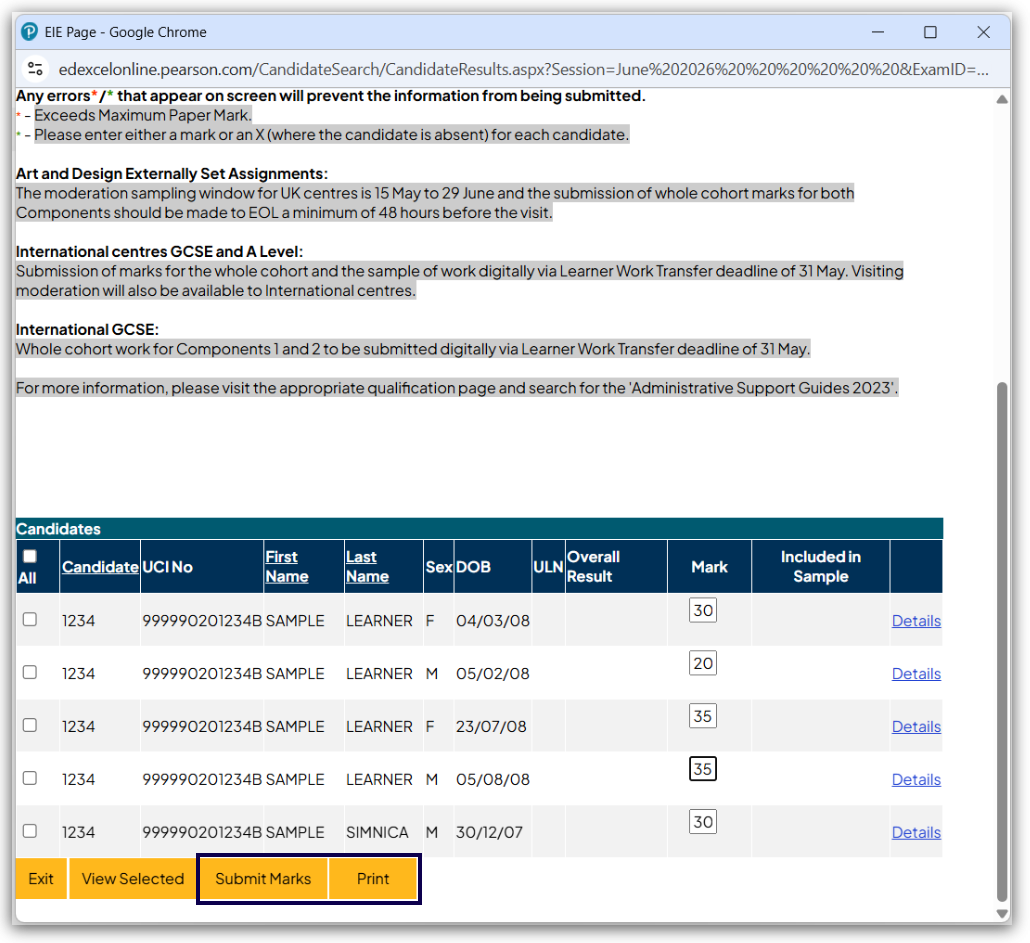
Please note: Every candidate who has been entered for the component assessment must receive a mark unless absent which is indicated by entering a capital 'X' in place of the mark.
9. When you have recorded the marks, click 'Submit Marks' to complete the process. To obtain a hard copy of the marks you have submitted, click on 'Print':
Please note: for information on BTEC Tech Awards 2022, please see BTEC Tech Awards 2022: Submitting/Amending Marks via Edexcel Online.


