| FAQ | 
Logging into EOL accounts using multi-factor authentication (MFA). Click each section to expand and view support:
Multi-Factor Authentication (MFA)
|
We have now introduced additional security to Edexcel Online, using Multi-factor authentication (MFA). This is an additional measure to protect user, centre and learner data. For detailed information, including downloading the app to your mobile device and using it to complete the sign-in process. Please see Pearson Portal Authenticator for details.
Please Note: With the introduction of MFA to EOL, all centres can only have one user per Edexcel Online account; hence, with additional security measures Pearson has in place, it will supersede JCQ ICE regulation 4.5, which states, "Email accounts used for secure material access must belong to named individuals or be a group email account accessed solely by individuals authorised by the head of centre to handle secure materials."
|
|
Changes to Edexcel Online account management
Account Creation and Management
|
Centres can now directly create, amend and deleted exams staff accounts on Edexcel Online (EOL). This will continue to ensure only active roles are visible within Edexcel Online and that the correct contacts receive communications from us. For detailed instructions, please see: Edexcel Online: Changing/Amending An Account.
You cannot grant access to profiles unless you have them yourself. If you need to give someone access to something you don't already have, please speak to your exams officer first.
If your centre requires any amendments to the Head of Centre (HOC) account within EOL, please complete the Head of Centre form. You are required to have access to EOL already to complete the form.
Pearson will continue to periodically review accounts, including those which you have confirmed as being required. Any accounts which have not been logged into in the past 2 years will be permanently deleted.
Should you require urgent support with Examinations staff or HOC accounts you can call us to speak to the expert team.
- If you are a UK centre, please call 0344 463 2535
- If you are an International centre, please call +44(0) 120 4770 696
Each profile gives the user access to different areas of the system. To view a description of each, hover the cursor over the relevant profile, and you'll see a tooltip giving a brief explanation of what it does. For more help with what each profile does, hover your cursor over the profile's name or click here to see the complete list and explanations.
|
|
Edexcel Online Account Option Adjustments
|
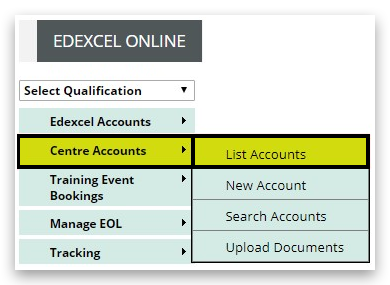
1. After logging on to Edexcel Online, hover over 'Centre Accounts' on the left side menu, then select 'List Accounts':
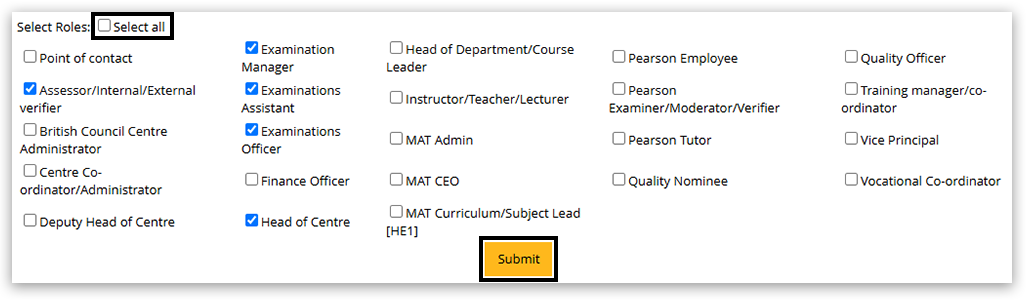
2. You will initially be presented with a list of registered users who have the Examination Manager, Examinations Assistant, Examinations Officer or Head of Centre role. If you need to view a complete list of users, you will need to select the 'Select all' option and click 'Submit' before proceeding further.
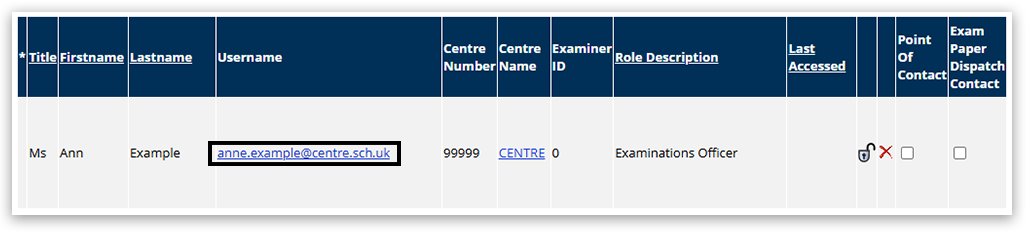
3. Once you have located the user you want to edit/adjust, click on their email address to view their profile.
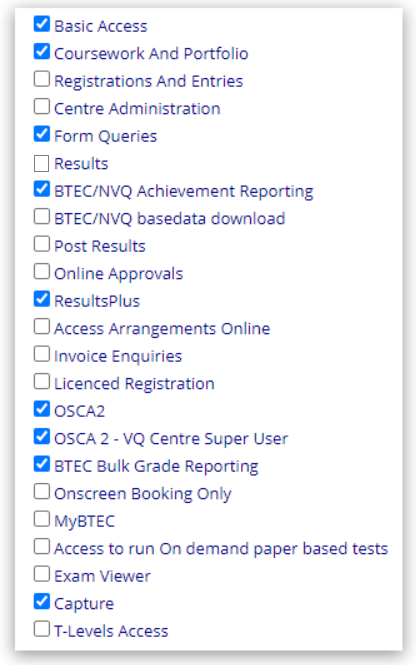
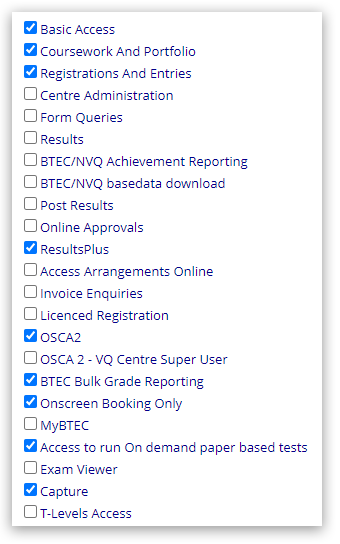
4. Click to expand the sections below to see example lists of profile options for each staff member. These are the typical options for each of the roles shown:
Quality Nominees
Please note: 'OSCA2' and 'OSCA 2 - VQ Centre Super User' options are only applicable for Functional Skills English, as there is no longer a requirement to register as a Lead IV for BTEC programmes:
|
|
Assessor/Internal Verifier/External Verifier
Please note: Assessors/Internal Verifiers and External Verifiers can have the Results option ticked on their profile, however, they are not allowed to access Results before the official results dates, this means that it is the responsibility of the Head of Centre/Examinations Manager to manage this profile in EOL.
The Results option can be added after each restricted release of results date but must be removed before the next restricted results release date. This action must be repeated per exam series.
|
|
Please note the following:
SENCos and other staff who require it can have the option for the Access Arrangements Online Tool added.
If your centre offers BTEC/NVQ qualifications; for Teachers, Assessors/Internal Verifiers/External Verifiers, please add the following profile options accordingly:
- BTEC/NVQ Achievement Reporting
- BTEC/NVQ basedata download
- BTEC Bulk Grade Reporting*
- MyBTEC
*For additional information on assigning the BTEC Bulk Grade Reporting profile option and process, please see Certification: Edexcel Online BTEC/NVQ Bulk Claim Process.
All users at HEI centres operating under the License agreement require the 'Licensed Registration' function.
5. After adjusting these options, scroll to the bottom of the page and click 'Submit' to complete the process:
|
|
General EOL Account Security
Account Security Best Practices
|
You'll need to use the e-mail address provided to you by your centre, and this e-mail address will become your Edexcel Online username. It is a requirement that all users are set up with a centre domain email address, e.g. name@centrename.com, as opposed to Gmail, Yahoo etc.
It is best practice to change your password regularly, using a combination of uppercase and lowercase letters, numbers, and special characters for extra security.
If you have entered a password that has been matched to one of the most commonly used on the internet for additional security, you will see a warning message and be asked to choose another.
Please see Edexcel Online: Resetting your Password for additional support.
Please Note: In all cases, only the account holder should have access to their online account. Under no circumstances should any other person log in to your account, and your login details should never be shared. Failure to comply with these rules could result in a data breach, which could constitute a breach of the terms and conditions of Pearson Centre approval.
|
|
Related Article:
Edexcel Online: Account Management Changes FAQ
Back to Edexcel Online Accounts index page. |
|
|---|


