|
To create a full claim using Edexcel Online, please follow the steps below:
1. To sign in, please go to https://edexcelonline.pearson.com; you will be asked to enter your usual Edexcel Online credentials, and once you click sign in, a verification code will be sent to the Pearson Authenticator app.
For further information, including downloading the app to your mobile device and using it to complete the sign-in process. Please see Pearson Portal Authenticator for details.
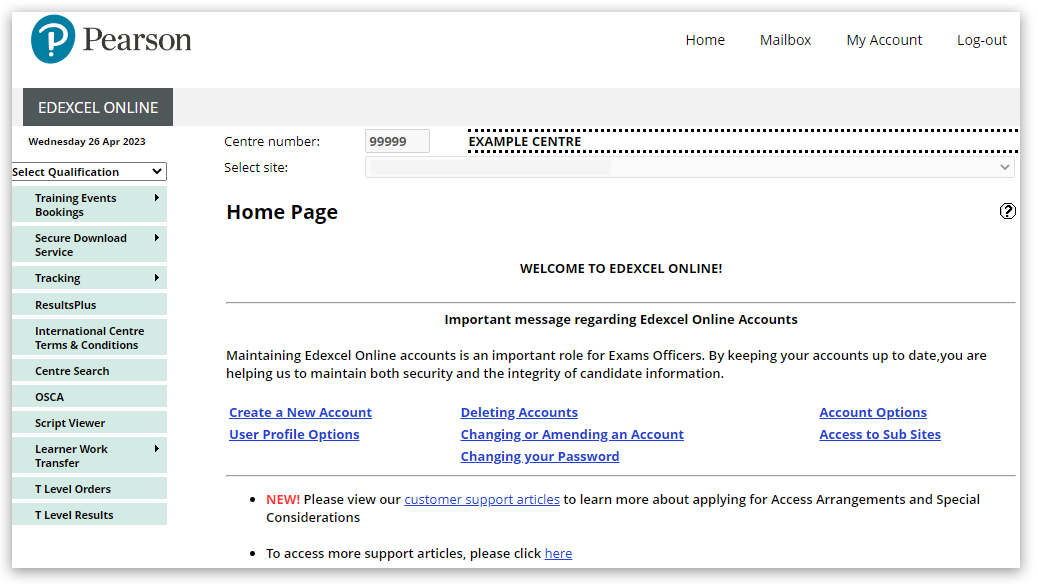
2. You will then be directed to the EOL home page:
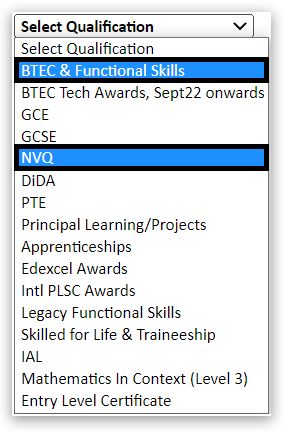
3. Select 'BTEC & Functional Skills' or 'NVQ' from the drop-down menu:
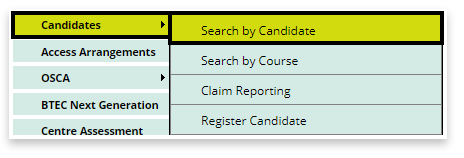
4. Select 'Candidates' and then 'Search by candidate':
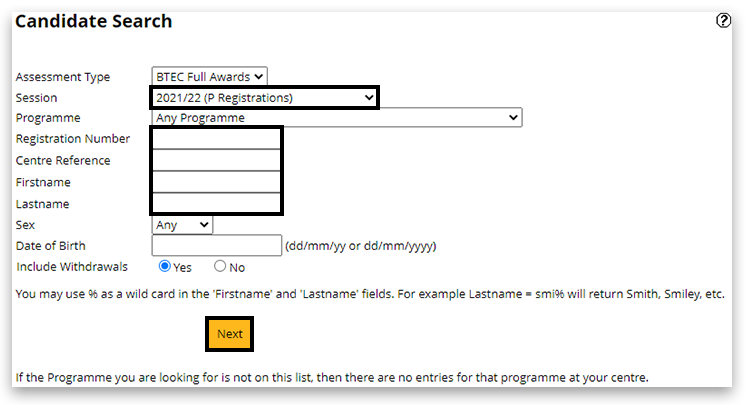
5. Using the available search criteria boxes, locate the candidate by searching for their current programme, alternatively enter the candidate's registration number or name, then click next:
Please note: Edexcel Online uses 'pop-up' windows on your browser to display information. If your browser blocks pop-ups, please see Pop-up Blocker - How To Disable.
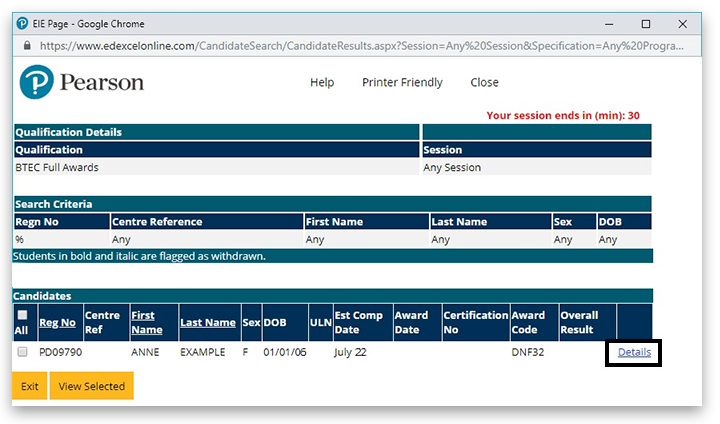
6. A pop-up window will appear matching the search information provided. Click on the 'Details' link to view the specific learner record:
7. Scroll to the bottom of the learner record and select the 'Edit' button:

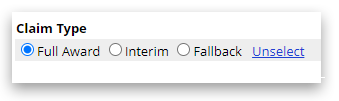
8. Select 'Full Award' from the available claim types beneath the learner and certification details (please see Certification: BTEC/NVQ Claims for additional information about claim types, and see Edexcel Online: Update Learner Details - Vocational Qualifications for assistance in making adjustments to learner details):
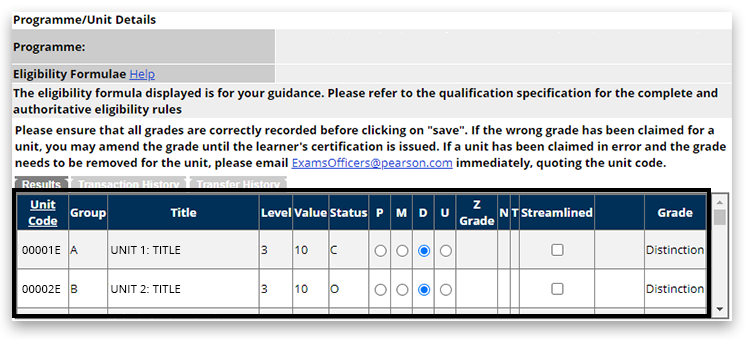
9. Input the grades for the units the learner has achieved using the available options. Not all grades are available for all units in all qualifications. If a unit is 'greyed' out, this indicates an external assessment result reported by Pearson once marked and the result released:
10. Input the Award Date (MM/YY):

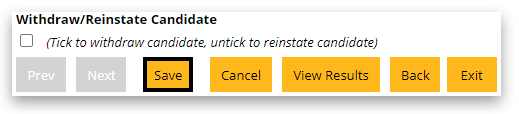
11. You should take an opportunity to review the claim and the information provided, then click 'Save' when you are happy everything has been reported correctly:
| 

