| FAQ |
Learner Work Assessment - Examination/Moderation
Guidance for the Examination/Moderation version of Learner Work Assessment is available below.
Click here to view the interactive guide for using the Examination/Moderation version of Learner Work Assessment.
Alternatively, click into any sections below to expand the guidance and to see the written step by step guidance.
Logging in and navigating (Examination/Moderation)
To access Learner Work Assessment, login into Edexcel Gateway. After logging, scroll to the bottom of the My Gateway Homepage screen.

At the bottom of the page, you will find the Examination/Moderation version of Learner Work Assessment, click this to access the platform.

Depending on the screen you are currently in, Edexcel Gateway can look a little different.
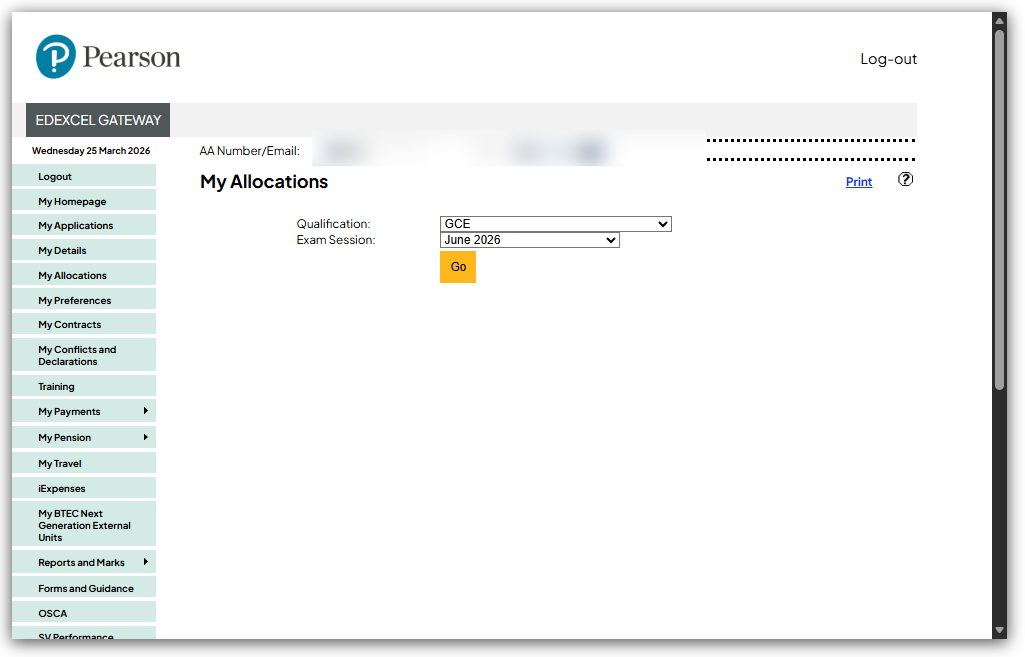
So sometimes you will need to hover over the Learner Work Assessment option which is found at the bottom of the menu on the left. This will show the Examination/Moderation option where you will be able to click to access.
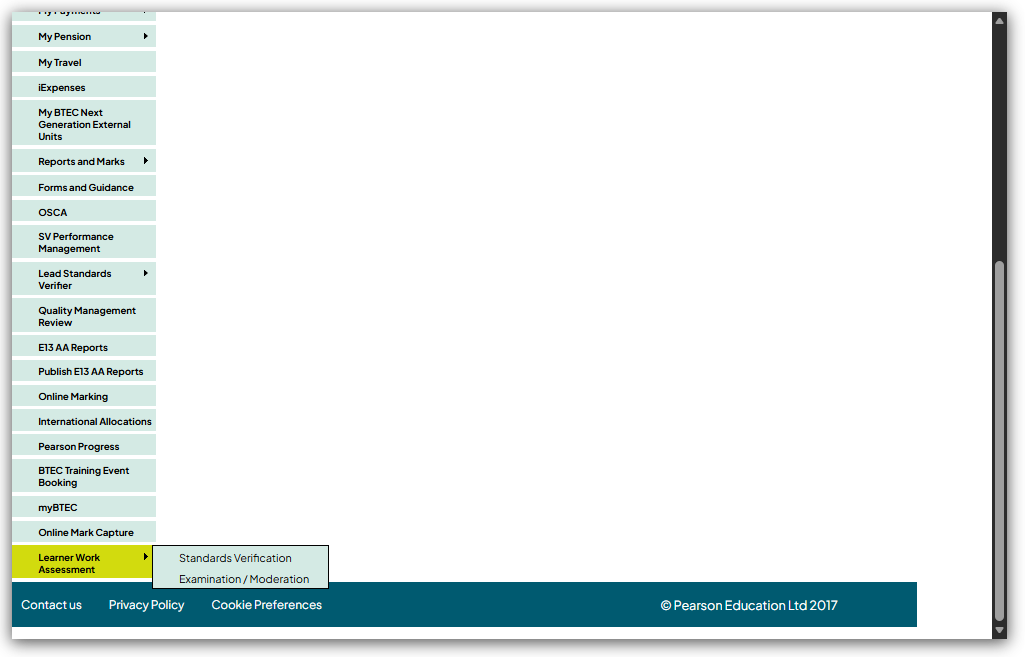
A new window will open and you will see the Learner Work Assessment dashboard. You can use the Examination and Moderation buttons near the top of the page to switch between assessment types. Four tabs will be visible on the top of the page:
- To Do
- In Progress
- Completed
- Team View
You can navigate between these tabs by clicking into them. If there are no requests with learner evidence that have been submitted to you yet, you will taken to the To Do tab first.
The To Do tab will display requests allocated to you which have not yet been submitted by the centre for assessment. These are read-only at this stage and you will be unable to complete any action for these allocations.
Centre information, including the centre number and name will be displayed for each request. You will also be able to see the date & time the request was submitted. You will also see the name of the person who submitted the request within the centre. This will also be shown in the In Progress and Completed tabs.
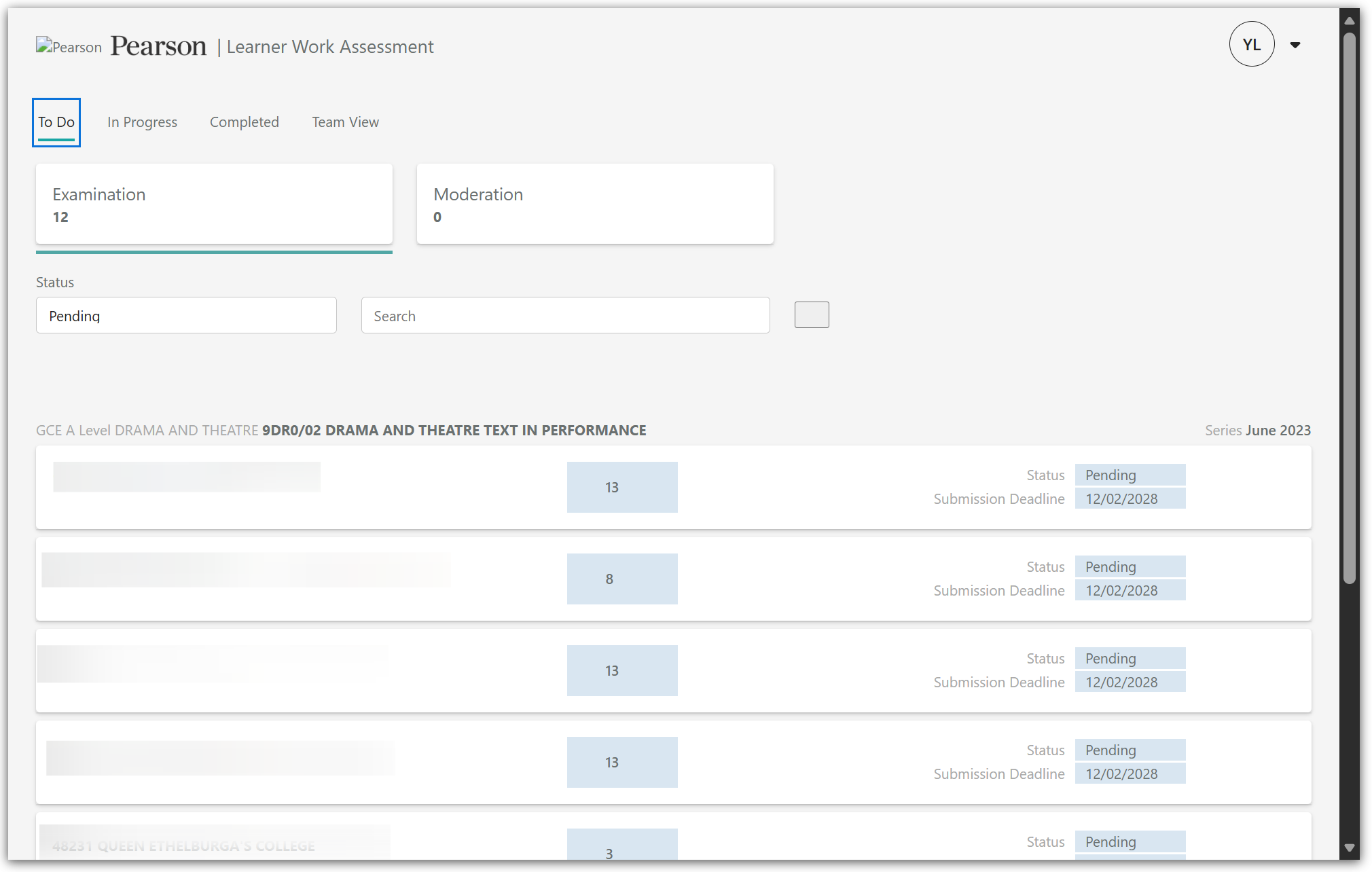
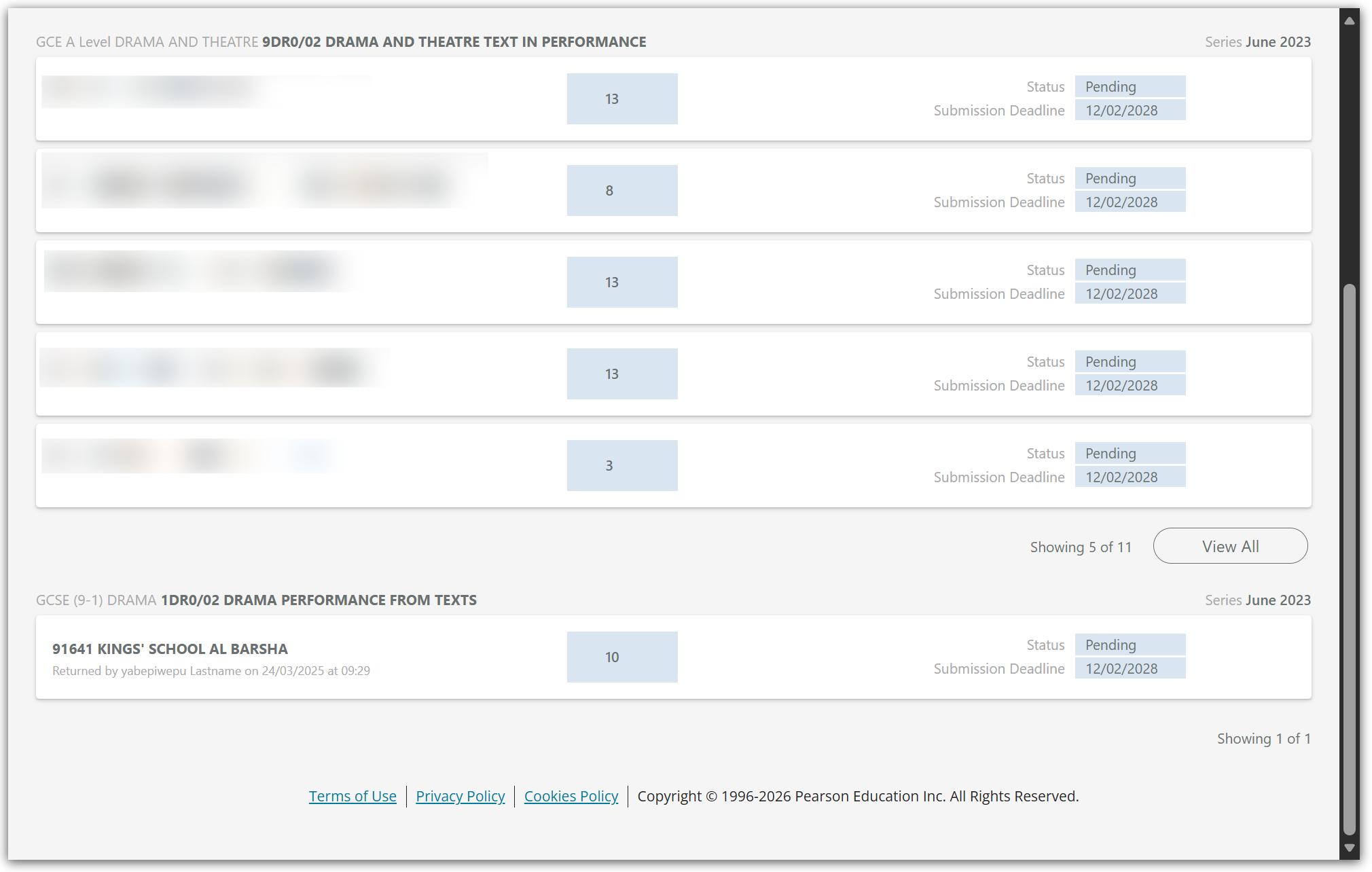
These allocations are group by paper and can be expanded using the View All button if you want to see everything in the To Do tab.
The In Progress tab shows requests that have been submitted, and have the learner work available for you to access and assess. When you first login, if you have requests which have been submitted by the centre pending action from you, you will taken to the In Progress tab first.
The Completed tab shows any requests where all learners are absent or unable to submit evidence, and so will not require work to be assessed.
In the To Do, In Progress and Completed tabs, the search box can be used to narrow down the results as required. The search will work across all data shown in the list of requests.
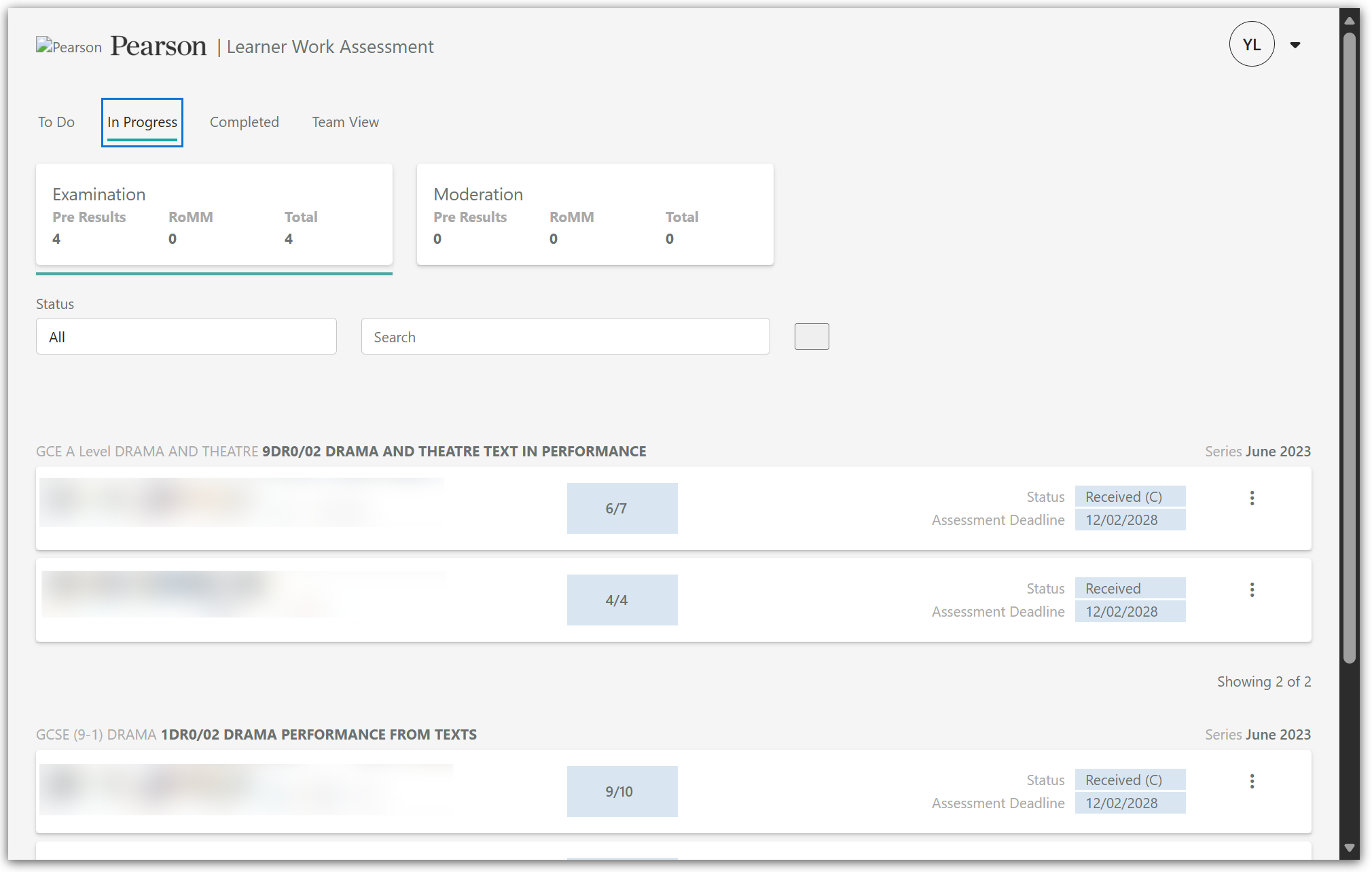
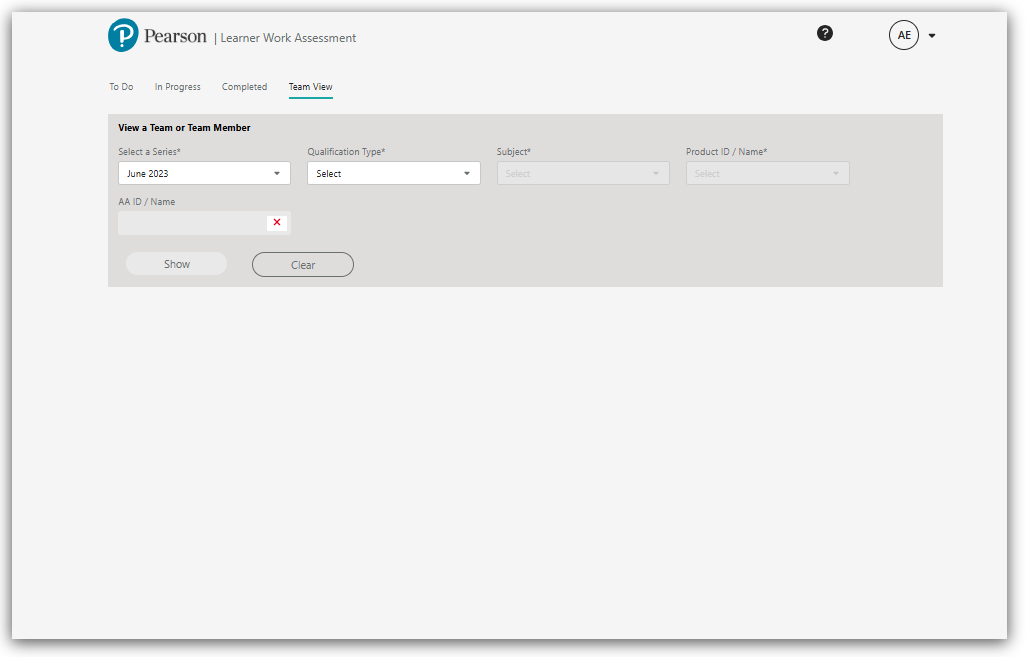
The Team View tab enables Team Leaders and other roles which manage a team to view members of their team and their requests.
For Associates who do not manage a team will not be able to use this tab.
You can logout of the system by clicking into the drop down menu in the top right and selecting Log out.
|
Accessing & Viewing Learner Work (Examination/Moderation)
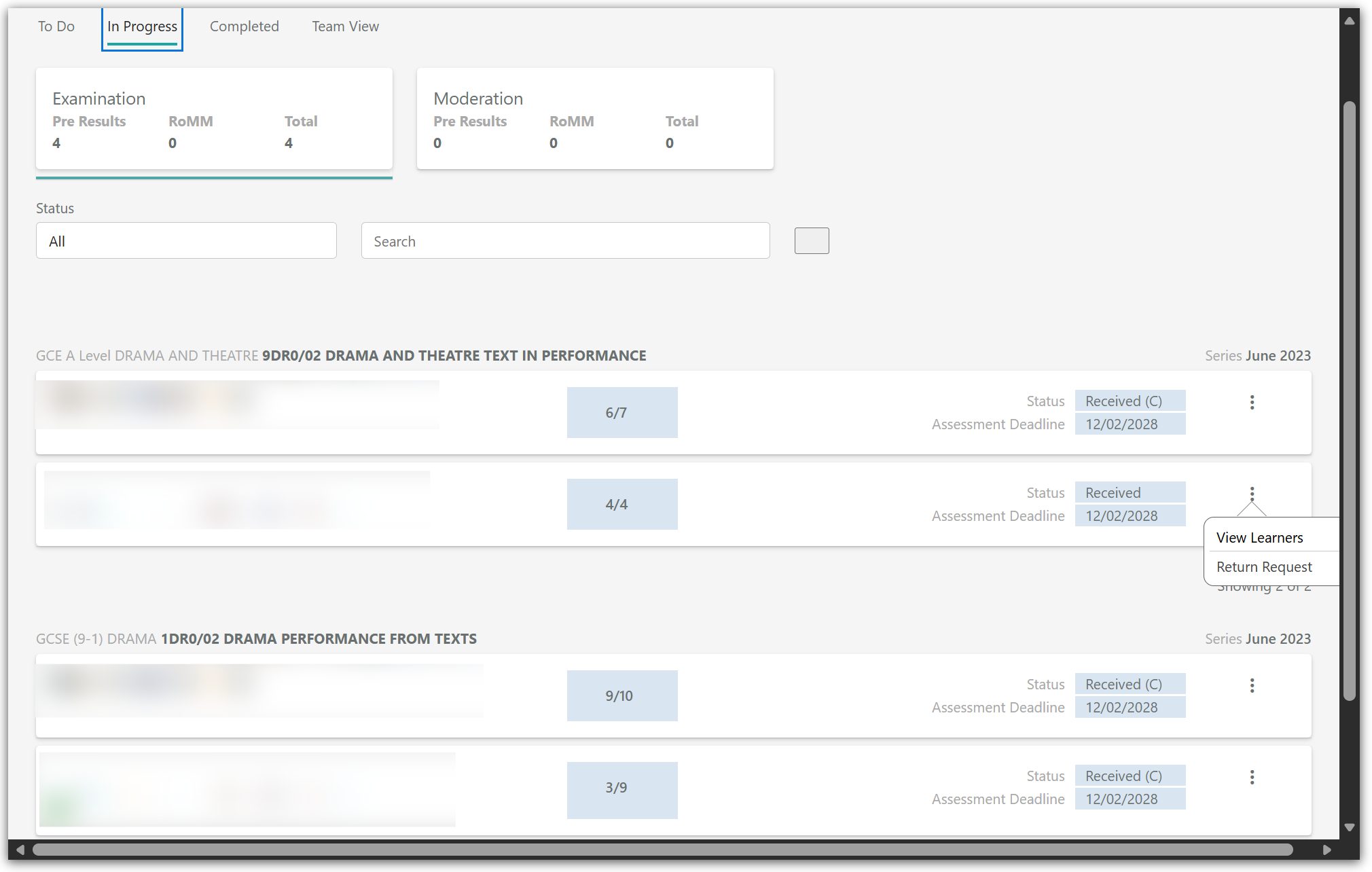
To view learner work which has been submitted, ensure you are in the In Progress tab.
Click on the 3 vertical dots on the right of a request.

Then click on View learners to open it.
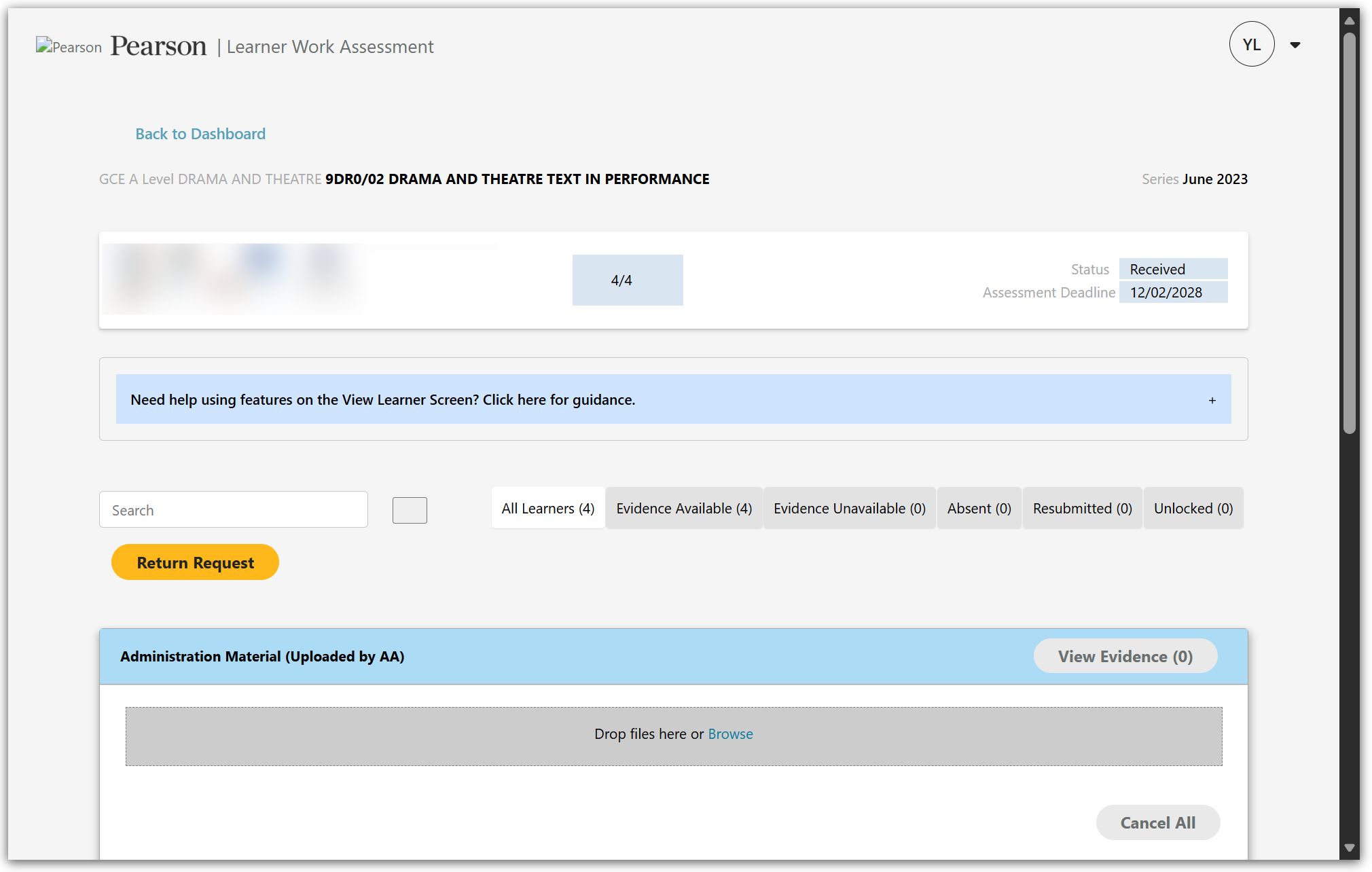
When the request is open, you will see confirmation of your selection at the top of the page.
Under the request information, you can click it to the Need help using features message to open additional guidance to support you using the system.
Click again on this header to close the guidance.
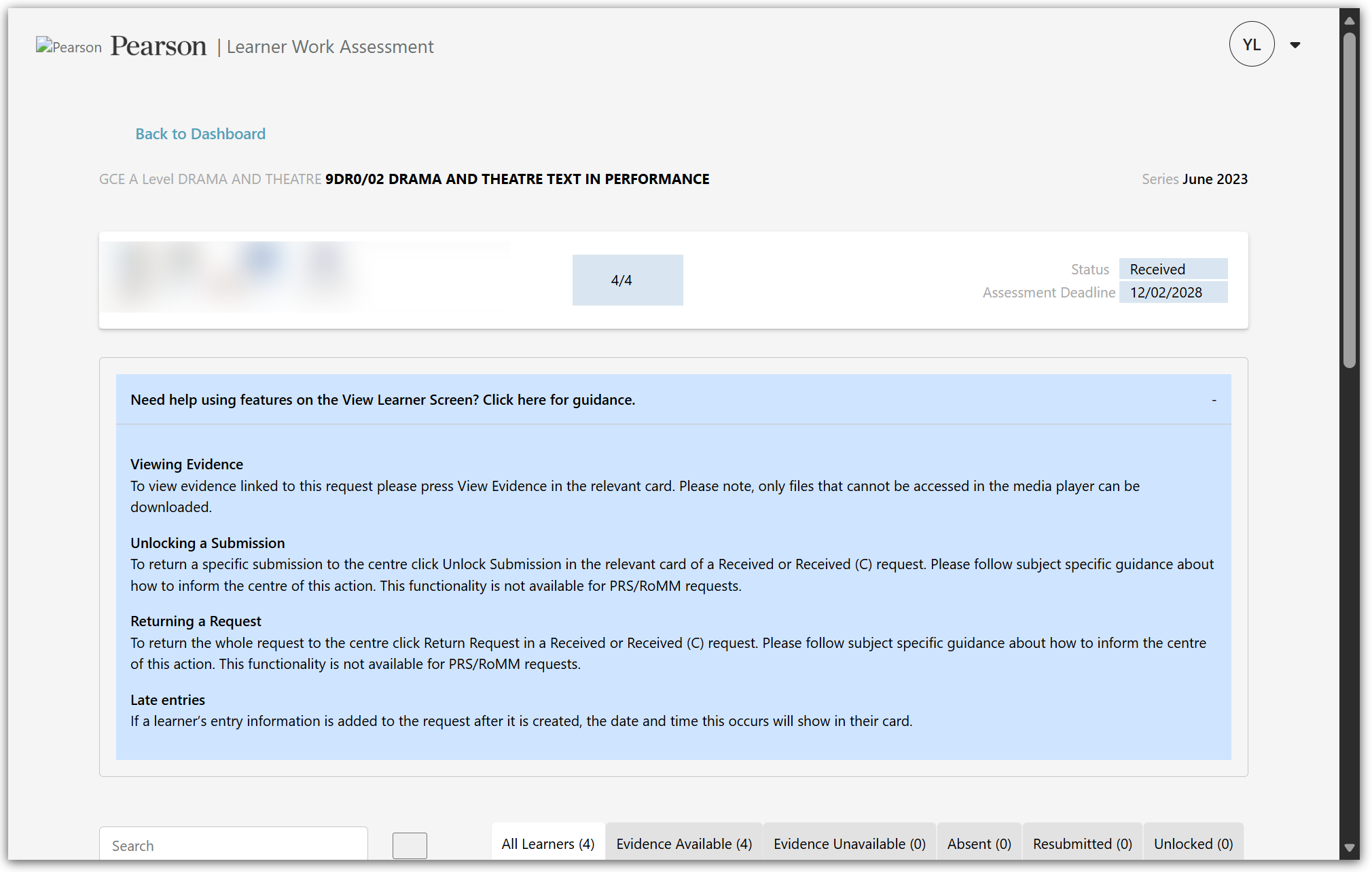
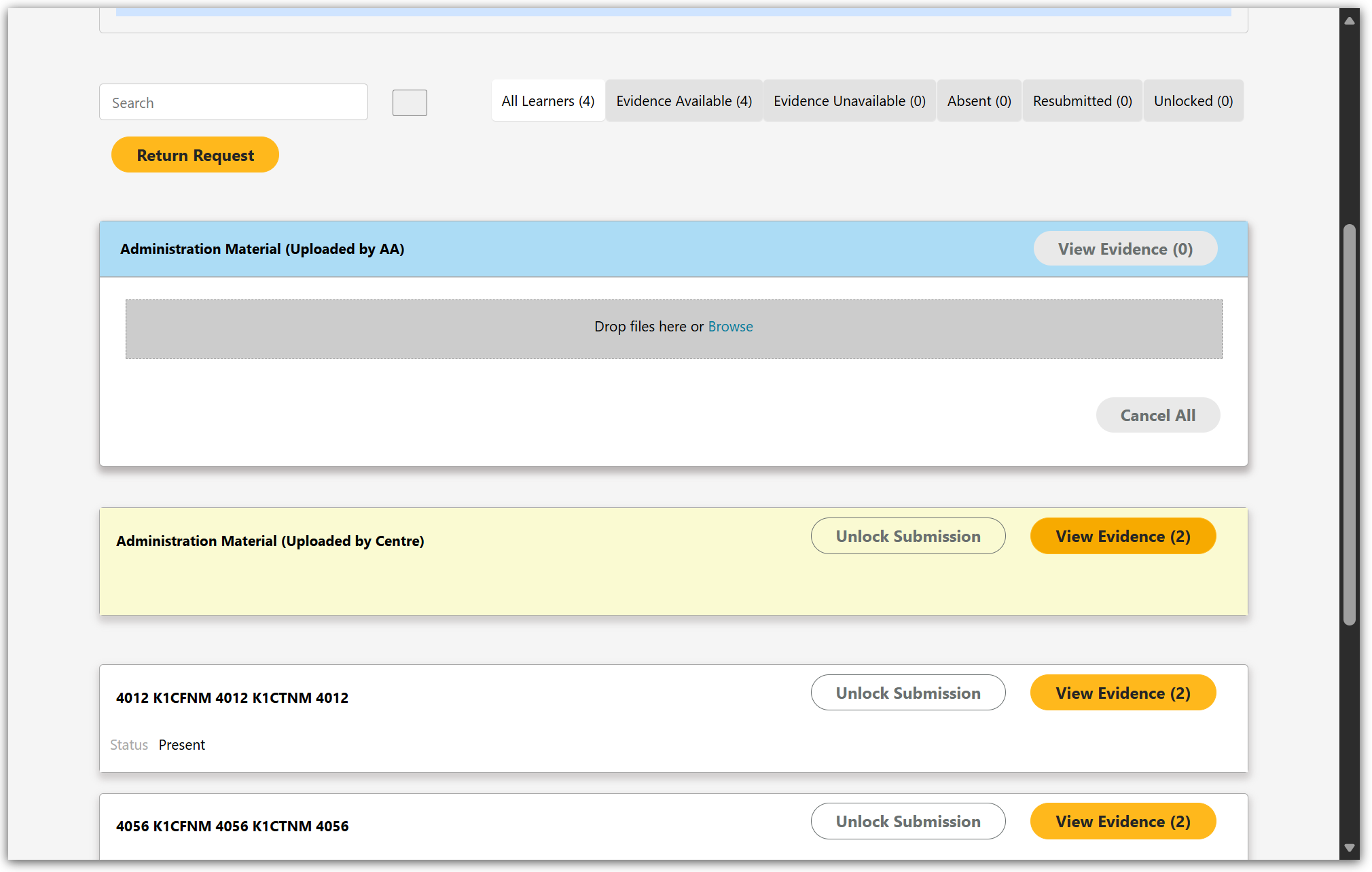
You have a search bar which can be used to look for specific learners.You also have breakdown of the learners in the request.
You can use the Return Request button to send a request back to a centre in full. This will be covered in the Returning a Request part of this guide.
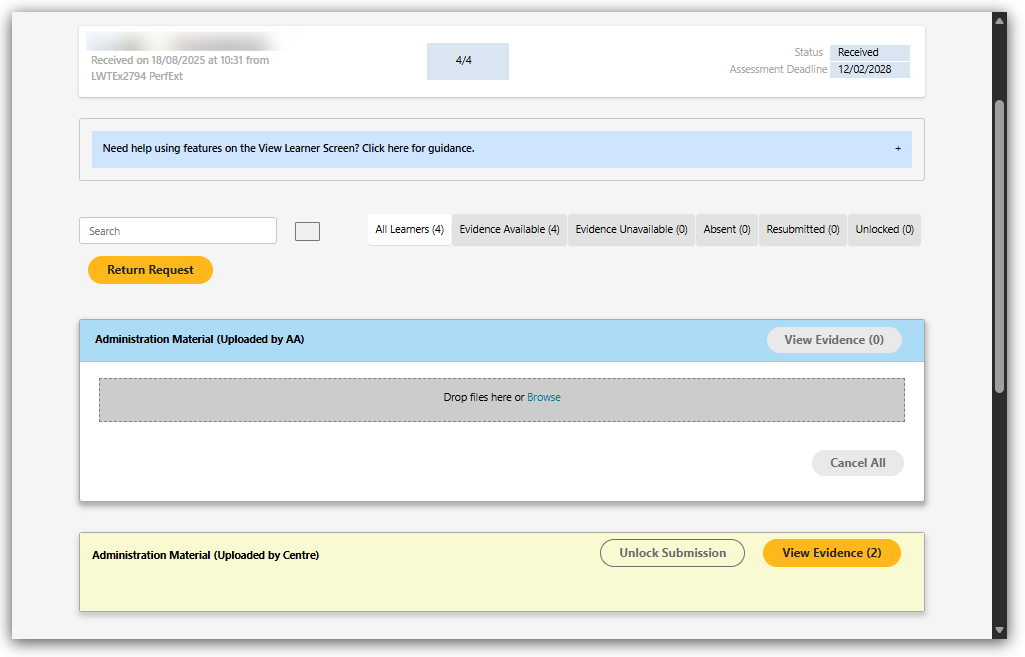
Further down you will see a section called Administration Materials (Uploaded by AA). Materials you upload here will not be visible to any centre staff.
In the next section Administration Materials (Uploaded by Centre), you will find materials which the centre have uploaded in addition to learner work.
Under the administration sections, you will be able to see each learner. Their registration/learner number will be displayed as well as their name and the status e.g. present or absent.
For moderation requests, any learners who have been selected to be part of the sample by Pearson will be marked with a P next to the learner ID. Any learners who have been selected by the centre will not be marked with a P.
To view any of the materials that have been uploaded to a request, click the relevant View Evidence button.
As with the request screen, the view evidence screen has additional guidance available. In the view evidence screen, just click the message Need help with the media player to open and close this guidance.
A full list if files will be displayed on the right hand side. The inbuilt media player is to the left of the list of files.
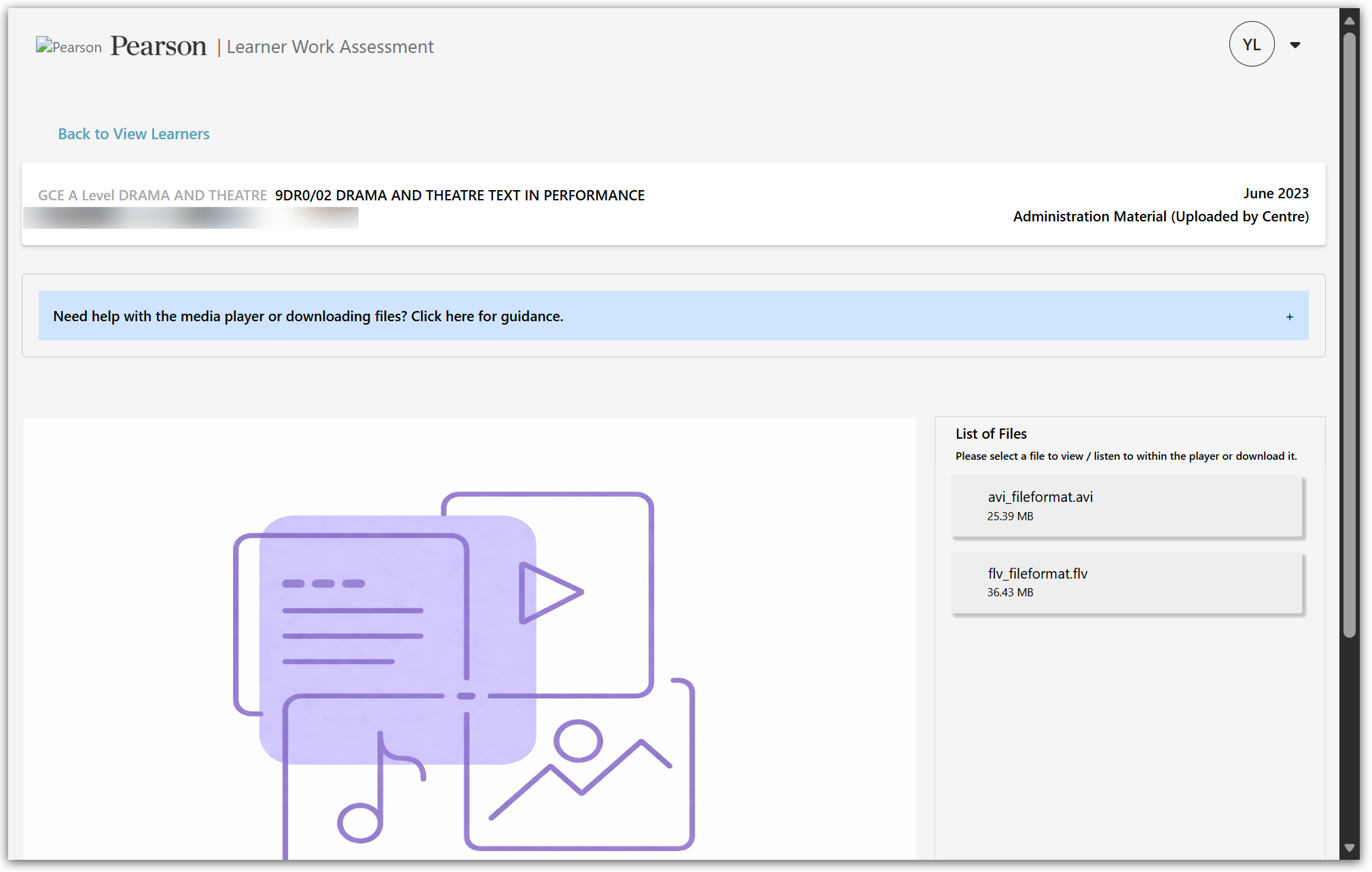
When you click into a file, if it can be displayed, it will show on the media play to the left.

The icon that looks like the silhouette of two people indicates that file is linked to more than one learner. Clicking a linked file from the list of files and then clicking the same icon this time under the media player will open a pop up screen. The pop up screen will be displayed at the top of the page and will list each learner.
Selecting a file with audio or video elements will open the file in the inbuild media player. You can use the on screen display to start, pause, skip, increase or decrease the playback speed, control the volume, enter full screen mode or even open the file in a mini window.
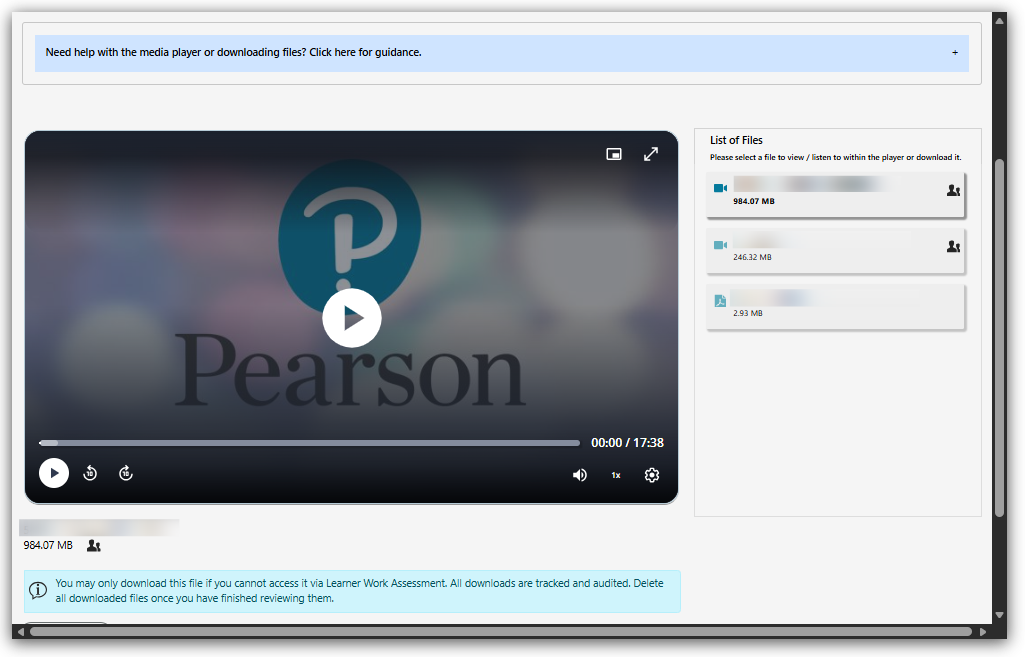
The media player options will be different depending on the file type. Some files you may only be able to play and pause.
For files which cannot be viewed, you can use the download option below the media play.
Files should only be downloaded if they don't play or are not viewable in the inbuilt media player. Any file downloaded should be deleted from you device completely once you have finished using it. Downloaded files are tracked for auditing purposes.
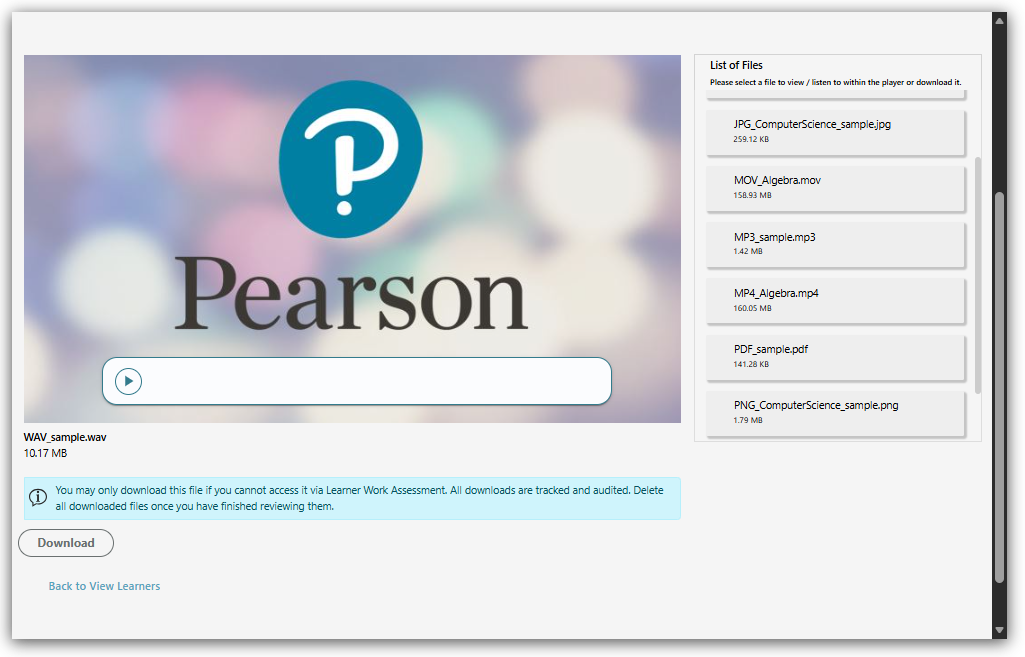
Select Back to View Learners at any time to go back to the View Learner screen.
Select Back to Dashboard at any time from the View Learners screen to go back to the Dashboard with all your allocations.
|
Uploading Administration Material (Examination/Moderation)
If you need to upload administration materials, such as marksheets, you will do this in the View Learner Screen.
In the Administration Materials (Uploaded by AA) section, you can click and drag files from your device into this area.
Alternatively, you can use the Browse option to view files on your device.
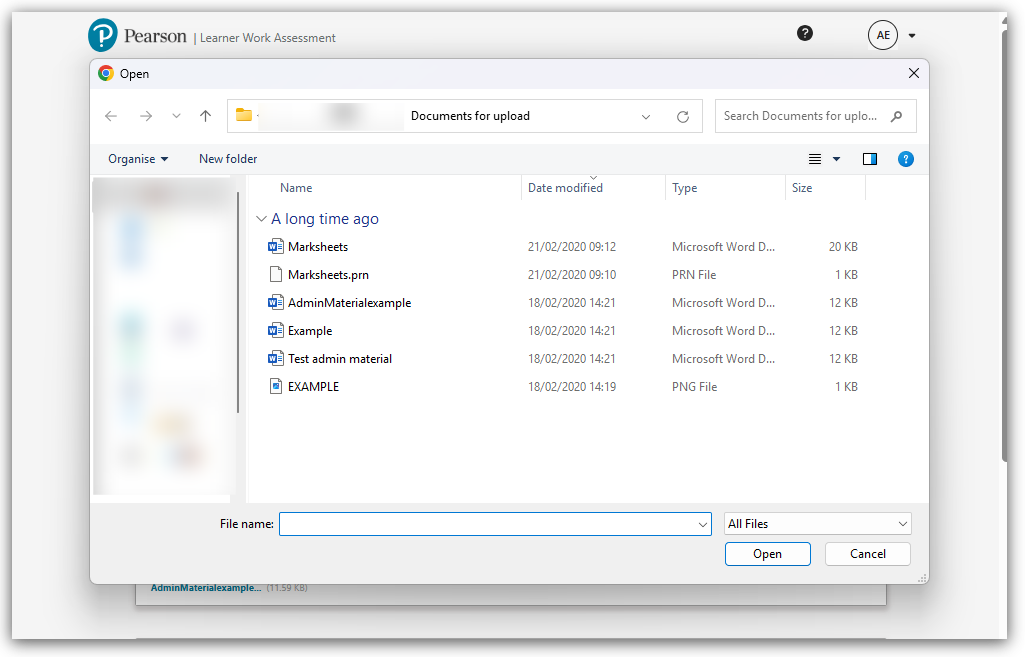
Clicking the Browse option will open your file explorer You can select an individual file by clicking on it.
If needed, you can hold down the Ctrl key on your keyboard to select multiple files.
Once the files are selected click the Open button to close the file explorer and upload the selected files.
Files uploaded will move to an Uploaded’ state.
During the Upload state, the files are virus checked. Also, the system checks that the files are not password protected and are in an accepted file format.

If the checks are successful the status will show as Accepted.
If the checks are unsuccessful the status will show as Rejected. Hovering over the warning icon will show a reason for rejection. Click on the X next to the filename to remove the rejected file. Any rejected files will need to be reuploaded once the cause of the rejection has been resolved.
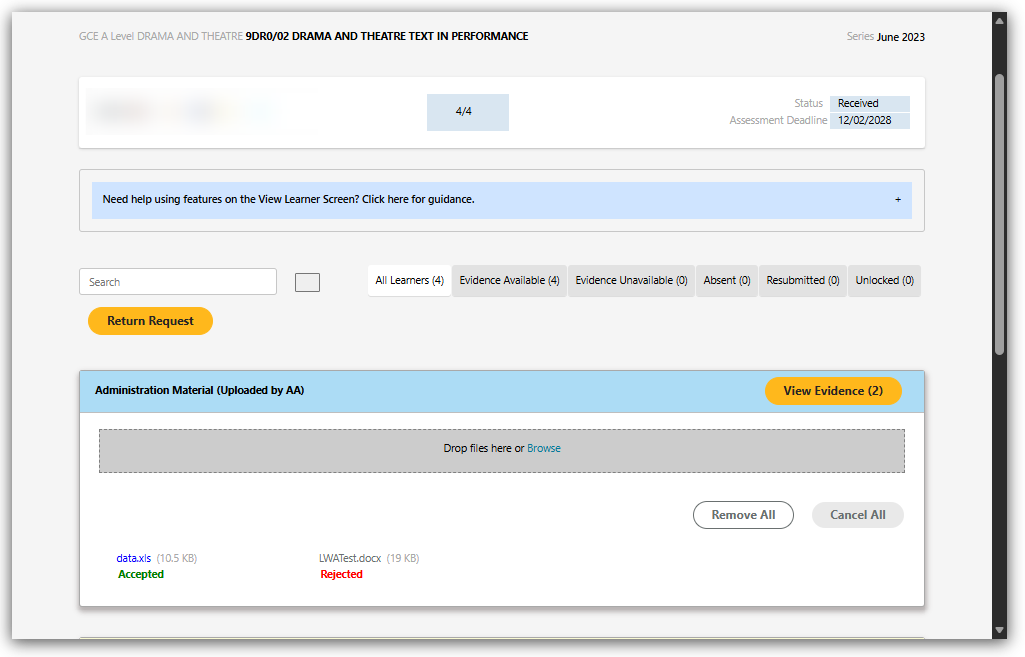
Any administration material uploaded automatically saves. You can log out at any time and return to a request later.
|
Returning a request to the centre (Examination/Moderation)
You can only return a submission or return a request in a Received or Received (C) state. You cannot do this if the request is in a Completed state.
You can return the evidence submission for selected learners or the administration materials uploaded by the centre without returning the whole request.
When this functionality is used the request will remain in its current state so that you can still interact with the evidence while waiting for the evidence to be resubmitted by the centre.
To do this, select Unlock Submission next to the relevant learner or Administration Materials (Uploaded by Centre).
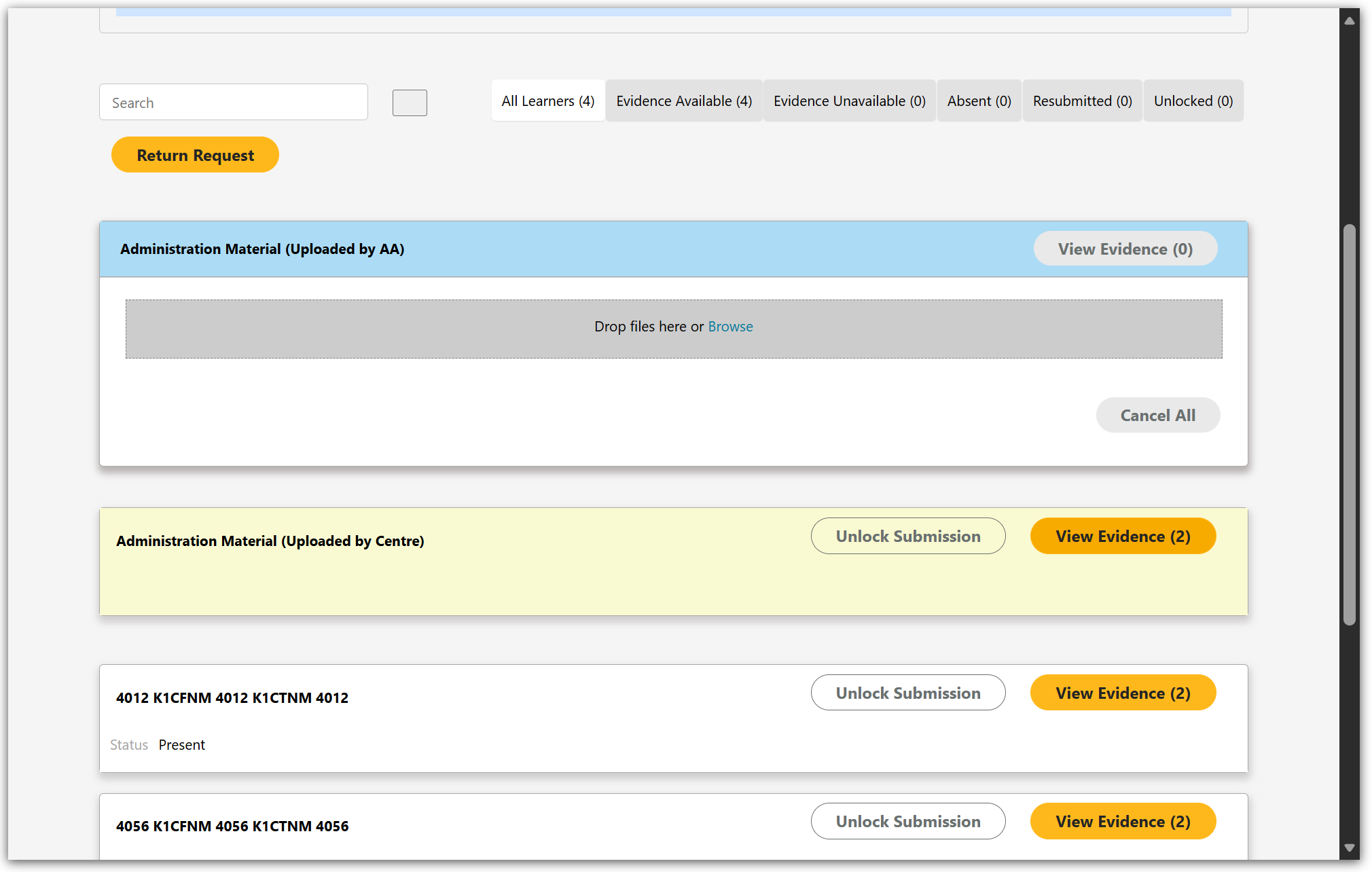
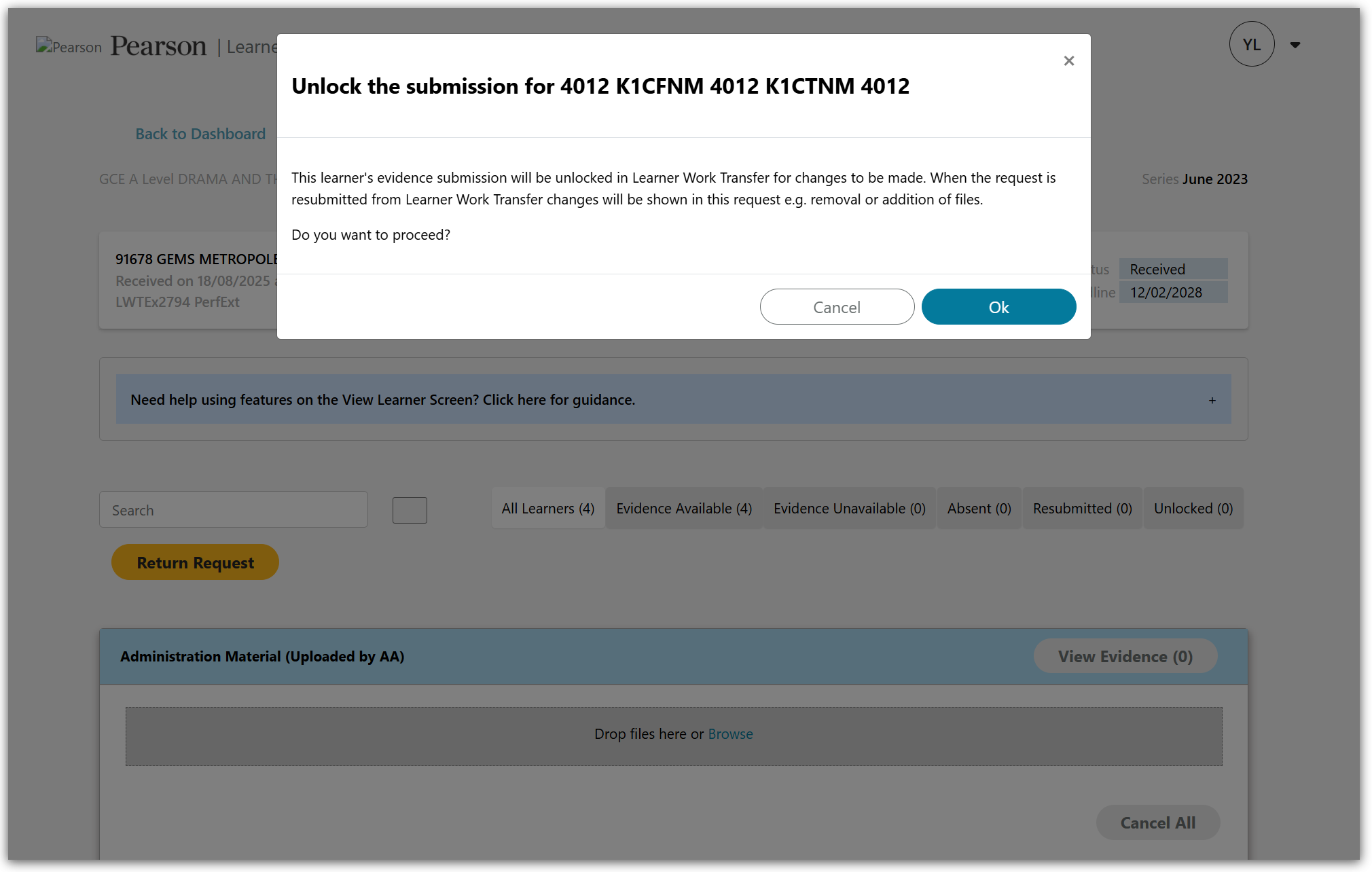
A confirmation message will be displayed. By clicking OK the unlock will take place. Clicking Cancel will close the message without any action occurring.
When a submission is successfully unlocked in Learner Work Transfer, an Unlocked indication will appear.
While the submission is unlocked, you can still interact with the evidence in Learner Work Assessment and view previously submitted evidence in the media player.
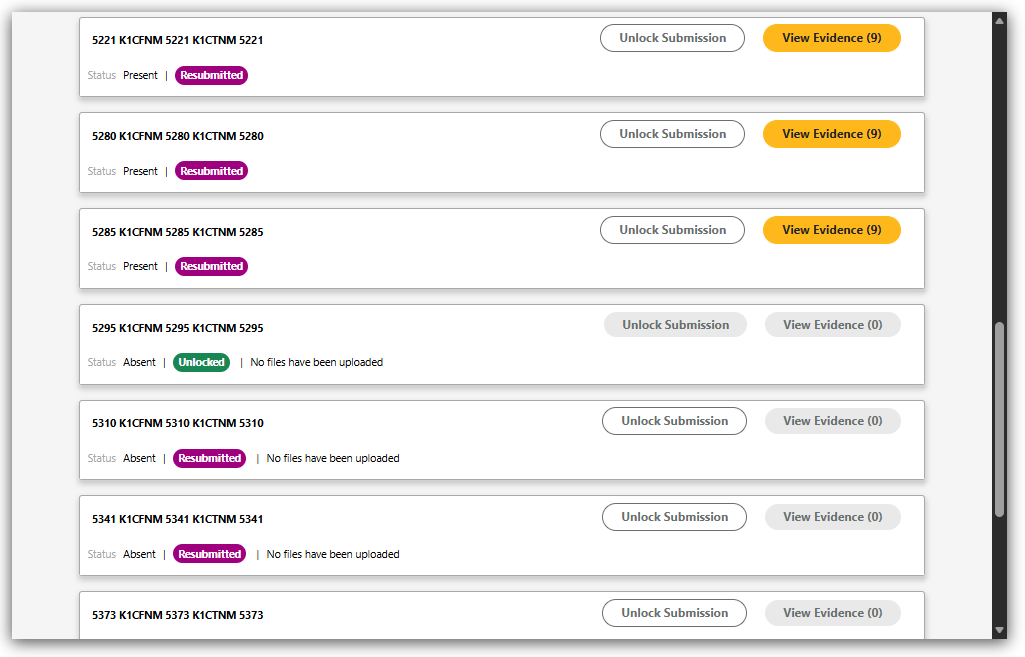
You can also use the file status filters at the top of the screen to display learners in different states e.g. Resubmitted or Unlocked.
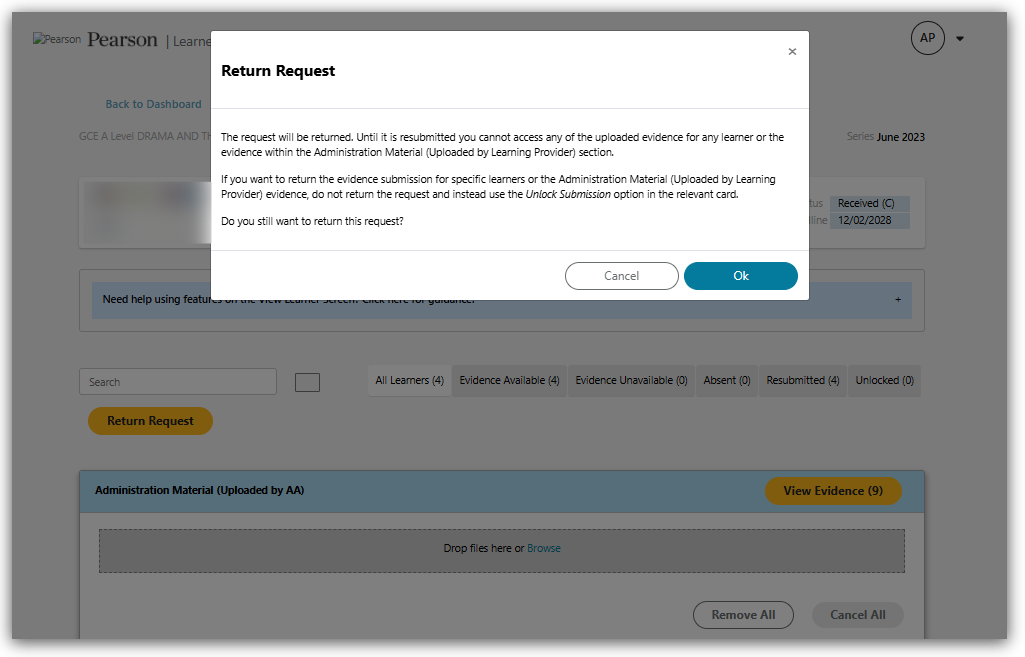
If you find that a centre has uploaded incorrect or incomplete material across the whole request, or all the learners are marked incorrectly as present/absent, you can return the request to the centre for action by clicking the Return Request button.
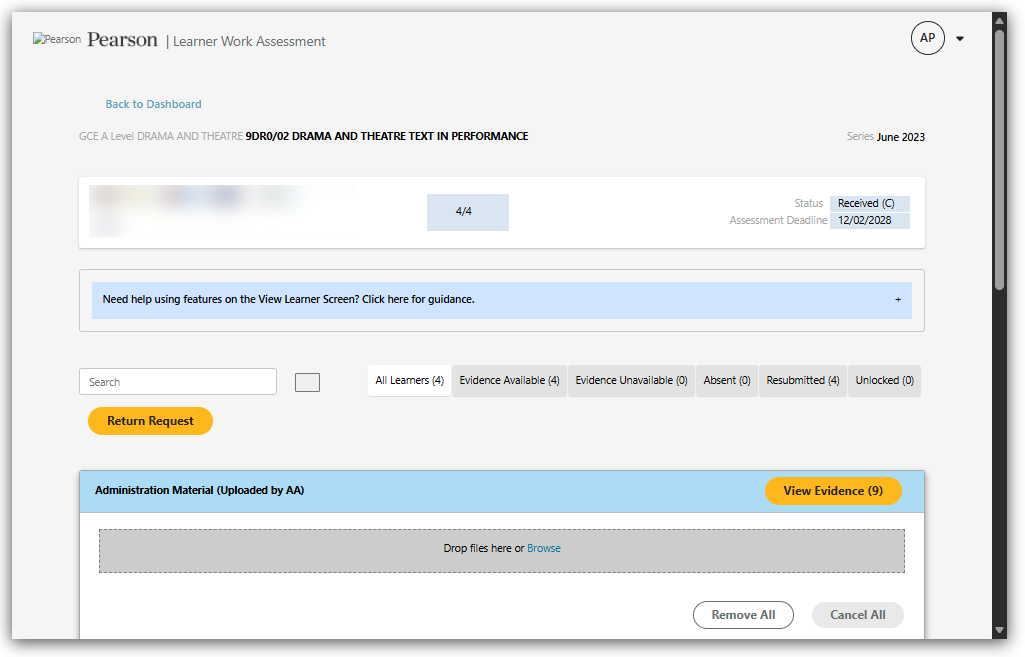
A confirmation page will appear. Selecting OK will confirm the return should take place. Selecting Cancel will return you to the screen where Return Request was pressed.
Please be aware that returning the sampling using the Return Request will mean you will be unable to access any materials in the sample until the centre resubmit it.
Using Return Request should be sparingly and we recommend using the Unlock Submission functionality wherever possible.
When you come back to a request were you returned some or all of the learners and the centre have updated, you will see a prompt at the top of the page with confirmation.
You will also Resubmitted on each of learners who have been updated.

|
Senior Associate View (Examination/Moderation)
In the Team View screen, you will be presented with a search functionality. You will need to select the series, qualification type, subject and product ID / Name (paper name/code).
The AA ID / Name field is optional but will help to minimise search results. Important note, this field must be left blank if you are using Team View to view work for awarding purposes.
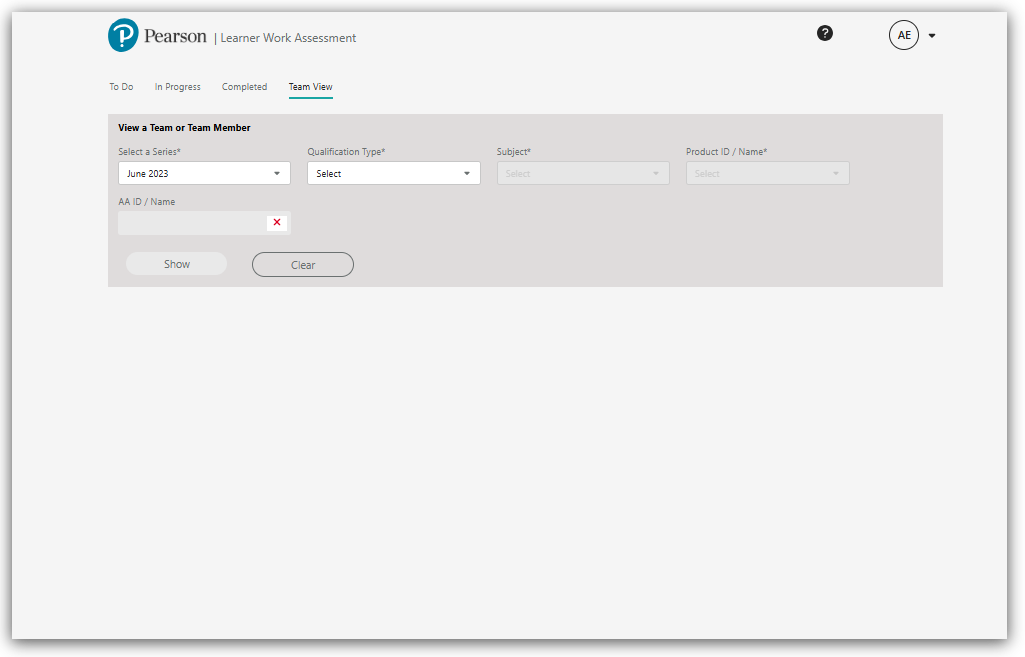
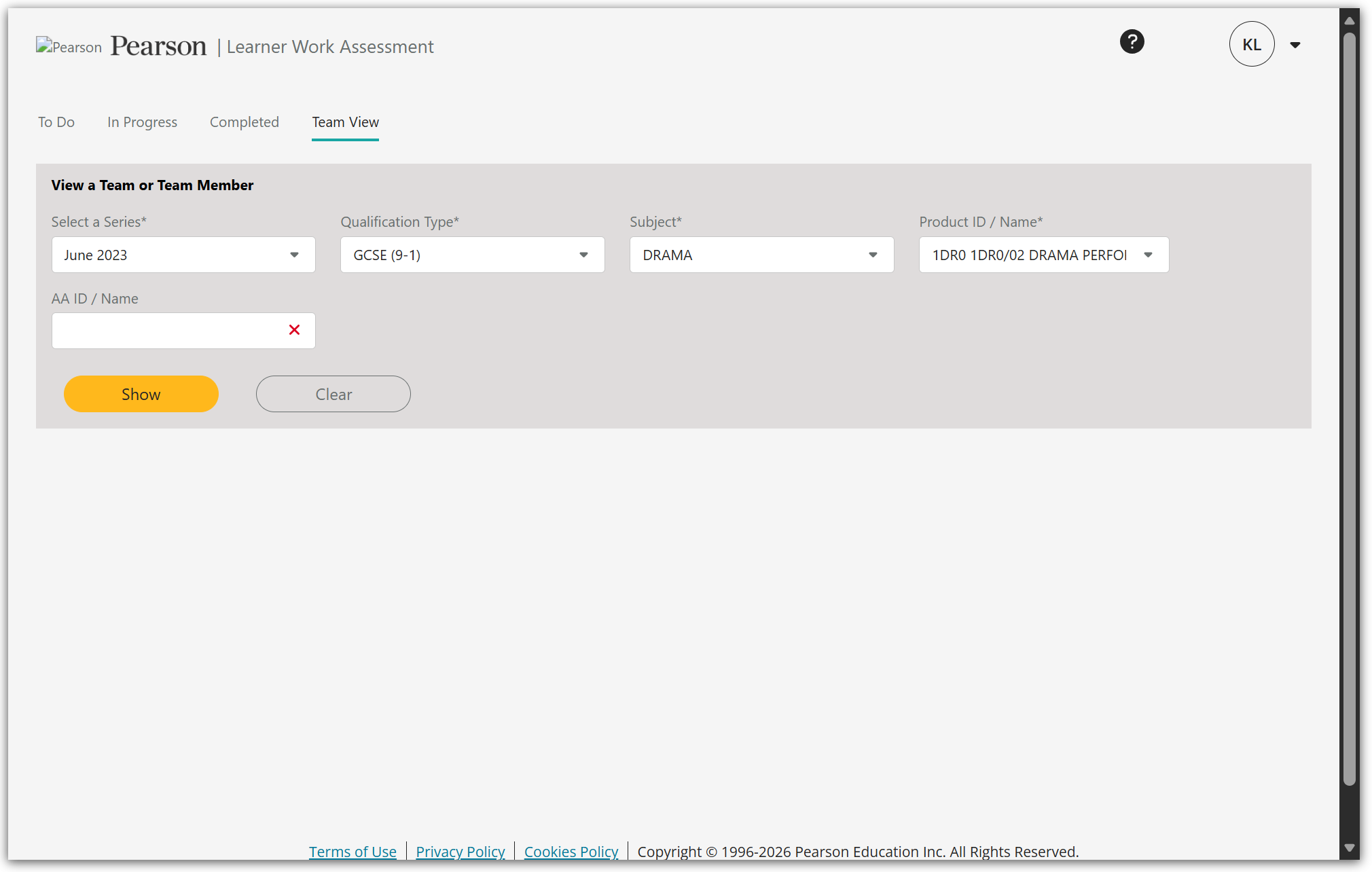
To find a team member, select the required information from the compulsory fields using the dropdowns, then press the Show button.
If you are an AA who does not have a team, you’ll see a message that starts No information can be found, and the possible reasons why will be listed.

If you are an AA with a team, when Show is pressed two tabs are shown:
- Pre-Results team members
- RoMM team members
You will be shown a summary of the team structure i.e. how many AAs are in which roles for the paper. You’ll also see your role on the paper. Under this, your team will be shown.
You can see how many requests they are managing and which tab the requests can be found in – To Do, In Progress or Completed.
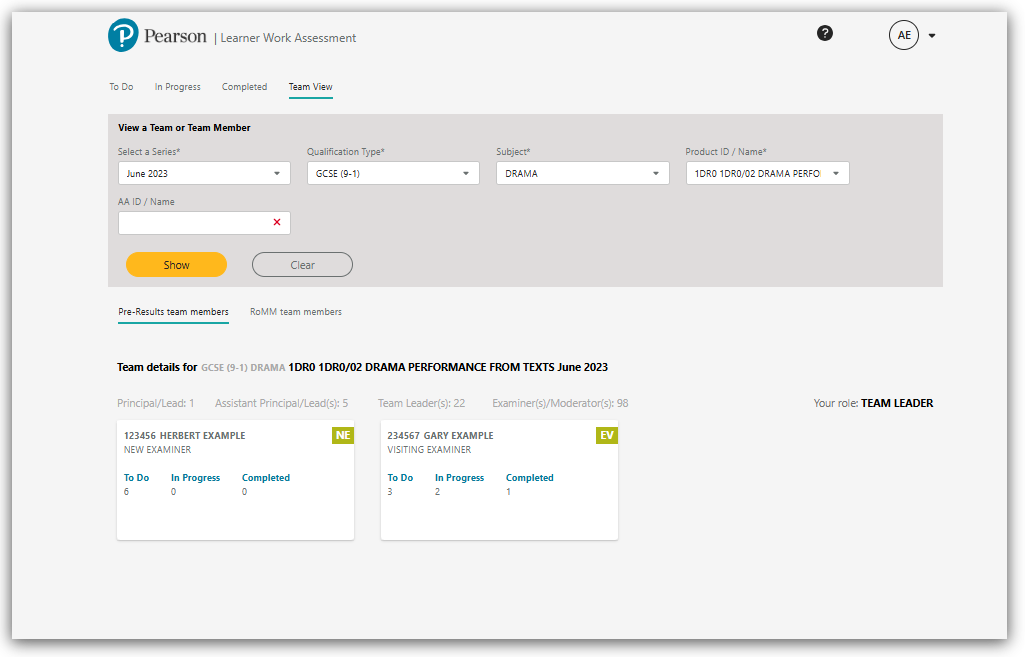
If the team member you are responsible for is also responsible for a group of AAs, you will see an additional option View Team to see those team members.

Clicking into View Team will take you to the AAs who are supervised by that selected AA. The options here will be the same as the previous screen.
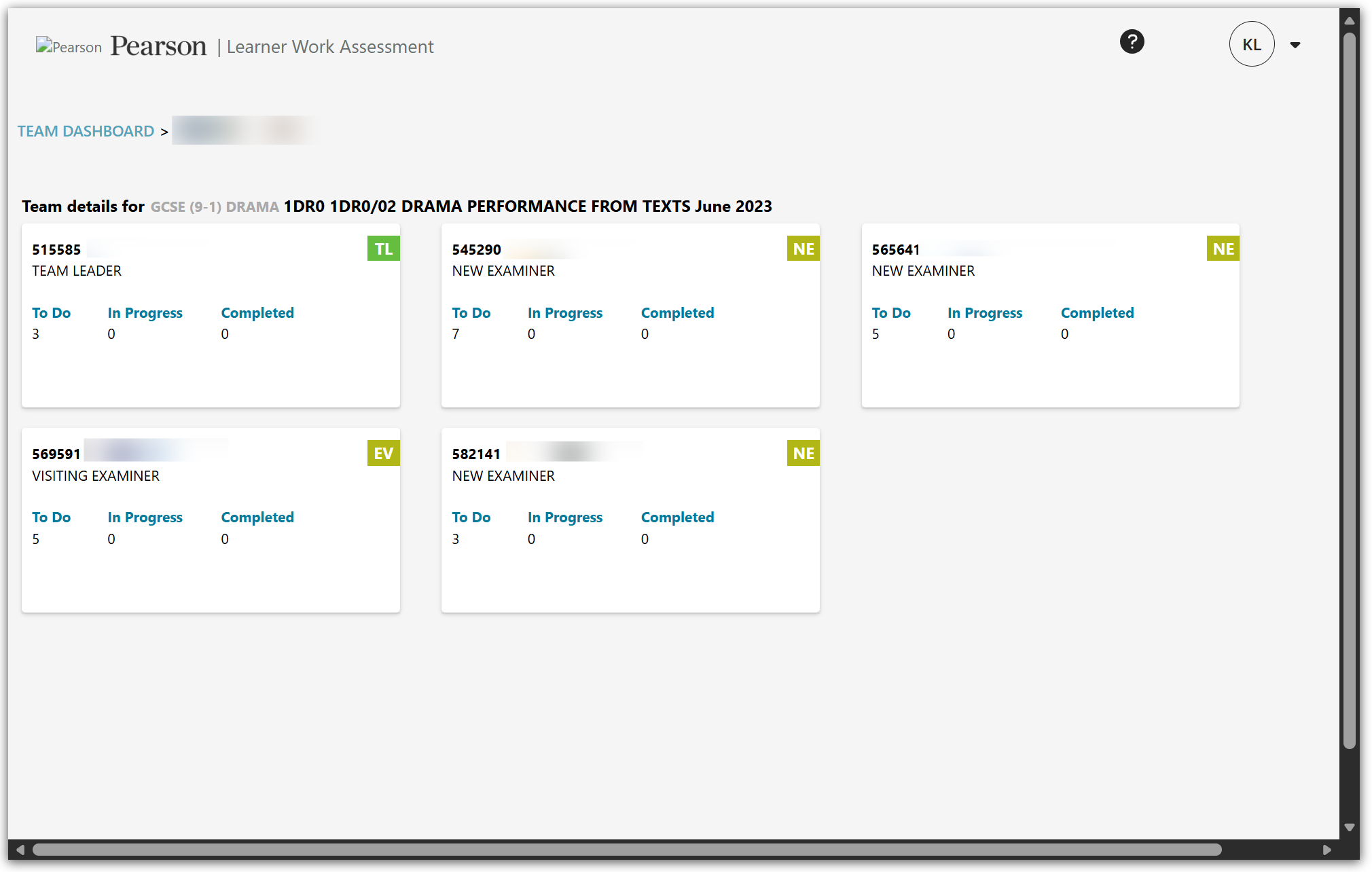
To view a specific request, click into either To Do, In Progress or Completed on your direct reports or in the direct reports of AAs reporting into you.
The dashboard for the chosen tab will be shown, and you can see the requests for this team member. A banner at the top of the screen will detail which team member you’re looking at. If you press ‘Team Dashboard’ you will return to the main search page.
Similar to your allocations, you can move between To Do, In Progress and Completed for the allocations with your team members.

If the request is associated with a learning provider you are forbidden from assessing, you will not be able to select the request and a warning icon will be displayed.

If you hover over the warning icon it will display the reason why.

Click on the 3 vertical dots on the right of a request, then View Learners to open the request.
Remember, requests in the To Do tab will not have work uploaded yet so if you are looking for work to complete sampling or quality checks, make sure you are either in the In Progress or Completed tabs.
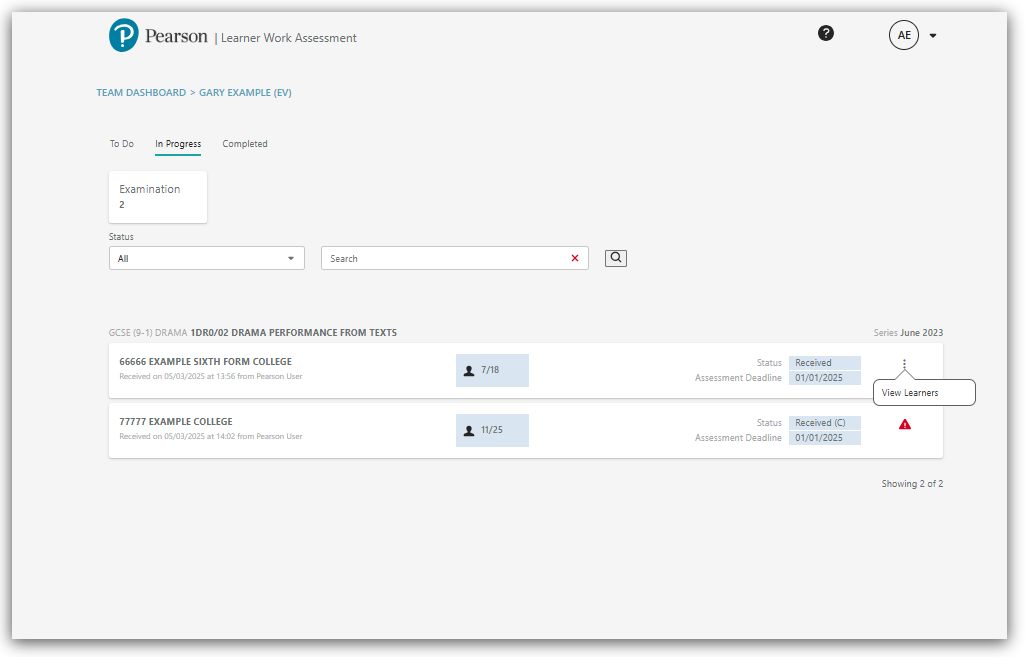
You will be taken to the View Learner Screen. Here you will be able to view the provided evidence and also upload administrative material.
For In Progress requests, you will not be able to return a request or unlock a submission on behalf of a team member.

|
|
Learner Work Assessment - Standards Verification
Guidance for the Standards Verification version of Learner Work Assessment is available below. Click into any section to expand the guidance.
How To Access (Standards Verification)
The below video demonstrates how Standards Verifiers (SVs) access the LWA platform:

|
Creating Sample Requests (Standards Verification)
The below video demonstrates how SVs create a sample request on the LWA platform:

|
View/Reject Samples (Standards Verification)
The below video demonstrates how Standards Verifiers (SVs) can view or reject a sample on the LWA platform:

|
Recalling Sample Requests (Standards Verification)
The below video demonstrates how SVs recall a sample request on the LWA platform:

|
Deactivating & Reactivating Sample Requests (Standards Verification)
The below video demonstrates how Standards Verifiers (SVs) deactivate and reactivate a sample request on the LWA platform:

|
Viewing Team Member Sample Requests (Standards Verification)
The below video demonstrates how Standards Verifiers Team Leaders view team member sample requests on the LWA platform:

|
|
Frequently Asked Questions
Answers to some of the most frequently asked questions are available below. Click into any question to expand the guidance.
Do I have to access Learner Work Assessment via Edexcel Gateway?
We recommend you access Learner work Assessment through Edexcel Gateway whenever possible. If you experience any technical issues access via Edexcel Gateway please try accessing via the direct links to Learner Work Assessment below:
Examination/Moderation - https://lwa.pqs.pearsonprd.tech/
Standards Verification - https://verification.pqs.pearsonprd.tech/
Any technical issues accessing via Edexcel Gateway or the links above should be reported to the Associate Helpdesk team via the Pearson Support Portal. If you are using Live Chat and speaking to the virtual assistant, just ask to connect to one of the team and select the Technical Support option if prompted.
|
Why do I get an ‘access denied’ error message when logging in to Learner Work Assessment?
While all Assessment Associates should have access to Learner Work Assessment, only Associates with certain accepted contracts will need to access the platform. If you have a contract which requires to you have access, confirmation of this would have been provided during your standardisation meeting, you have selected the correct version of Learner Work Assessment and you receive the access denied error message, please contact Associate Helpdesk team via the Pearson Support Portal. If you are using Live Chat and speaking to the virtual assistant, just ask to connect to one of the team and select the Technical Support option if prompted.
|
Why have I automatically been logged out of Learner Work Assessment?
The system will automatically log users out who have not been active for 60 minutes. Active in this instance means interactive with the system e.g. pressing buttons, using keyboard controls or watching/listening to a file.
|
I am unable to open Learner Work Assessment with my current browser. What other browsers can I use?
Learner Work Assessment is compatible with the following browsers:
- Chrome version 119 and above
- Firefox version 121 and above
- Edge version 119 and above
- Safari version 17.4 and above
|
In the Examination/Moderation version of Learner Work Assessment, my allocated centres are showing up as ‘pending’ even though they have uploaded work, why?
If your allocated centres are showing as pending even though they have uploaded work, please check:
- If any absent learners have been marked as ‘absent’ using the attendance dropdown
- All other learners have at least one file uploaded
- All files in a ‘Rejected’ state have been removed
- Any ‘shared’ files have been linked to the relevant learners, following the guidance here or shared file removed because it will not be linked to any learners
- No materials have been uploaded to the Administration section when all learners are ‘Absent’ and/or flagged as ‘No Evidence’.
If these checks highlight something is not correct, the centre will need to update the system. If you are in contact with the centre, please ask the centre make the required changes, if you are not in contact with the centre, you should notify Pearson via the method shared with you during your standardisation meeting.
If your checks show all of these requirements have been met, the centre may just need to press the submit button in Learner Work Transfer. Once they have done so and the request is successfully submitted, you will be able to access the materials. If the request has been successfully submitted by the centre and you still cannot see the required evidence after 24 hours, please contact Associate Helpdesk team via the Pearson Support Portal. If you are using Live Chat and speaking to the virtual assistant, just ask to connect to one of the team and select the Technical Support option if prompted.
|
Why I can only see some of my allocated centres or why can I see centres not part of my allocation?
Sometimes we may need to change allocations for different reasons.
If a centre has been reallocated from you to a different examiner you will no longer see this request in LWA, you should have received confirmation of this via email before the allocation was removed. If a new centre has been allocated to you these will show in addition to your initial allocation. Sometimes it can take up to 24 hours for changes to allocations to display correctly in Learner Work Assessment. If your allocations still look different from what you are expecting after 24 hours, please contact Associate Helpdesk team via the Pearson Support Portal. If you are using Live Chat and speaking to the virtual assistant, just ask to connect to one of the team and select the Technical Support option if prompted.
|
In the Examination/Moderation version of Learner Work Assessment, why can't I see expected team members in the Team View menu?
This might be because:
- A team member has been moved to a different team
- You have a certain role that means you need to access teams via a different method.
Sometimes one or more of your team members may have been moved to a different team or additional team members have been added to your team, these changes should have been communicated to you via email. Please note any change can take up to 24 hours to be reflected in LWA. If your team still look different from what you are expecting after 24 hours, please contact Associate Helpdesk team via the Pearson Support Portal. If you are using Live Chat and speaking to the virtual assistant, just ask to connect to one of the team and select the Technical Support option if prompted.
Some roles must use the AA search functionality to find the team member you want to view. If you still can't find your team, please contact Associate Helpdesk team via the Pearson Support Portal. If you are using Live Chat and speaking to the virtual assistant, just ask to connect to one of the team and select the Technical Support option if prompted.
|
Why can I see a team member but I am unable to access some of their requests?
You won't be able to see allocations under team members if the centres match one of your centre conflicts of interest even to view materials. If you are unable to see an allocation for a team member which isn't part of your centre conflicts of interest, please contact Associate Helpdesk team via the Pearson Support Portal. If you are using Live Chat and speaking to the virtual assistant, just ask to connect to one of the team and select the Technical Support option if prompted.
|
In the Examination/Moderation version of Learner Work Assessment, what am I expected to upload to the Administration Material section?
If you are required to upload materials into Learner Work Assessment, the details of these requirements will have been communicated during your standardisation. Please refer back to this meeting for the details of what you may be required to upload.
|
What are the reasons for a file to be rejected when it is uploaded to the Administration Material (Uploaded by AA) section?
These are the scenarios and remedial action that must be taken:
| The file is rejected because | Remedial action | | It is infected with a virus | Remove the file and upload a version that is not infected with a virus | | It is password protected | Remove the file and upload a version that is not password protected | | It is in a format not accepted by the system | Remove the file and upload it within a zip/compression file | | It or files within it e.g. a zip/compression file, are infected with a virus | Remove the zip/compression file and the infected files, and re-upload the zip/compression file with a version of the file that is not infected with a virus | | It or files within it e.g. a zip/compression file are password protected | Remove the zip/compression file and the password protected files, and re-upload the zip/compression file with a version of the file that is not password protected | | It has the same name as a file that has already been uploaded | Rename the file and upload or remove the duplicate file | | It is larger than 8GB | If a single file contains e.g. multiple mark sheets for different learners, if allowed, split the file into an individual learner’s mark sheet or use a zip/compression service like WinZip or WinRAR. |
If you are trying to upload a file and it isn't being rejected for one of the following reasons, please contact Associate Helpdesk team via the Pearson Support Portal. If you are using Live Chat and speaking to the virtual assistant, just ask to connect to one of the team and select the Technical Support option if prompted.
|
How long does it take to upload files to the administration section?
The upload time is dependent on the speed of your internet connection.
|
If I upload files to the Administration Material (Uploaded by AA) section of Learner Work Assessment, can centres view this?
No, any files uploaded to the Administration Material (Uploaded by AA) in Learner Work Assessment can only be seen or accessed by Pearson colleagues or other Assessment Associates with access to the allocation.
|
I have a moderation allocation were the centre has not included the highest/lowest scoring learner above 0, what can I do?
You may need to return the request to the centre for the missing learners to be added to the request via the manage learner functionality. Please refer to the guidance shared during your standardisation how to manage instances where the centre have not included the correct sample. If you are still unsure, please contact Associate Helpdesk team via the Pearson Support Portal. If you are using Live Chat and speaking to the virtual assistant, just ask to connect to one of the team and select the Technical Support option if prompted.
|
I can’t see any of my requests anymore, what’s happened?
If the deadline for viewing and accessing the request for a specific subject has passed the request will no longer be displayed in Learner Work Assessment. If you think you should still have access, please contact Associate Helpdesk team via the Pearson Support Portal. If you are using Live Chat and speaking to the virtual assistant, just ask to connect to one of the team and select the Technical Support option if prompted.
|
What do the different statuses in the Examination/Moderation version of Learner Work Assessment mean?
Please see below for the definition of the different statuses. Certain statuses will mean the request is shown in a different tab within the LWA portal.
| Section | Request Status | Description | | To Do | Pending | The request is with the Learning Provider/Centre. Evidence has not been submitted yet. Nothing for the allocated Assessment Associate to do within LWA. | | In Progress | Received | The request has been submitted by the Learning Provider/Centre and contains evidence for assessment. | | In Progress | Received (C) | A change has been made to the request e.g., additional learners, after it has been submitted by the Learning Provider/Centre. | | Completed | Completed |
The request has been submitted by the Learning Provider/Centre without any evidence. All learners are either Absent and/or flagged as not providing evidence.
|
|
The status of a received request has changed from 'Received' to 'Received (C); what does that mean?
Sometimes a centre can amend a request after it has been submitted to you. In these circumstances, the request is unlocked for the centre to make changes, and they have since resubmitted the request. Currently, this will occur if a late entry was made after you received the request and the centre has provided evidence for this learner. If this has occurred, within the affected learner's card on the view learner screen, you will see the date/time their entry was added to the request after the original submission.
|
I received a request from a centre, but they have just informed me they have made additional entries and submitted more evidence; how do I know which learners have been added since the original submission?
If the additional entries were made after you received the request, the status of the request will change from 'Received' to 'Received (C), and the learner card will show the date this learner was added to the request after the original submission.
|
How long will it take to download each file for each learner?
If you are unable to view the file within the media player in LWA, the download time is dependent on the speed of your internet connection.
|
Why can’t I download all files for a learner at the same time?
The ability to do this is not yet available in Learner Work Assessment. If you are unable to view the file within the media player you will need to download the evidence one file at a time.
|
I can't see the expected learners within a request.
This might be because:
- The learner's entry has been withdrawn
- The request is for a moderated unit and the centre has not added the learner to the request
If you are sure the learner is available for assessment for a moderated unit, please follow guidance shared during your standardisation for returning a request to centre. Sometimes it can take up to 24 hours for changes to allocations to display correctly in Learner Work Assessment. If the learners in your allocations still look different from what you are expecting after 24 hours, please contact Associate Helpdesk team via the Pearson Support Portal. If you are using Live Chat and speaking to the virtual assistant, just ask to connect to one of the team and select the Technical Support option if prompted.
If you believe you are missing learners for an examined unit, please contact Associate Helpdesk team via the Pearson Support Portal.
|
|
|
|
|---|


