Step-by-step guide
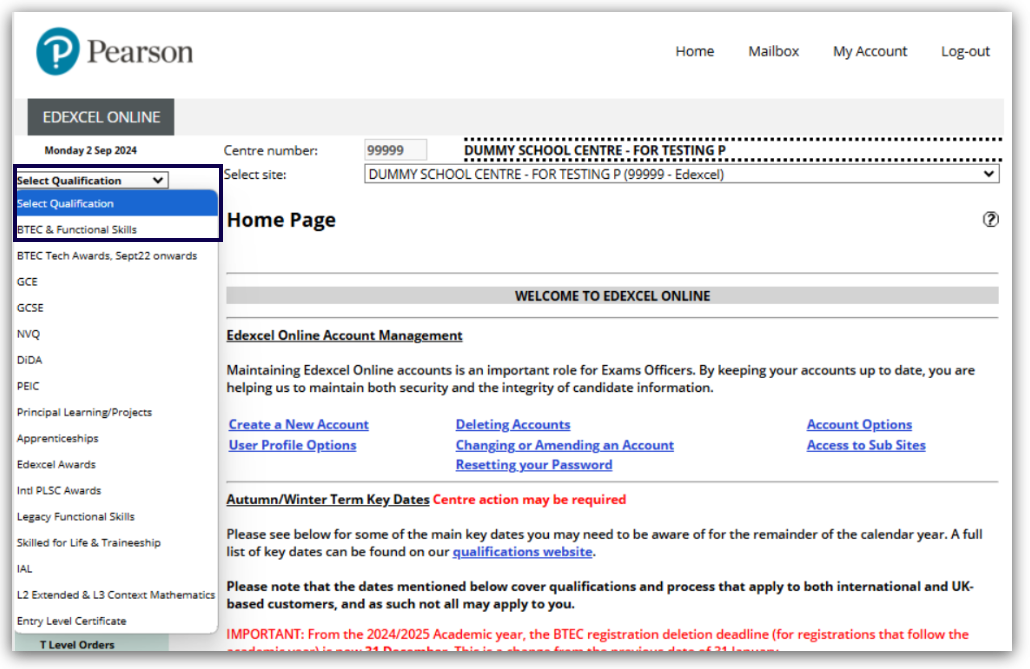
1. Log on to Edexcel Online. Click on the 'Select Qualification' drop down on the left-hand side and select 'BTEC & Functional Skills':
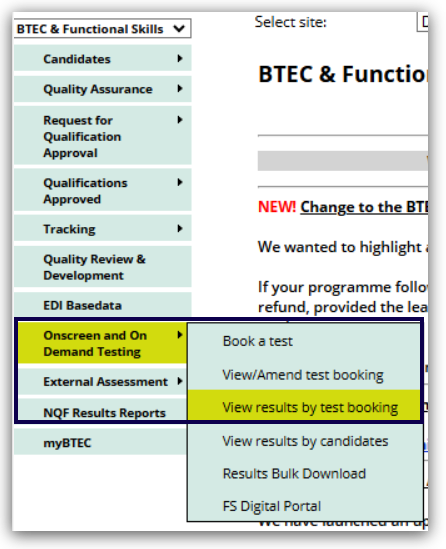
2. Hover over 'Onscreen and On-Demand Testing' from the menu and then select 'View results by test booking':
Please note: You can also use the View results by candidates option to search for specific candidate results.
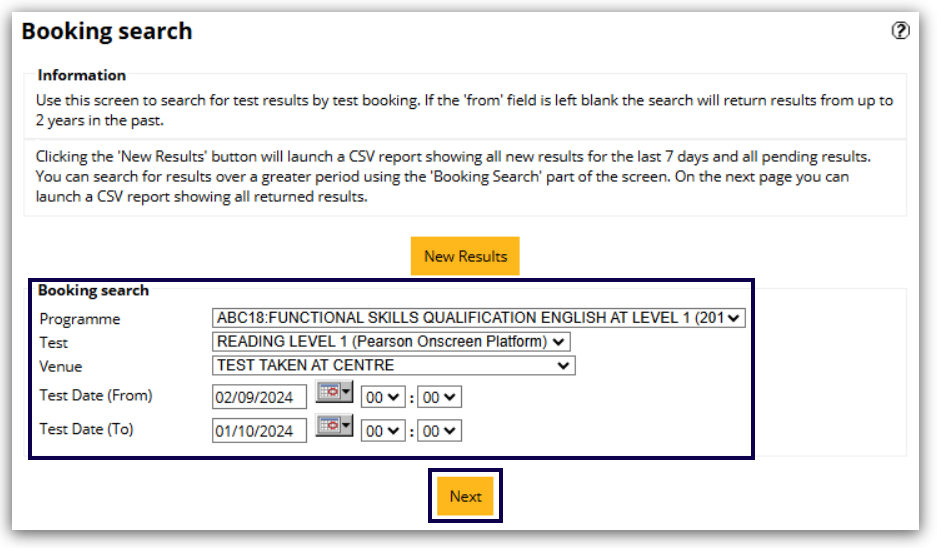
3. You can refine the booking search by the programme, test, venue and test date options. At least one criteria should be entered:
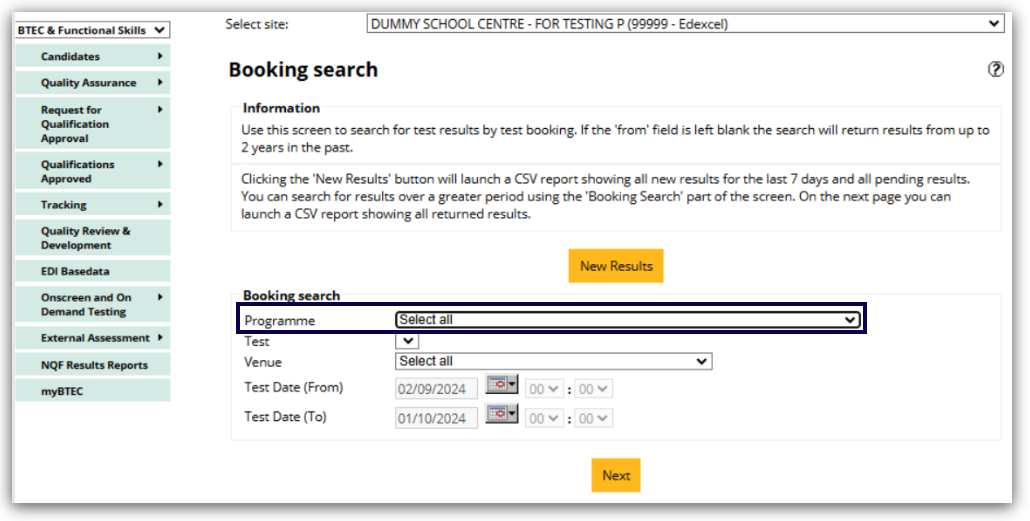
4. Next, Click on the 'Test' dropdown box.
Please note: If you leave the test and venue fields as 'Select all' the search will return all bookings for the programme within the chosen timescale.
5. Finally, click on the 'Venue' dropdown box and select 'Test Taken at Centre'. You can adjust the test date and times, click the 'Next' button:
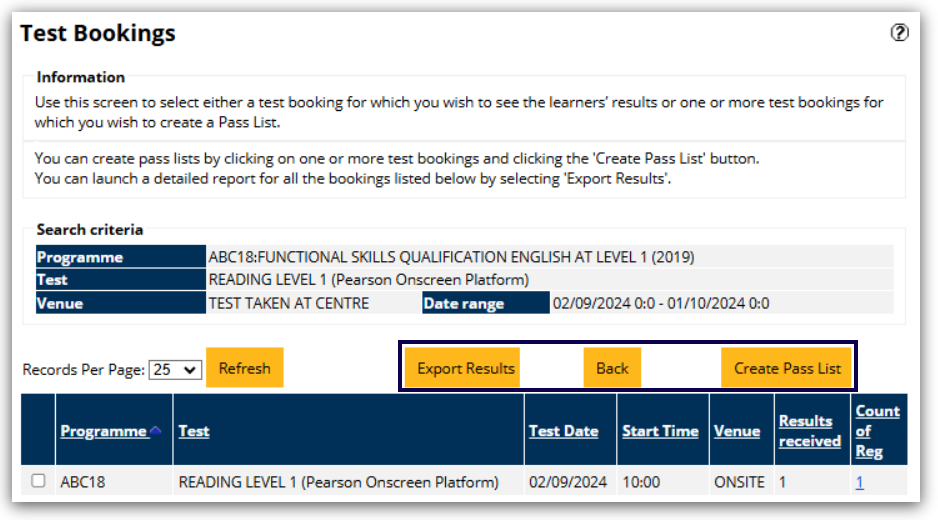
6. To create pass lists, click on the desired test bookings and then click 'Create Pass List'. For a detailed report of all bookings, select 'Export Results':
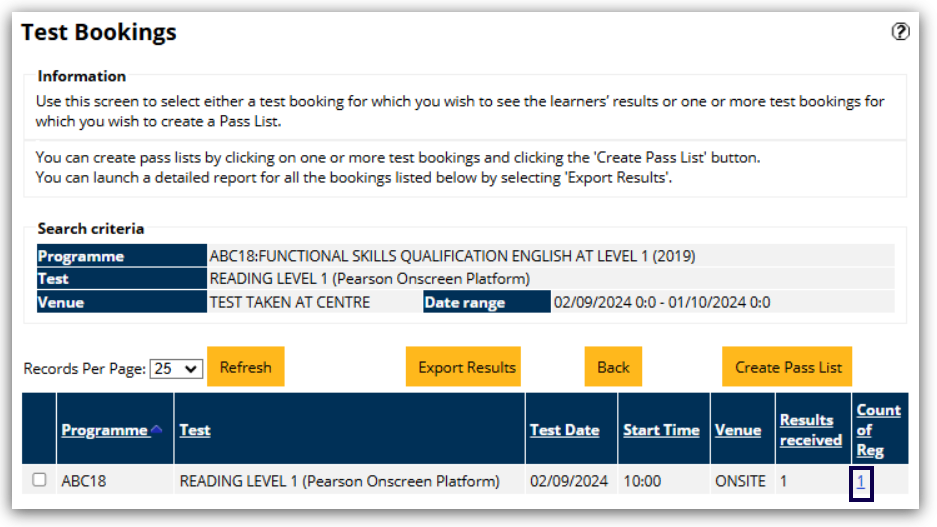
7. To view all candidates results for the booking, click on the relevant number in the 'Count of Reg' column:
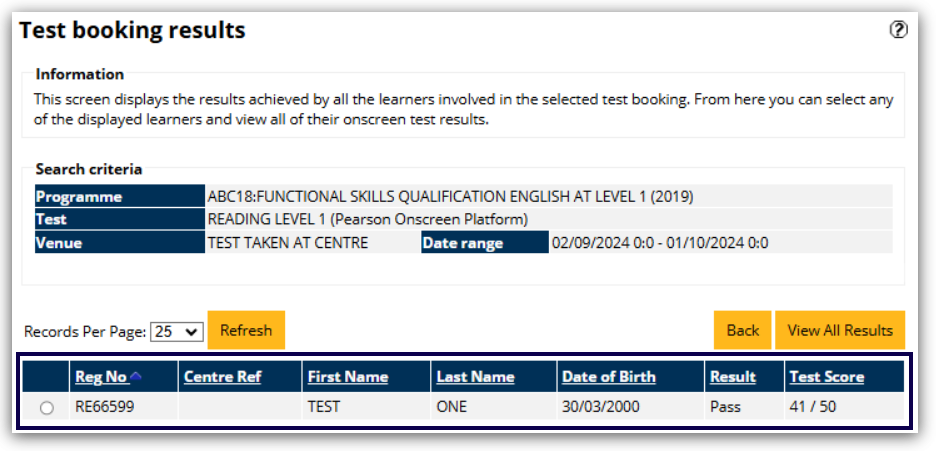
8. The next screen shows the results and test scores for all the learners in the selected booking: