Salesforce

To access Classic Knowledge, you must run the Lightning Knowledge Migration Tool. Learn More

Benefits of upgrading to Lightning Knowledge:

  • Better article editing experience
  • Improved search functionality
  • AI-driven Knowledge recommendations

After migration, Classic Knowledge remains.

A2C: Importing Access Keys

« Go Back

Information

 
TitleA2C: Importing Access Keys
URL NameA2C-Importing-Access-Keys
Issue
How can I fix a red or amber connection on A2C?
FAQ

If your connection to a single awarding body is red or amber on A2C, it could be a problem with your existing access key. Therefore, the first step should be to replace the access key.

A2C Access Key - Quick Important Guide - Click to expand

This quick guide shows how to import an A2C access key from Edexcel Online (EOL) into A2C. Use this guide when you have a new key or have been asked to re‑import your existing key.

Before you start:

  • You can log in to Edexcel Online
  • A2C is installed on the computer you are using
  • If you have more than one site, each site must complete these steps

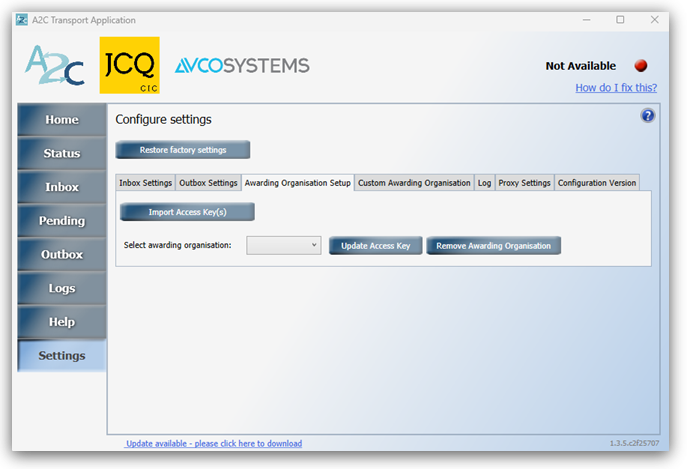
Step 1: Remove the old key in A2C

    • Open A2C
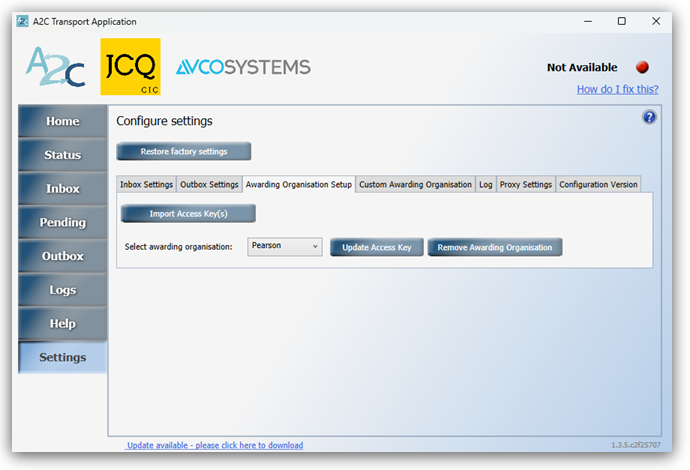
    • Select Settings → Awarding Organisation Setup
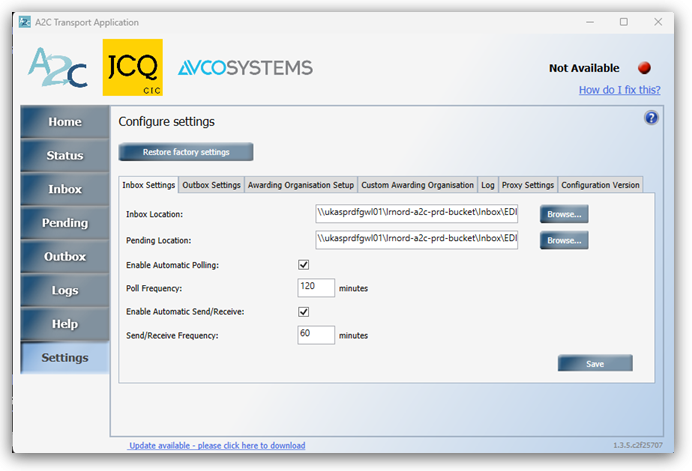
 

    • Choose Pearson
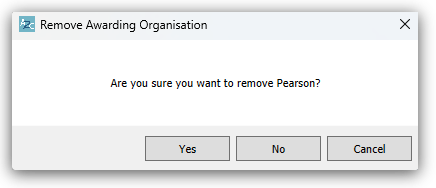
    • Select Remove Awarding Organisation and confirm Yes
Step 2: Download the key from Edexcel Online

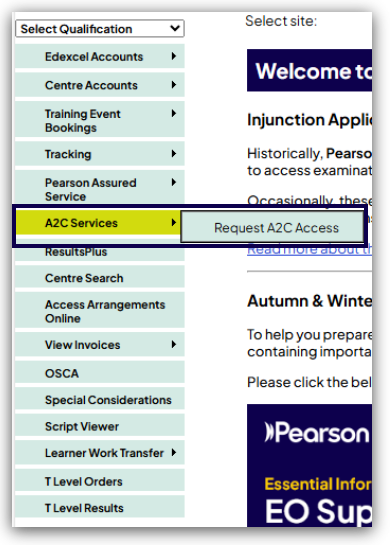
    • Log in to Edexcel Online and select A2C Services:
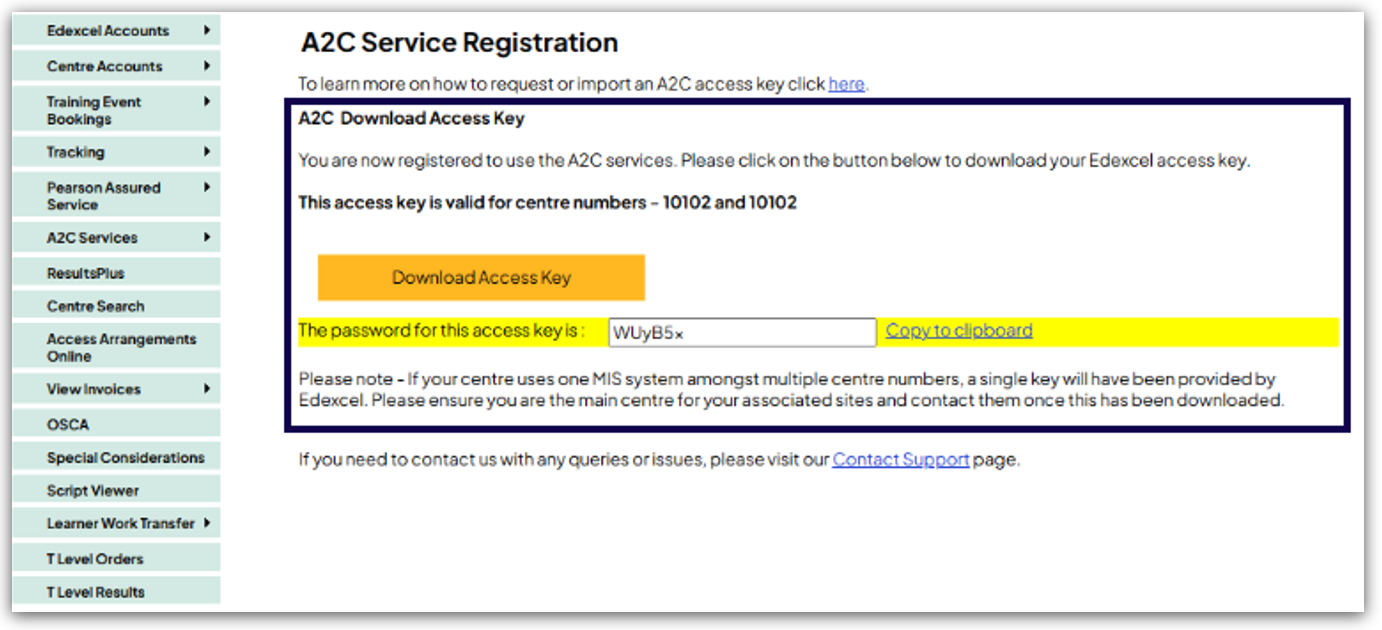
    • Locate the yellow box showing the access key
    • Copy the password shown
    • Select Download Access Key and choose Open:
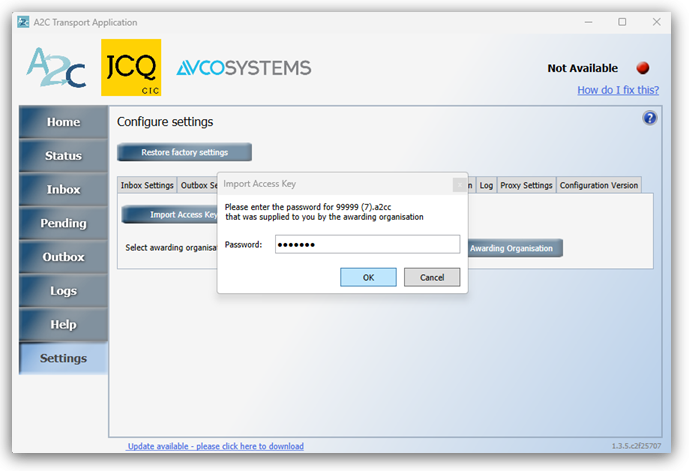
Step 3: Import the key into A2C

    • Paste the password when prompted
    • Select OK

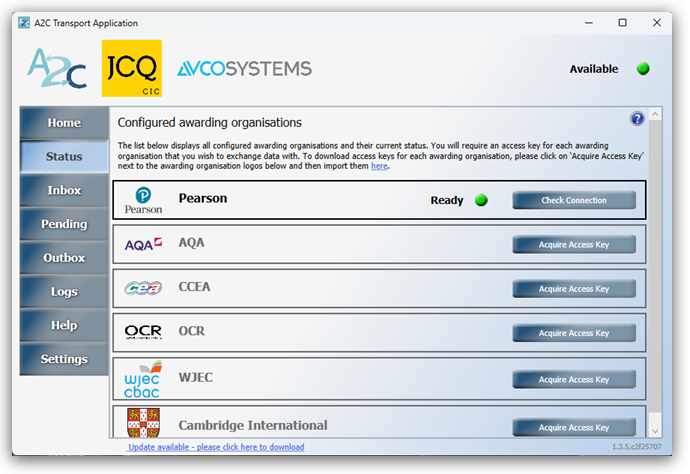
Step 4: Check the status

    • Open the Status screen in A2C
    • Confirm the status shows Ready with a green indicator
    • Select Send/Receive
    • Multi‑site reminder

If your sites are linked, A2C will only work once every site has completed this process.

You are finished when:

  • Pearson shows Ready in A2C
  • The status indicator is green
  • Send/Receive completes without errors

For further support on A2C/EDI, please see A2C & EDI/Basedata Information And Support.

Please contact us if you have any issues when requesting access keys from EOL. 

Please contact us if you have successfully replaced the access key and still have a red or amber connection to Pearson.

Related Articles:
Pearson Support Portal: Creating An Account
Pearson Support Portal (Staff at Centres & Associates): Creating A Case Record

Back to Results, Post-Results & Appeals index page.


Detailed Instructions

N/A


Powered by