A2C Access Key - Quick Important Guide - Click to expand
This quick guide shows how to import an A2C access key from Edexcel Online (EOL) into A2C. Use this guide when you have a new key or have been asked to re‑import your existing key.
Before you start:
- You can log in to Edexcel Online
- A2C is installed on the computer you are using
- If you have more than one site, each site must complete these steps
Step 1: Remove the old key in A2C
-
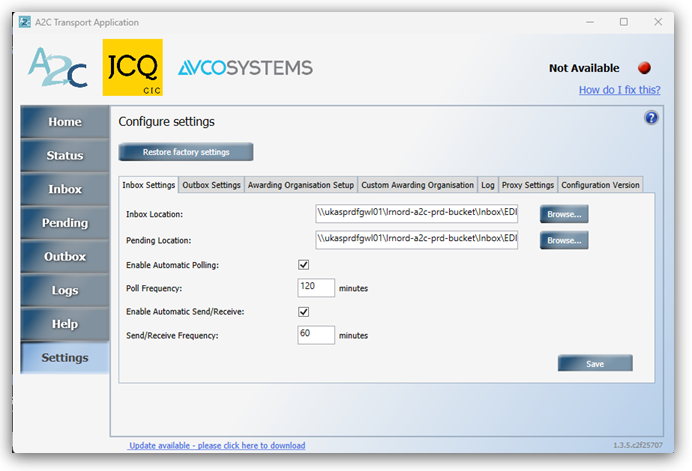
- Open A2C
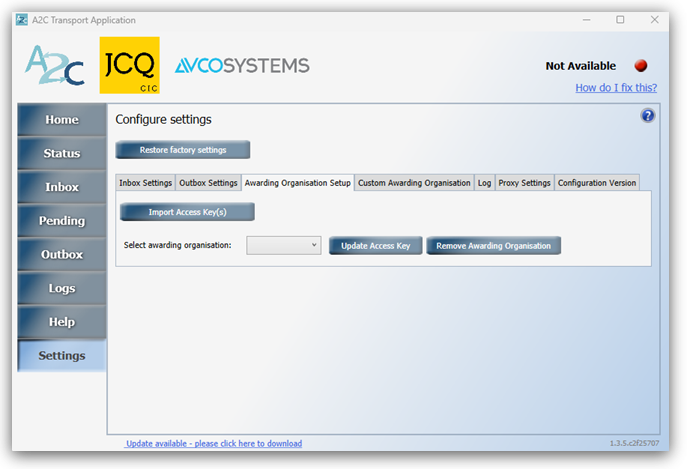
- Select Settings → Awarding Organisation Setup
-
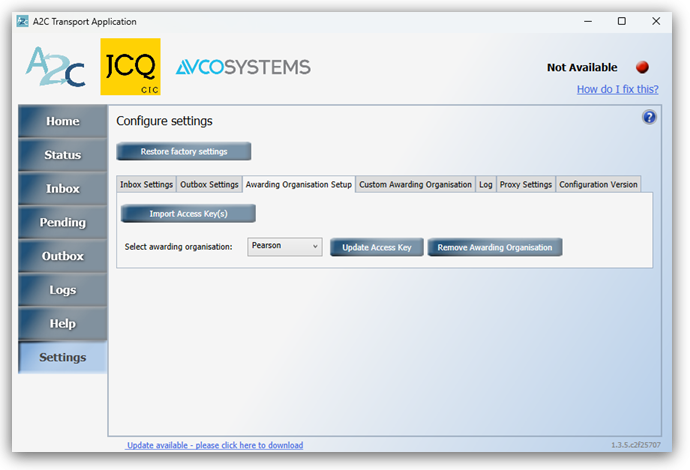
- Choose Pearson
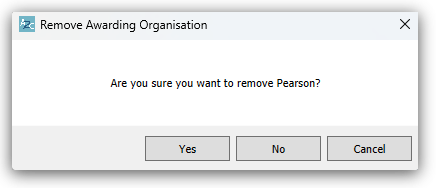
- Select Remove Awarding Organisation and confirm Yes
Step 2: Download the key from Edexcel Online
-
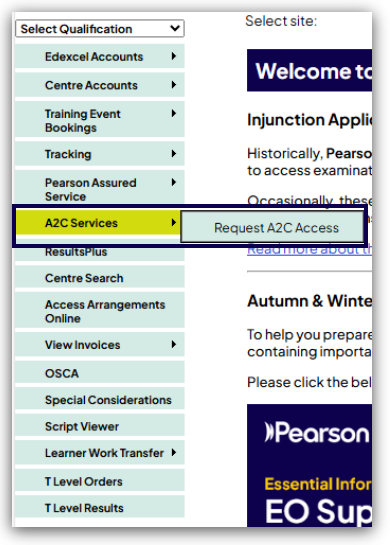
- Log in to Edexcel Online and select A2C Services:
-
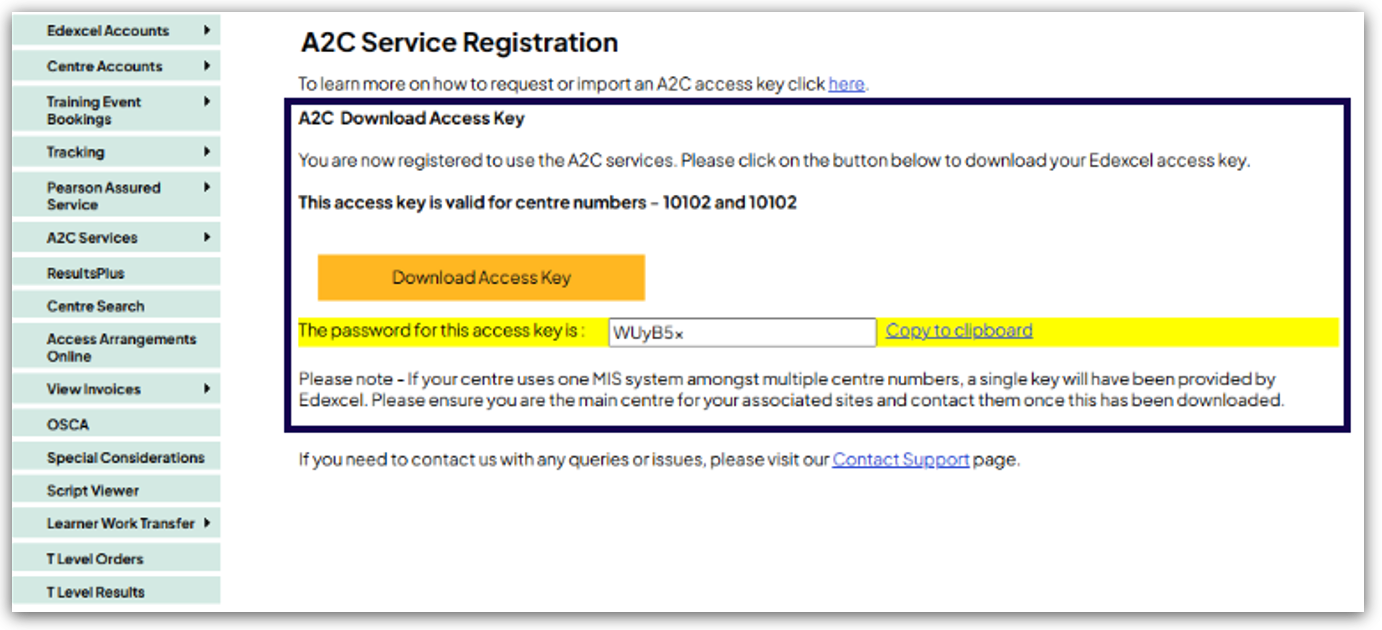
- Locate the yellow box showing the access key
- Copy the password shown
- Select Download Access Key and choose Open:
Step 3: Import the key into A2C
-
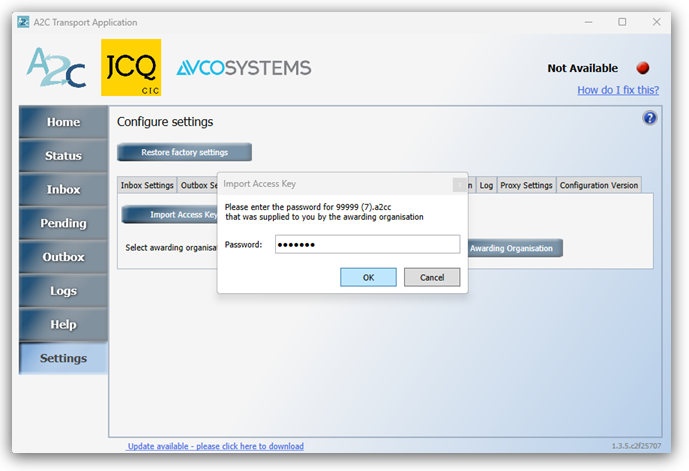
- Paste the password when prompted
- Select OK
Step 4: Check the status
-
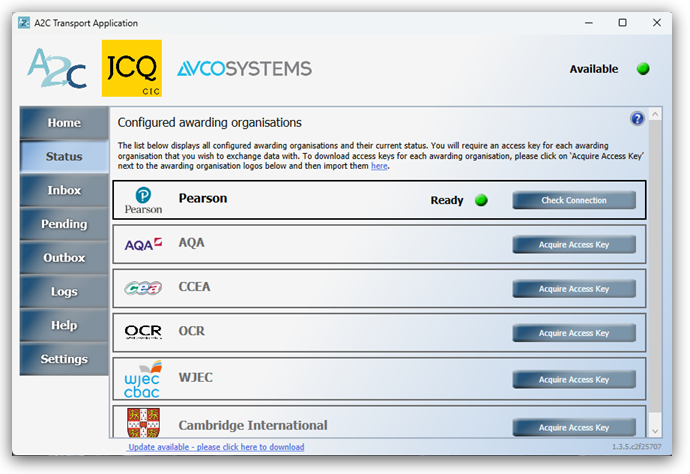
- Open the Status screen in A2C
- Confirm the status shows Ready with a green indicator
- Select Send/Receive
- Multi‑site reminder
If your sites are linked, A2C will only work once every site has completed this process.
You are finished when:
- Pearson shows Ready in A2C
- The status indicator is green
- Send/Receive completes without errors


